How to unlock the maximum TGP of your ROG gaming laptop in Armoury Crate's Manual Mode
When playing on your ROG gaming laptop, there'll come times when you need every last drop of juice your machine can offer. And though Turbo Mode in Armoury Crate will get you close to the ceiling, it may not actually max out your device. If you want to push your laptop GPU's Total Graphics Power (TGP) and your CPU's wattage all the way, certain models will require you to open up Manual Mode in Armoury Crate to get there. Here's how to unlock everything your laptop has to give.
Key points: Turbo mode gives you strong performance while respecting comfortable noise and thermal limits, but on certain models, it stops short of your laptop's true power ceiling. Manual Mode in Armoury Crate is how you max out your machine.
- Manual Mode hands you direct control over CPU wattage, GPU TGP, and fan curves, letting you push them to their maximum.
- Getting there means setting fan curves to 100% and TGP to its max on both CPU and GPU, while leaving Base Clock Offset, Memory Clock Offset, and Dynamic Boost at their defaults for system stability.
- Your laptop needs to be plugged into its original power adapter to reach Manual Mode's top wattage settings.
Armoury Crate Turbo Mode vs Manual Mode
Turbo Mode is built to deliver a lot of power while still respecting the noise and thermal targets we set to keep the experience optimal for most players. It's tuned to be the best balance of performance, heat, and fan noise for heavyweight gaming. On some machines, that means max performance, but as the power of the latest chips has climbed higher and higher, that’s changed.
But we know many of you still want maximum output, full stop, to see what your machine can really do. That's what Manual Mode is for. It hands you direct control over CPU wattage, GPU TGP, and fan curves, so you can push your laptop's silicon as far as it'll go. Whether you need the extra juice for insane game mods, a uniquely demanding program, or something else entirely, here's how you can harness the full power built into your device.
How to max out your ROG laptop's TGP in Armoury Crate with Manual Mode
Getting into Manual Mode only takes a few steps. For visual illustration, we'll show what these steps look like when tinkering with Armoury Crate on an ROG Zephyrus Duo, but these instructions are applicable across many ROG laptops with discrete GPUs, so follow along with confidence.
- Open Armoury Crate.
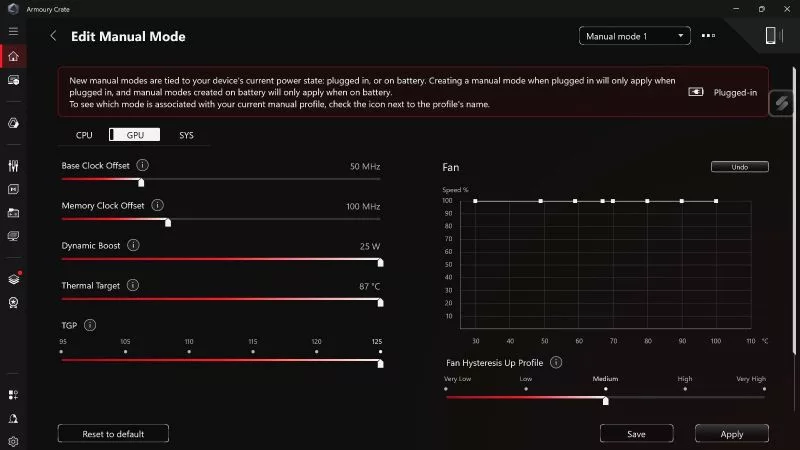
- On the main screen, find the Operating Mode section at the bottom and click Edit Manual Mode to open its settings.
- Make sure your laptop's power adapter is properly plugged in. You’ll need the one that came with your laptop — not a third-party USB Type-C charger. Manual Mode's top wattage settings need that full power behind them.

With Manual Mode open, you'll configure your CPU and GPU separately.
For the CPU:
- Click the CPU tab on the Manual Mode page.
- Set your fan speed curve to 100% across the whole graph.
- Click Apply to save it.
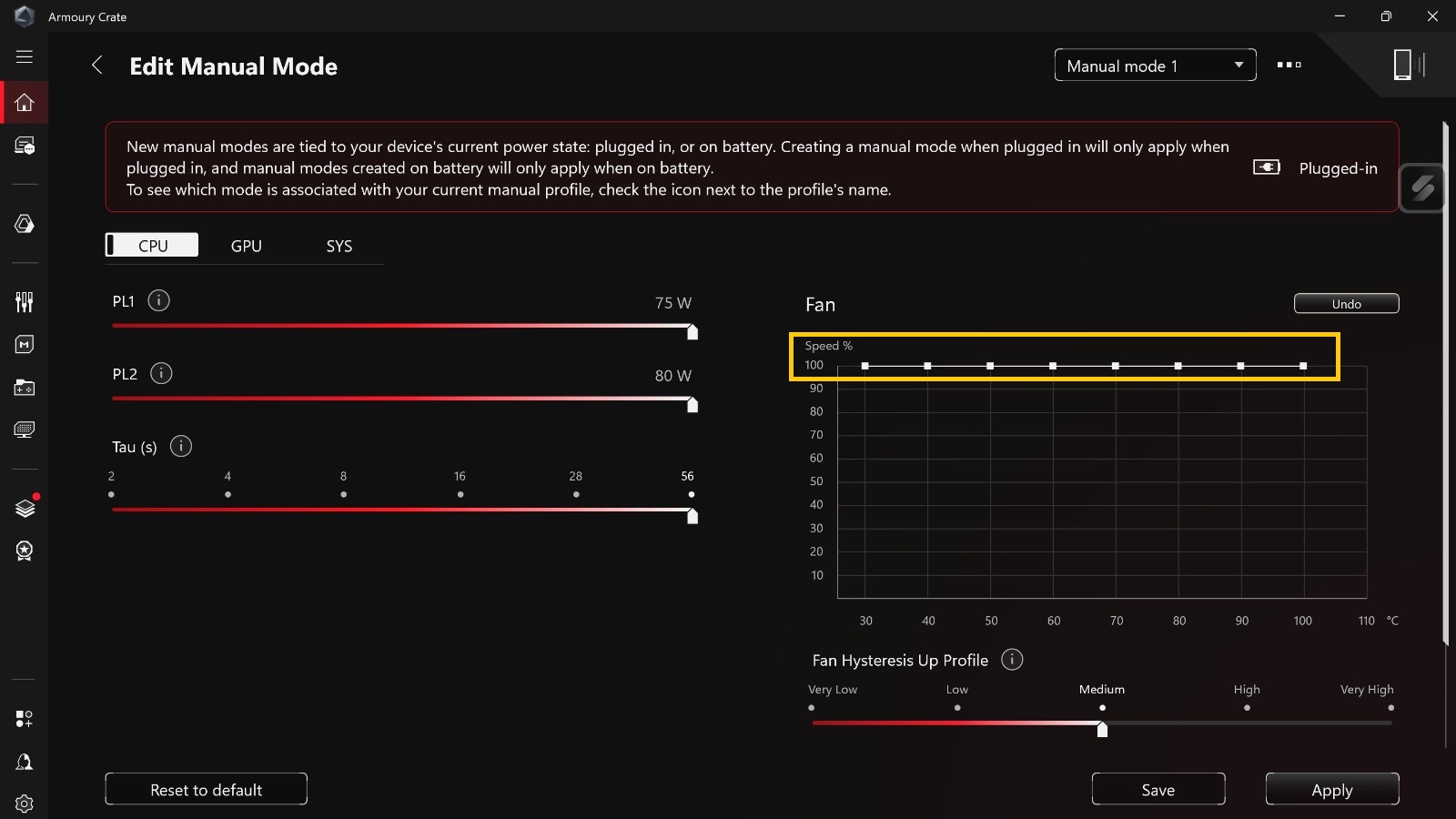
To adjust your GPU wattage and fan settings:
- Click the GPU tab on the Manual Mode page.
- Set TGP to its maximum available value.
- Set your fan speed curve to 100% across the whole graph.
- Leave Dynamic Boost wattage at its default maximum.
- Leave Base Clock Offset and Memory Clock Offset at their default values. Pushing these higher can squeeze out more performance, but it also opens the door to system instability. You can return to this if you want to later on.
- Click Apply once everything's set.

Lastly, before you start testing your laptop's Manual Mode performance, double-check the following:
- Every value in your Manual Mode profile is fully configured.
- You've clicked Apply to save your settings.
And that's it. Your CPU and GPU are now both running at their absolute ceiling.
Make the most of your ROG laptop's Operating Modes
There you have it: while Turbo Mode optimizes for power while still considering comfortable heat and noise balance, Manual Mode gives you the controls and lets you push your CPU wattage and GPU TGP as hard as is safely possible. Which of these modes you use depends on whether you're after an ROG-tuned experience or an unrestrained one.
That goes for all our Operating Modes. If you want to optimize for low noise output, we offer a dedicated Silent Mode that delivers one-click quiet convenience — but maybe you want to use Manual Mode to tune those silent parameters to your specific use-case. Check out our breakdown of Silent, Performance, Turbo, and Windows Modes to learn how they all perform.
FAQ
Will running Manual Mode at max settings make my laptop louder?
Yes. Maxing out CPU and GPU wattage calls for setting your fan curves to 100% on both, so expect more fan noise than with Turbo or Performance mode.
Should I increase the Base Clock Offset or Memory Clock Offset for more performance?
When you first start tweaking with Manual Mode, it’s best to leave your clock speeds at their default values. Then, after you’ve confirmed everything works okay, you can push them higher for extra performance — however, this raises the risk of system instability, so be sure to follow a good overclocking guide and test for stability along the way..
Do I need to change the Dynamic Boost wattage setting?
No. Leave it at its default maximum. The wattage increase you're after comes from maxing out CPU TDP and GPU TGP, not from adjusting Dynamic Boost.
Does my laptop need to be plugged in to use Manual Mode's maximum settings?
Yes. Manual Mode's top wattage settings draw on power your battery alone can't supply, so your laptop's power adapter needs to be properly connected. Make sure you’re using the charger that came with your laptop, rather than charging over USB-C (which is limited in the wattage it can provide.)
Can I switch back to Turbo or another mode after using Manual Mode?
Yes. Armoury Crate's operating modes aren't locked in. Switch back to Turbo, Performance, Silent, or Windows Mode anytime a different balance of performance and noise suits what you're doing.
Author
Popular Posts
How to adjust your laptop's P-Cores and E-Cores for better performance and battery life
The ROG Strix OLED XG259QWPG Ace is a tournament-ready OLED designed for esports pros
How to Cleanly Uninstall and Reinstall Armoury Crate
New 24.5-inch ROG monitors bring OLED panel tech to the esports arena

The ROG XREAL R1 gaming glasses let you game anywhere on a 171-inch 240Hz virtual screen
LATEST ARTICLES
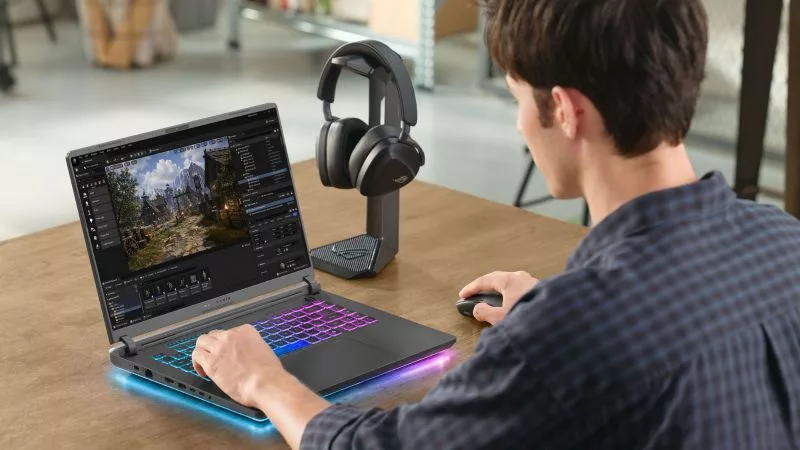
Best ROG gaming laptops by budget: entry, mid-range & flagship picks
With so many ROG gaming laptop choices, it's easy to find a machine that fits your budget and best serves the way you play.
How to unlock the maximum TGP of your ROG gaming laptop in Armoury Crate's Manual Mode
If you want to push your laptop GPU's Total Graphics Power (TGP) and CPU wattage to its maximum, Manual Mode in Armoury Crate will get you there.
How to configure your ROG XBOX Ally X20's OLED display for the best HDR picture quality
Wondering how to set up HDR on your ROG Xbox Ally X20? Here's how to get the best picture from its OLED display, plus Auto HDR and OLED Care tips.