How to Get to the Windows Desktop on the ROG Xbox Ally and ROG Xbox Ally X
The ROG Xbox Ally and ROG Xbox Ally X bring together the best of PC gaming and Xbox. When you boot up your handheld, you’ll be greeted with a full-screen Xbox experience, seamlessly bringing your library of games into one controller-navigable interface so you can get straight to playing. But when you need it, you also have the full flexibility of Windows 11 underneath.
Some people may never need to drop into the Windows desktop. You can do an awful lot without ever leaving the full screen experience: you can access other game launchers, access the Windows Settings app to tweak different options, and more. If you have other apps you want to run, like Discord or Spotify, you can even add them to Armoury Crate’s library view for easy access from the full screen experience.
That said, we know many users are comfortable on the Windows desktop, and it may offer a more powerful interface for advanced tasks like modding games, or playing retro and indie titles not available in traditional launchers.
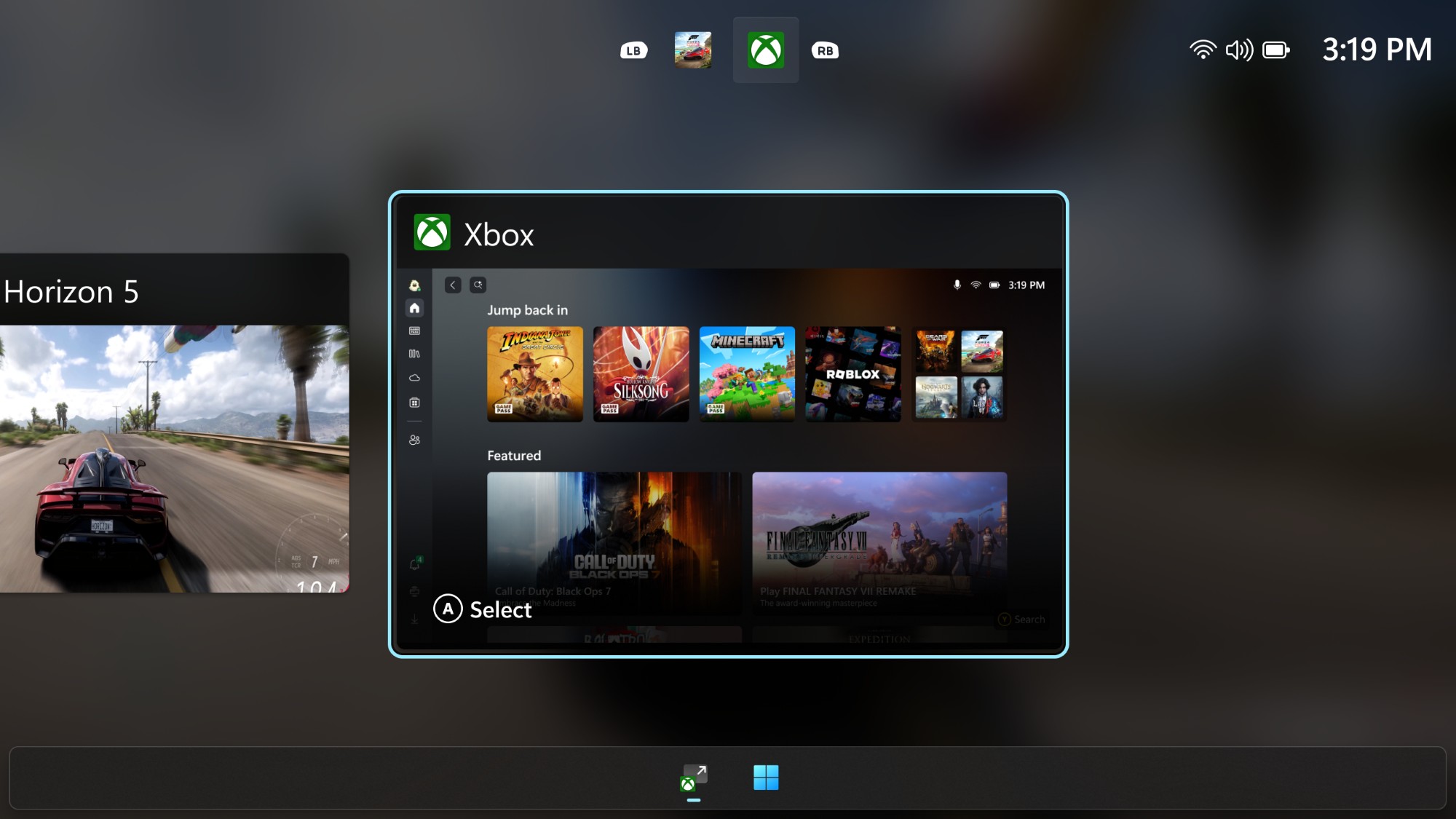
To enter the Windows desktop, swipe up from the bottom of your screen to enter the Task Switcher. Along the bottom, you’ll see a button labeled Windows Desktop – tap it, and you’ll enter the full world of Windows 11, complete with the taskbar, Start Menu, and File Explorer you know and love. You can browse the file system, open a browser to download mods, and so much more – giving you the opportunity to make your device truly yours.
If you’d like to re-enter the full screen experience, just open the Xbox app and click the “Xbox Full Screen” button in the upper-right corner of the Xbox app. To re-enter without background processes, you'll need to restart your machine, or you can re-enter the full screen experience without these optimizations if you choose.
| Model | Type | Where to Buy (US) | Where to Buy (CA) |
|---|---|---|---|
| ROG Xbox Ally | Handheld PC | ASUS Microsoft Best Buy |
ASUS Microsoft Best Buy |
| ROG Xbox Ally X | Handheld PC | ASUS Microsoft Best Buy |
ASUS Microsoft Best Buy |
| ROG Ally X | Handheld PC | ASUS Best Buy |
ASUS Best Buy |
| ROG Ally (Ryzen Z1 Extreme) | Handheld PC | ASUS Best Buy |
ASUS Best Buy Newegg Amazon |
Author
Popular Post
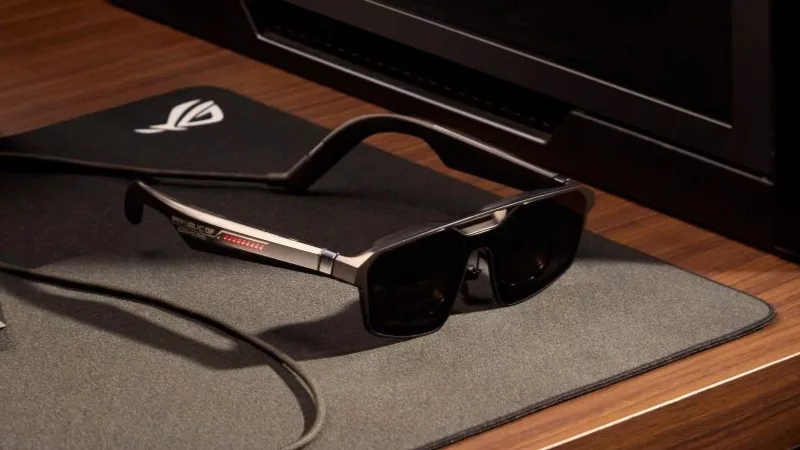
Six cool things to try after unboxing your ROG XREAL R1 Gaming AR Glasses

The ROG XREAL R1 gaming glasses let you game anywhere on a 171-inch 240Hz virtual screen

Innovate. Perform. Dominate: Celebrate 20 years of gaming with the ROG Edition 20 lineup of PC components and gear
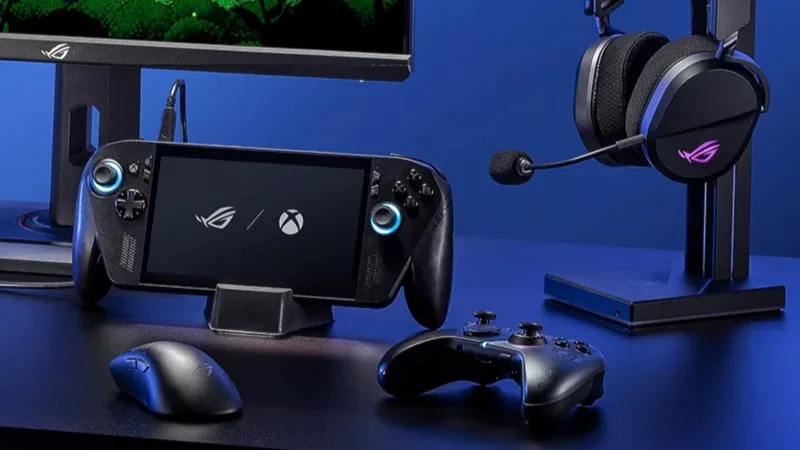
The best accessories to supercharge your ROG Xbox Ally
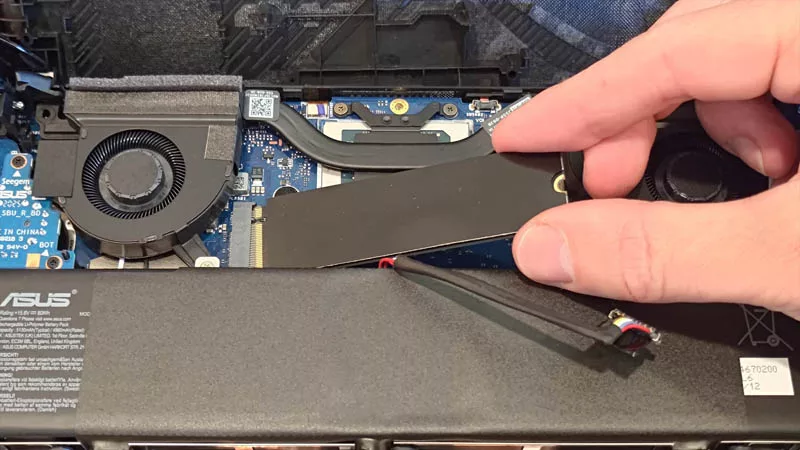
How to upgrade the SSD and reinstall Windows on your ROG Ally, ROG Xbox Ally, or ROG Xbox Ally X
LATEST ARTICLES
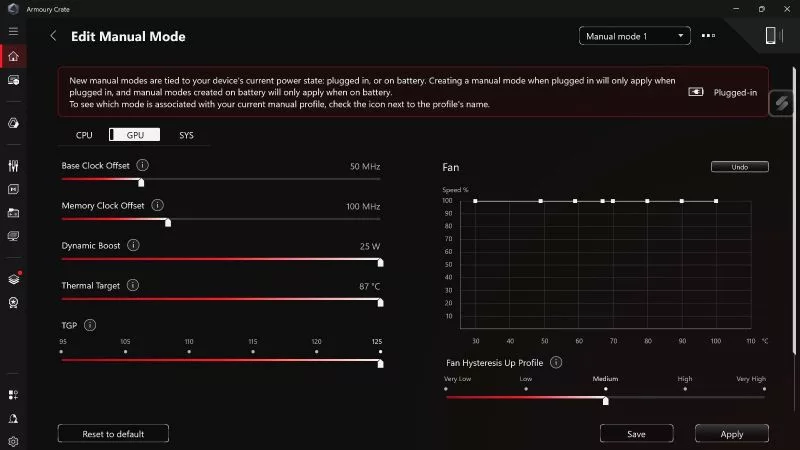
How to unlock the maximum TGP of your ROG gaming laptop in Armoury Crate's Manual Mode
If you want to push your laptop GPU's Total Graphics Power (TGP) and CPU wattage to its maximum, Manual Mode in Armoury Crate will get you there.
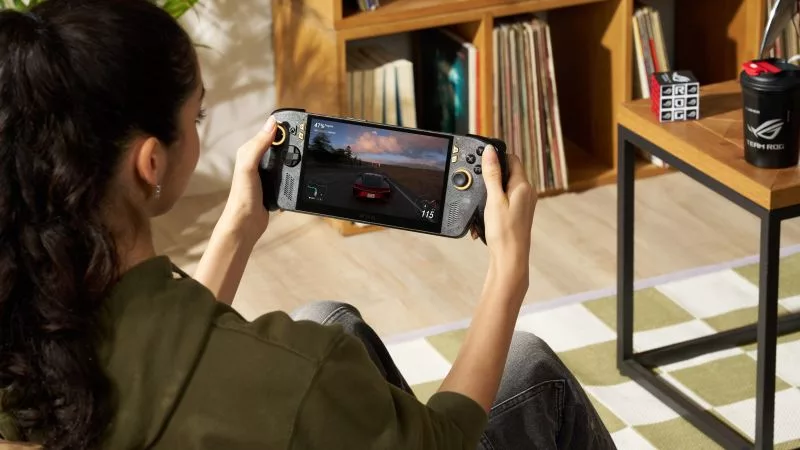
How to configure your ROG XBOX Ally X20's OLED display for the best HDR picture quality
Wondering how to set up HDR on your ROG Xbox Ally X20? Here's how to get the best picture from its OLED display, plus Auto HDR and OLED Care tips.
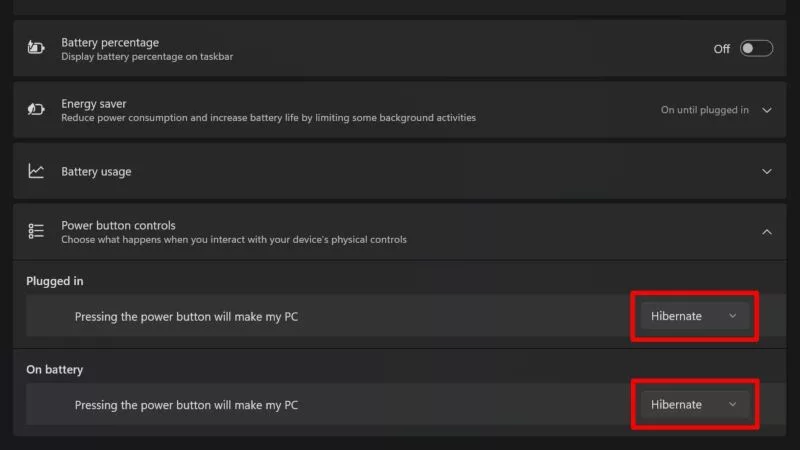
Sleep vs. Hibernate on the ROG XBOX Ally: battery life, game resume, and wake speed
By default, your ROG XBOX Ally will go to sleep when you press the power button. But you can also put it into full hibernation — here's how.