How to Adjust the ROG Flow Z13's VRAM Allocation
The 2025 ROG Flow Z13 features a unified memory design, allowing a single pool of system memory (RAM) to be shared between the CPU and GPU. Unlike laptops with dedicated graphics cards, which have their own video memory (VRAM) that cannot be changed, this gives you much more control over your system, allowing you to customize the amount of VRAM available for the task at hand.
This is useful in a few different scenarios:
- You want to increase VRAM to use higher-resolution textures in modern games
- You want to increase VRAM to reduce stuttering in certain VRAM-heavy games
- You’re getting an error on launch stating that a game won’t start due to insufficient VRAM
- You want to lower the VRAM allocation to free up more system memory for other programs running in the background
To change the amount of VRAM on your system, open Armoury Crate and go to System Settings > Free up memory.
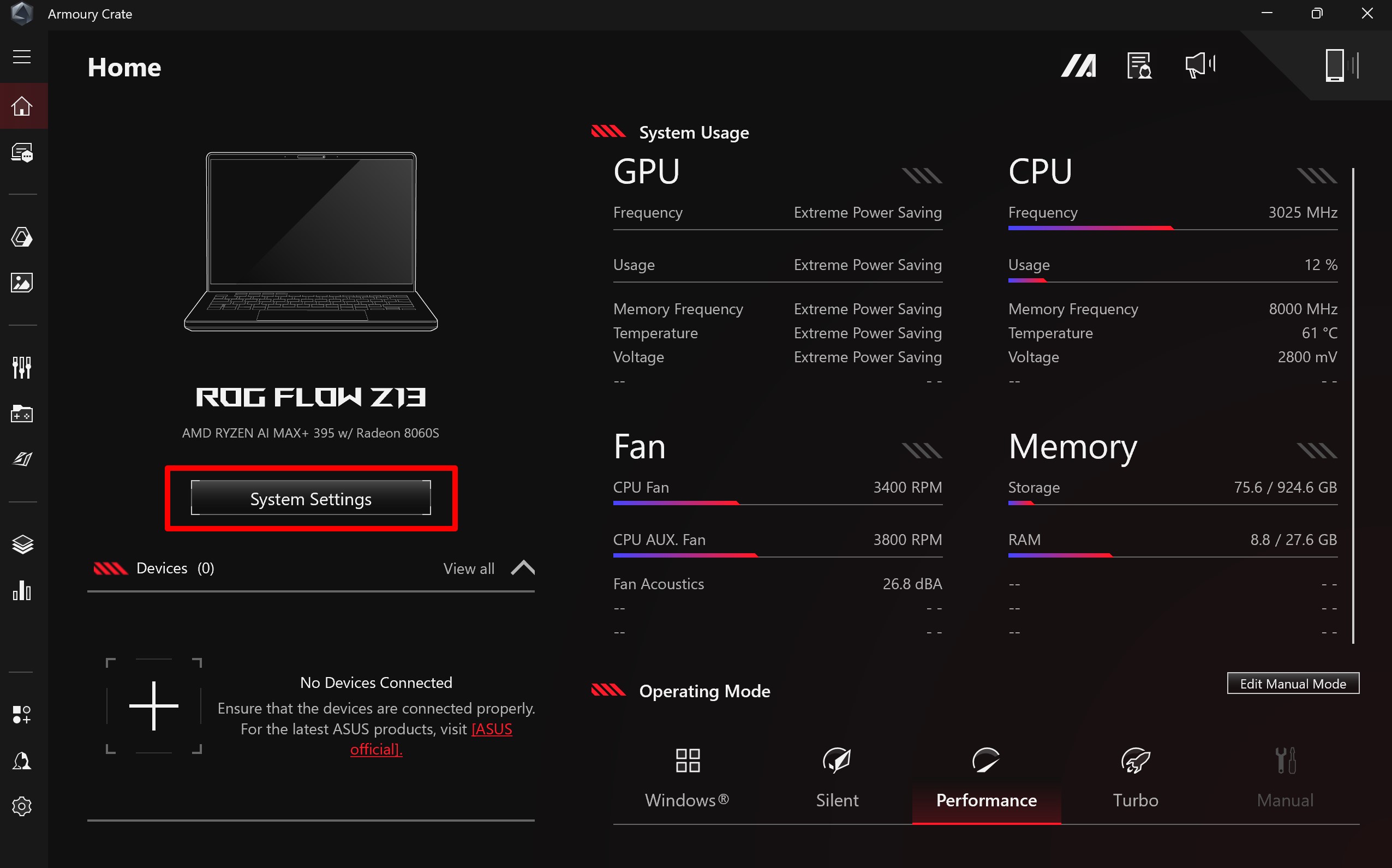
In the Free Up Memory tab, you will find a dropdown menu where you can adjust integrated GPU's memory allocation to your desired value.
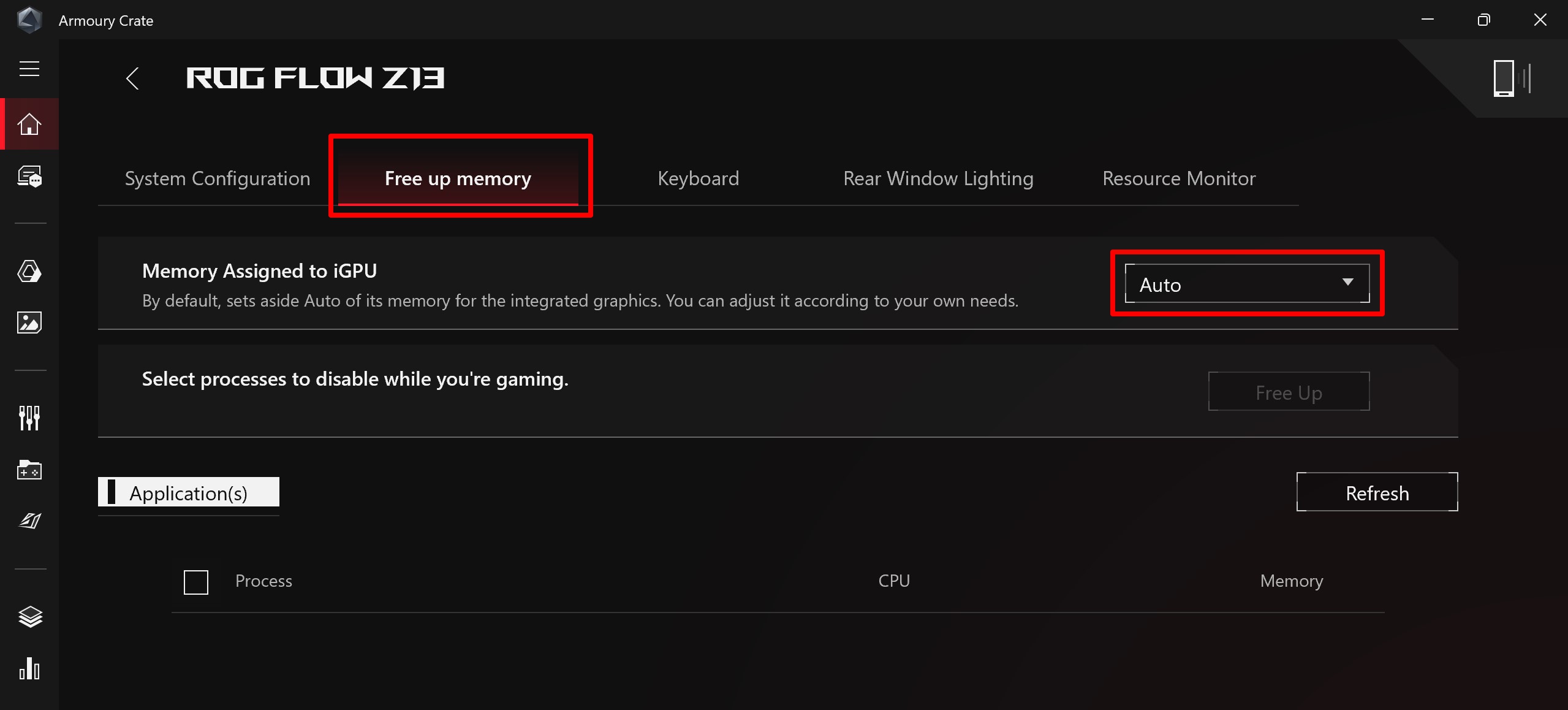
The default is 4GB, but you can decrease it to a minimum of 0.5GB and increase it to a maximum of 96GB (on the 128GB Flow Z13). Please refer to the table below for the values you can assign. You will need to reboot the system for the change to take effect, after which you can launch and play your games as expected.
| Total Memory Capacity (GB) | Default Value (GB) | Customizable Value (GB) |
|---|---|---|
| 32 | 4 | 0.5, 1, 2, 4, 8, 16, 24 |
| 64 | 4 | 0.5, 1, 2, 4, 8, 16, 32, 48 |
| 128 | 4 | 0.5, 1, 2, 4, 8, 16, 32, 64, 96 |
There is also an Auto setting if you would like the system to automatically assign VRAM capacity as needed. However, note that certain apps may not recognize this feature properly, and may display an error that says “Your system specs do not seem to match the minimum requirements for the game. Please check your hardware and GPU settings” or “Available graphic memory detected is below the required amount.” In this case, turning off Auto mode and allocating the desired amount of VRAM will allow the game to launch as normal.
Author
Popular Post
What GPU should you choose for your gaming laptop? RTX 5050 vs 5060 vs 5070 vs 5070 Ti vs 5080 vs 5090

Brighter, bolder, better: The ROG XBOX Ally X20 bundles a larger OLED display with AR gaming glasses

A new benchmark: the ROG Strix SCAR 18 rewrites the rules of performance
Six cool things to try after unboxing your ROG XREAL R1 Gaming AR Glasses
How the Neo Proximity Sensor on the latest ROG OLED monitors improves on its predecessors
LATEST ARTICLES
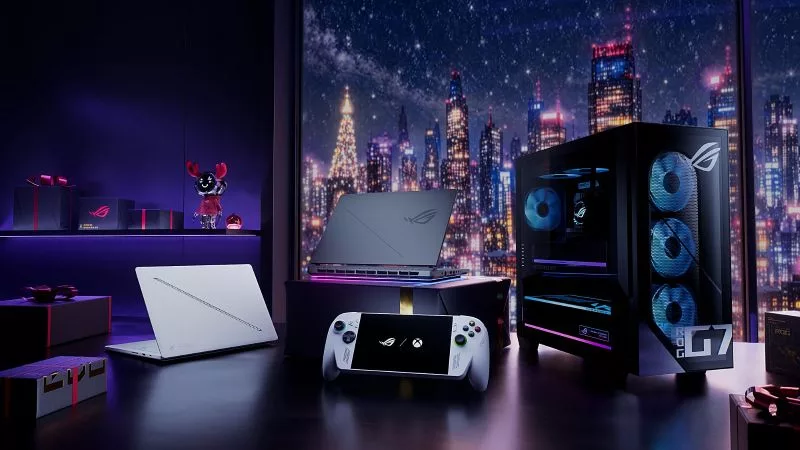
The ROG holiday gift guide: here’s what to get the gamer in your life this holiday season
If the gamer in your life has a wish list is full of hardware terms you've never heard of, don't worry — we’ve got the gear that’ll make them happy.
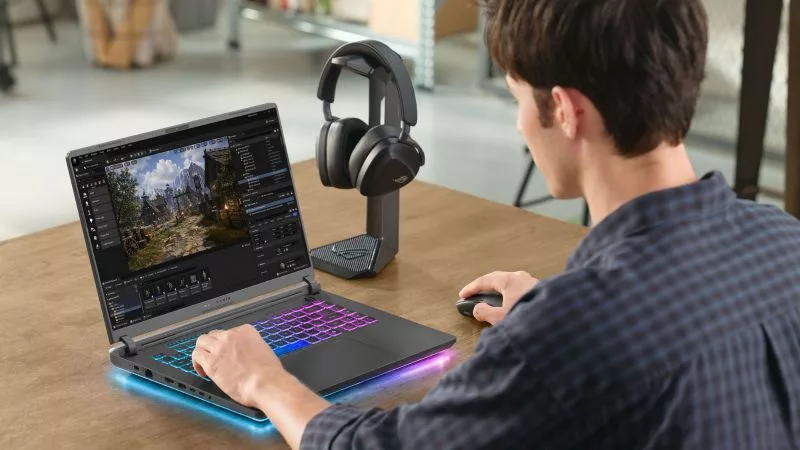
Best ROG gaming laptops by budget: entry, mid-range & flagship picks
With so many ROG gaming laptop choices, it's easy to find a machine that fits your budget and best serves the way you play.
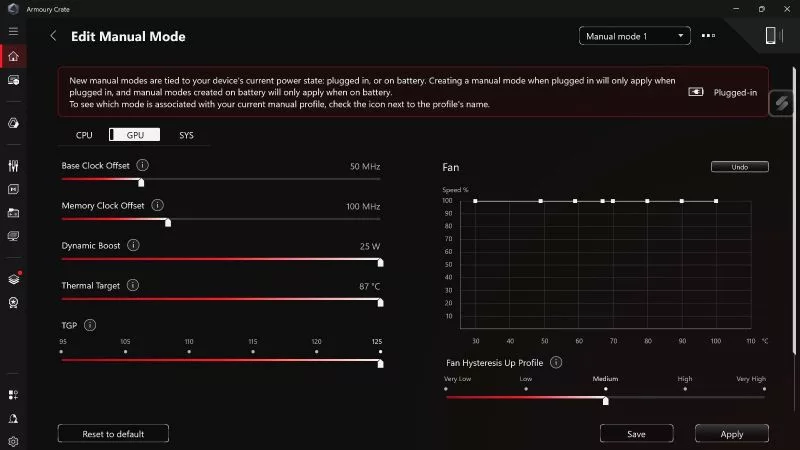
How to unlock the maximum TGP of your ROG gaming laptop in Armoury Crate's Manual Mode
If you want to push your laptop GPU's Total Graphics Power (TGP) and CPU wattage to its maximum, Manual Mode in Armoury Crate will get you there.