How to play games offline with the ROG Ally
The ROG Ally is designed to play all your games, wherever you go — even if you don’t have an internet connection. Whether you’re on the road, in the air, or trekking through the Rocky Mountains, here’s how to play your games offline with the ROG Ally.
This is part of our ultimate guide to the ROG Ally series of articles.
While many games and game launchers are designed to check in with their online servers periodically, many will allow you to play offline — usually with some precautions in place to prevent piracy. The process for setting up offline play is a bit different for each launcher, so you’ll see instructions for some of the most popular ones below. Note that this doesnt work with games that require an online connection to function (like online multiplayer games), and not all game modes may be available without Wi-Fi. If you’re unsure, check the system requirements of the game in question to see if it needs an always-on internet connection. Make sure your cloud games are synced before you leave for your trip, too.
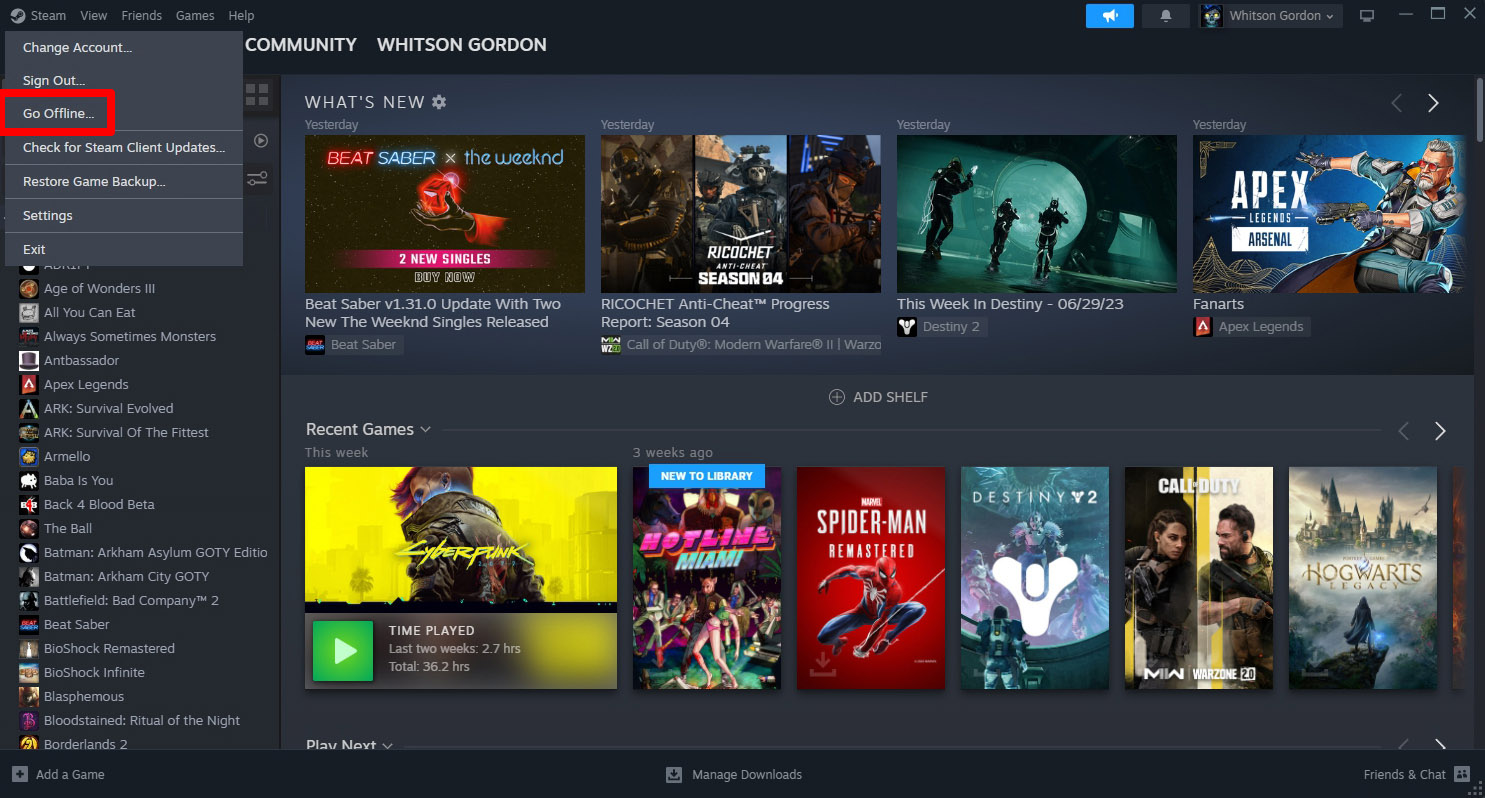
Steam: Steam has a built-in Offline Mode that allows you to play games when not connected to the internet. To use it, you just need to log into Steam online before your trip, checking the “Remember Me” box to ensure you stay logged in, and verify the game is all updated. When you go offline, Steam should give you the option to start it in Offline mode, at which point offline-friendly games will be playable. Note that you may need to connect to the internet every few weeks so Steam can “check in” with its servers for Offline Mode to continue working. You can read more about Steam’s offline mode here.
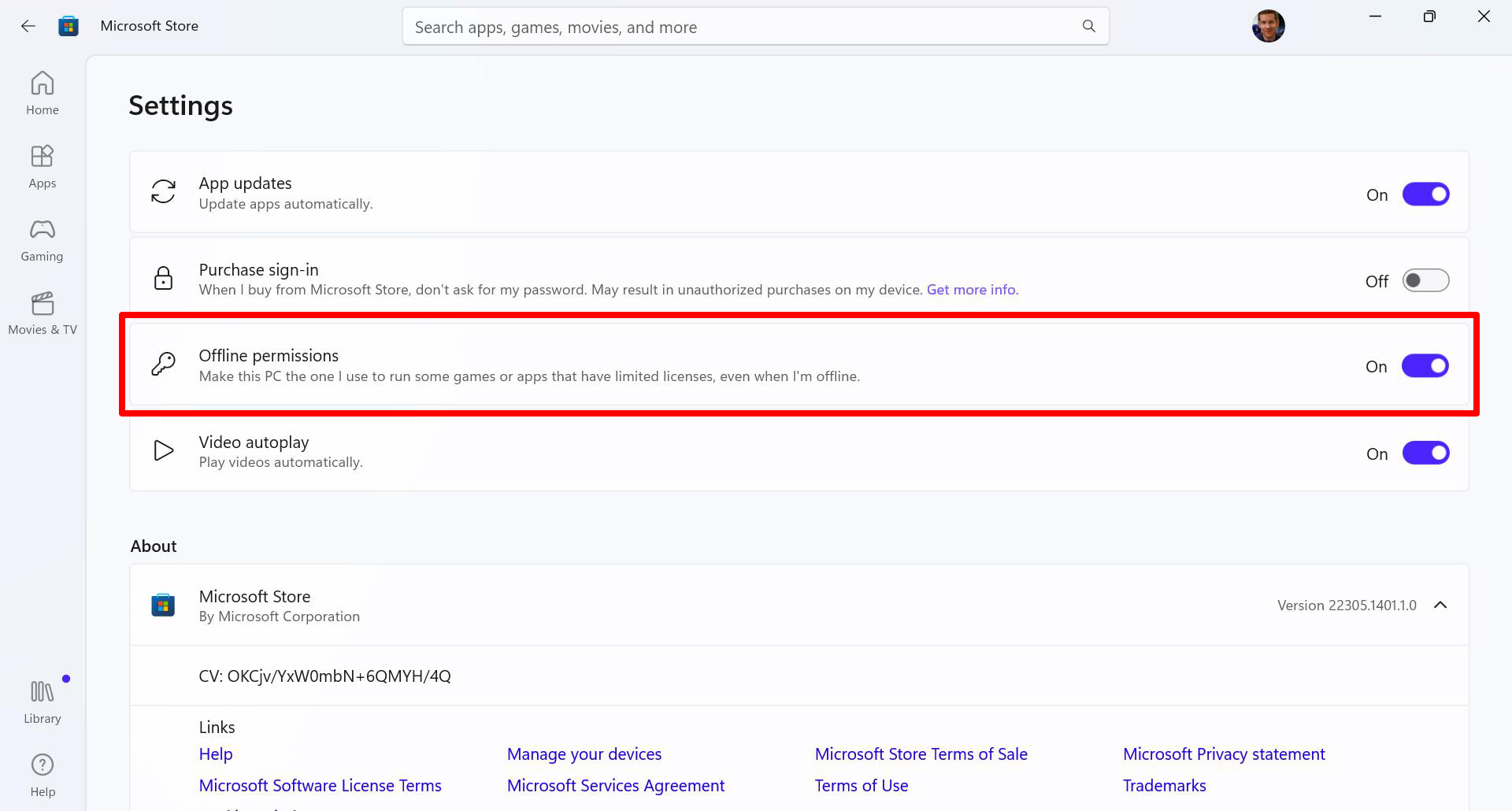
Xbox: If you’ve purchased a game from the Xbox or Microsoft Store, or you subscribe to Game Pass, you can play games offline on one of your logged in devices. While connected to the internet on your Ally, open the Microsoft Store app, click your profile picture in the upper right corner, and select Settings. Switch the Offline Permissions option On. Note that only one device per account is allowed to play games offline, and you can only change your designated offline device three times per year. After changing this setting, you’ll need to launch the game(s) in question at least once online before you’re able to launch them offline. You can read more about the Xbox app’s offline functionality here.
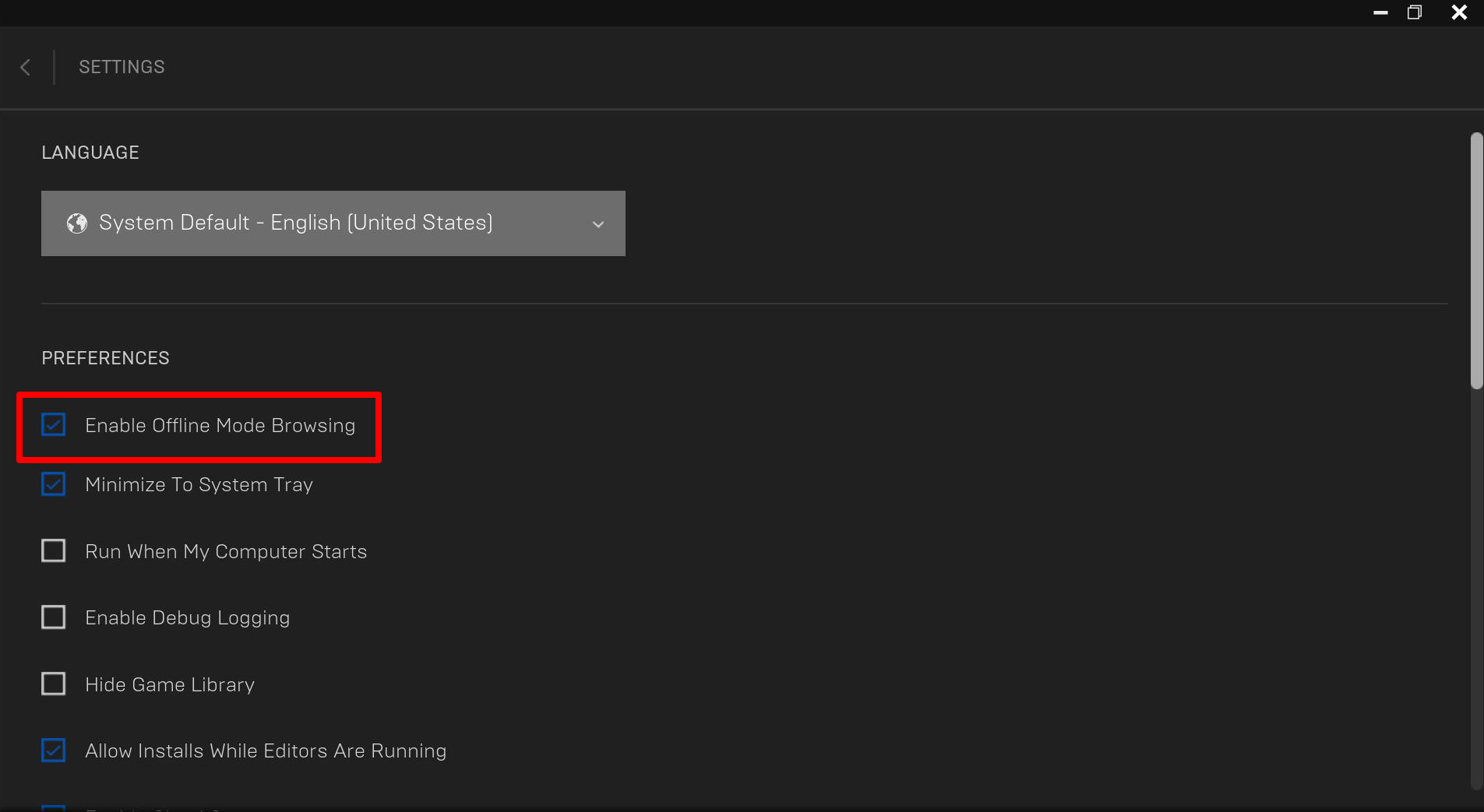
Epic Games: For titles purchased from Epic Games, you’ll need to enable Offline Mode before you disconnect from the internet. Open the Epic Games Launcher, click your profile picture in the upper right corner, and choose Settings. Check the Enable Offline Mode Browsing box, and the next time you go offline, you should be able to play your offline-ready games from Epic as usual. Read more about Epic Games’ Offline mode here.
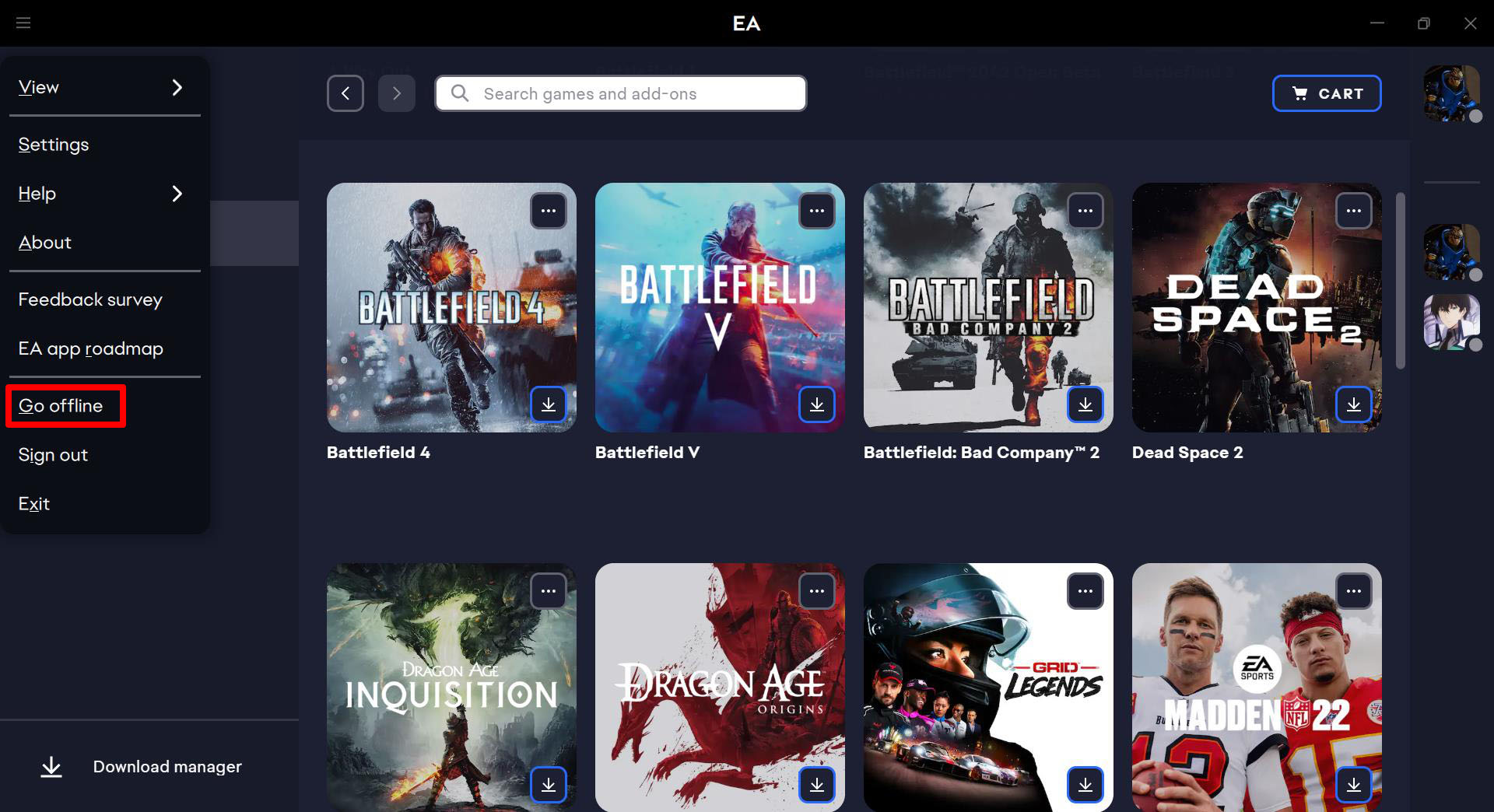
EA App: To use the EA App offline, make sure you’re logged into the app while connected, then click the menu button in the upper-left corner and select Go Offline. If you start the app without an internet connection, it should ask you if you’d like to continue in Offline mode (provided you’re already logged in).
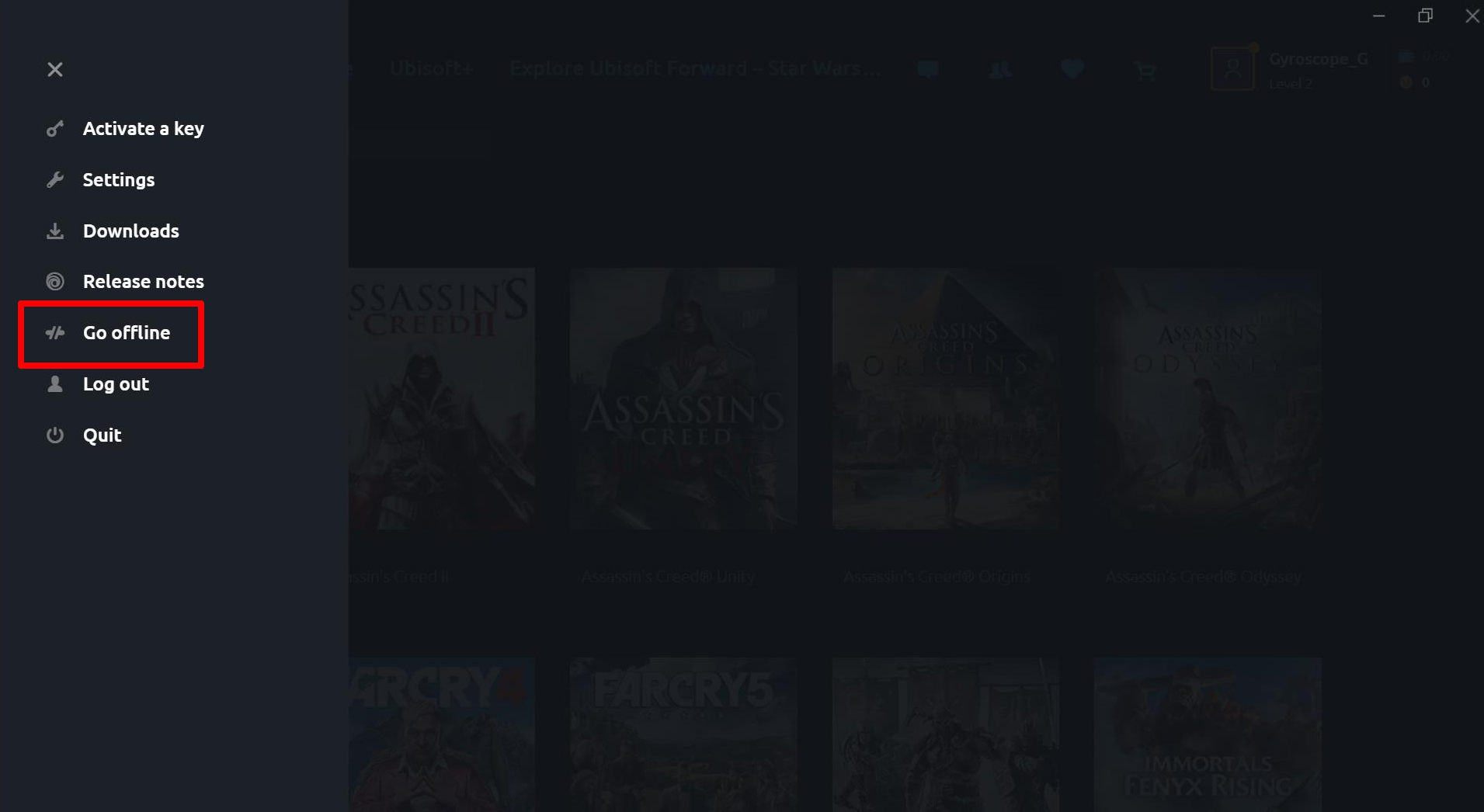
Ubisoft Connect: Ubisoft Connect should automatically launch in Offline Mode when you don’t have a connection, provided you logged into the app before disconnecting. To manually switch the app into Offline Mode, click the menu button in the upper left corner and click Go Offline. You can read more about Ubisoft Connect’s offline mode here.
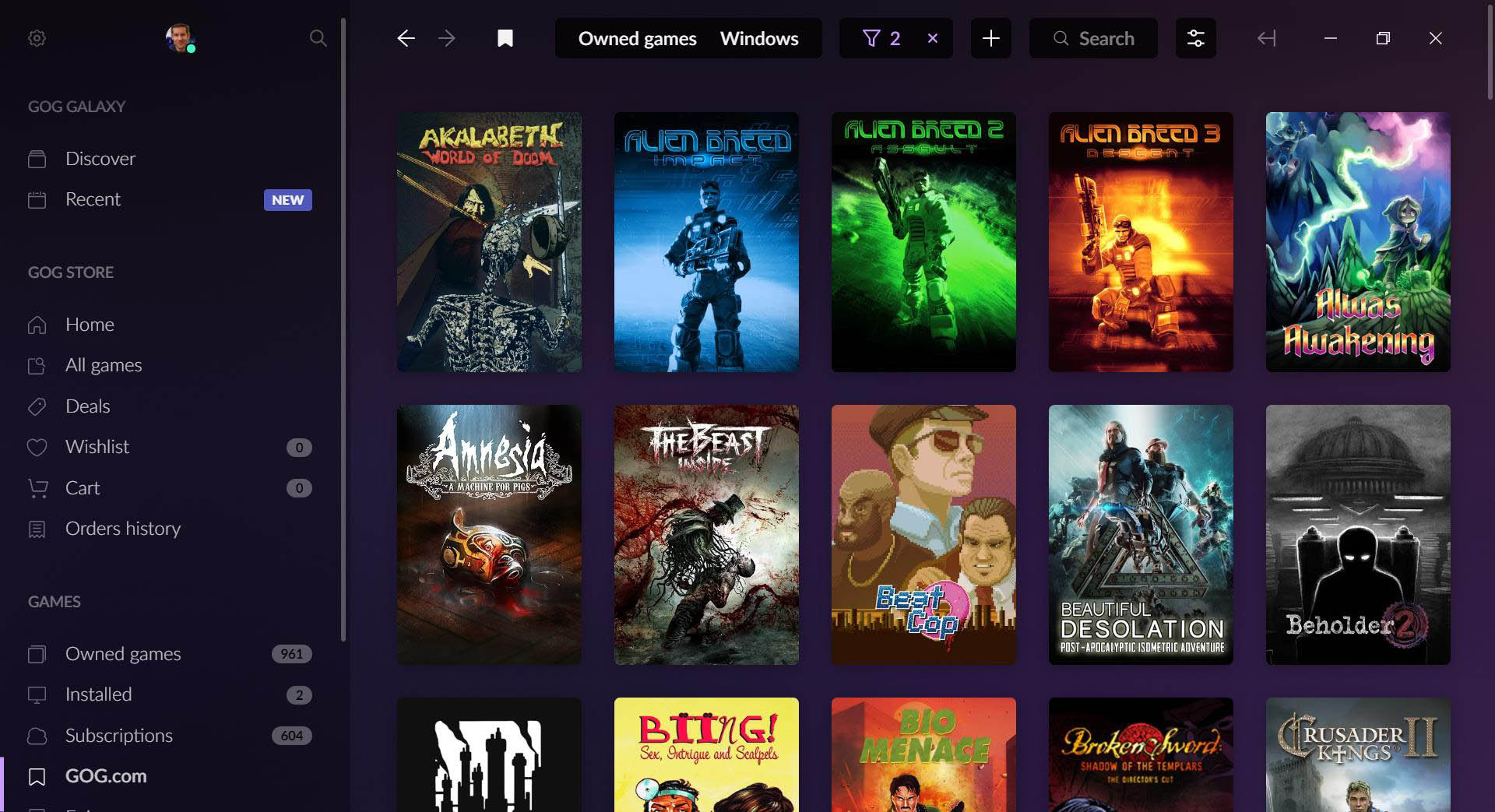
GOG Galaxy: Since GOG Galaxy is a DRM-free service, an internet connection is not required to authenticate your account with the server. You can start GOG Galaxy and launch a game as normal when offline, provided the game itself does not require an online connection to play.
If you have a launcher that isn’t listed here, look up instructions on how to play games offline for that launcher and the process should work the same on the Ally. For more tips and tricks, check out our full guide to the ROG Ally. And if you haven’t picked up your device yet, you can grab it from Best Buy at the links below.
| Model | Type | Where to Buy (US) | Where to Buy (CA) |
|---|---|---|---|
| ROG Ally (Ryzen Z1 Extreme) | Handheld | Best Buy | ASUS Best Buy |
| ROG Ally (Ryzen Z1) | Handheld | Best Buy | |
| XG Mobile (Radeon RX 6850M XT) | eGPU | ASUS Best Buy |
|
| XG Mobile (GeForce RTX 4090) | eGPU | ASUS EXcaliberPC |
ASUS Memory Express |
| ROG 65W Gaming Charger Dock | USB Hub | Best Buy | ASUS |
| Official ROG Ally Travel Case | Case | Best Buy | ASUS Best Buy |
Autor
Popular Post
Prepare for Tandem OLED splendor with these new ROG gaming monitors
Yes, OLED gaming monitors can work great in sunny rooms. Here’s what to look for
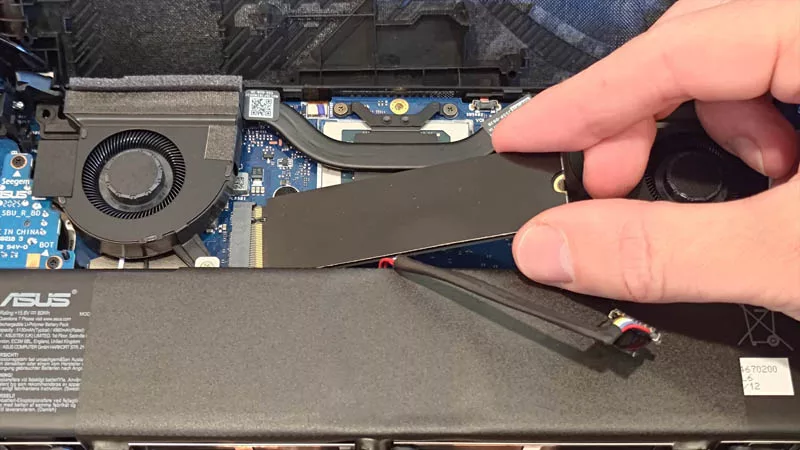
How to upgrade the SSD and reinstall Windows on your ROG Ally, ROG Xbox Ally, or ROG Xbox Ally X
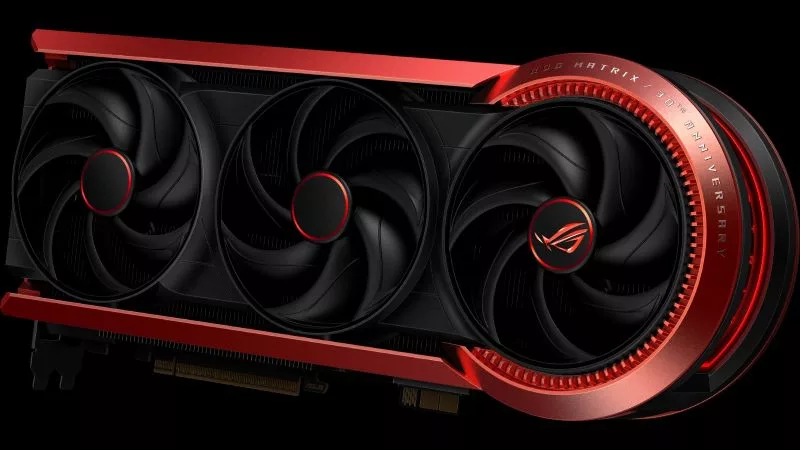
The ROG Matrix GeForce RTX 5090 celebrates 30 years of gaming innovation
Where to catch ROG at Gamescom 2025
Neueste Artikel
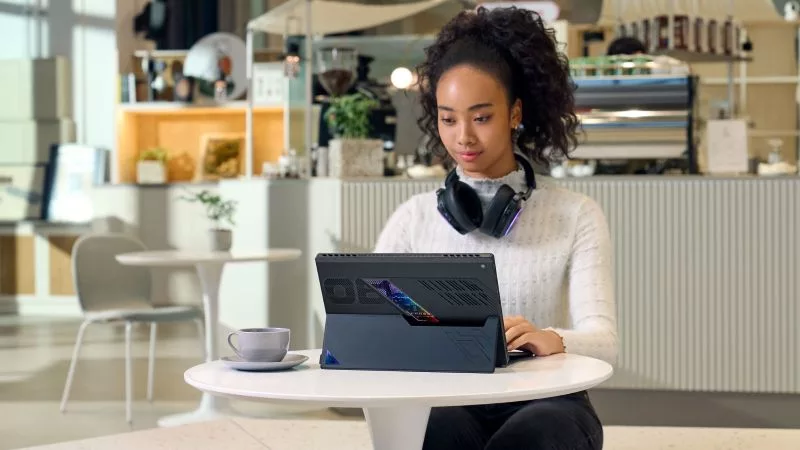
Level up your calls: ROG gear and tips to dominate Discord and Zoom alike
ROG headsets, laptops, and software give you the technology you need to effortlessly dominate virtual work meetings and gaming voice chats.

ROG Xbox Ally vs Gaming Laptop: which portable gaming device is right for you?
Both the ROG Xbox Ally and ROG gaming laptops have a lot to offer gamers, depending on what they're looking for.

Which ROG Xbox Ally to give the gamer in your life this holiday
The powerful, portable ROG Xbox Ally is the perfect gift for any gamer who wants to take their favorite games everywhere they go.
The best accessories to supercharge your ROG Xbox Ally
Here’s the must-have gear that’ll catapult your ROG Xbox Ally gaming to the next level.
15 tips & shortcuts to set up and optimize your ROG Ally or ROG Xbox Ally
So you’ve finally unboxed your brand new ROG Ally, and you're itching to get your game on. Here's what to do first.
How to boost gaming performance on the ROG Ally or ROG Xbox Ally
The ROG Ally is a true Full HD handheld ready to make your games look better than ever. Here's how to maximize its performance.