How to Install Games to an SD Card on the ROG Ally
The ROG Ally comes with 512GB of precious storage for you to bring all your favorite games on the go. But if you have a vast collection and like to hop around from game to game, you can expand your storage even further with a microSD card. Here’s how.
This is part of our ultimate guide to the ROG Ally series of articles.
While you can upgrade the SSD on your ROG Ally, it’s also equipped with a UHS-II microSD card slot, which means you can instantly slot in a high-performance microSD card to house even more games. Technically any microSD card will work, but the fastest cards available today will have the fastest load times — though they're only available in smaller capacities at this time. So you’ll have to decide whether you want a UHS-I card with lots of space, a UHS-II V90 card with the fastest possible read and write speeds, or something in between like a UHS-II V60 card. You can find microSD cards at Best Buy and other e-tailers and brick-and-mortar electronics stores.

Once you’ve got your card in-hand, insert it into the microSD slot of the ROG Ally, and you should see the drive appear in Windows’ File Explorer. For this example, I’m just using a small 32GB microSD card on which I can install a few extra indie games.
Use the touch screen to press and hold on the new volume, and choose “Format” from the dropdown list that appears. Give the volume a name, format it as NTFS, and click Start. This will erase all the data on the card, so make sure there isn’t anything important on it!
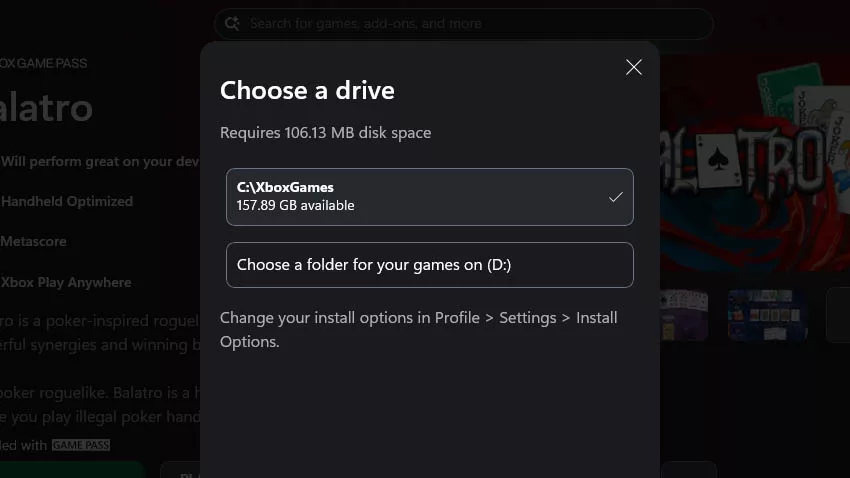
Now you can install games to the SD card just like you would any other. Different launchers have their own way of separating libraries between two drives, but here are instructions for a few of the most popular.

Steam: Head to Steam > Settings > Downloads > Steam Library Folders and click the plus sign along the top to add a new Steam Library Folder. Select your microSD volume from the dropdown list and click Add. Now, when you go to install a game, your new library will appear in the dropdown under “Choose Location for Install,” as shown above.
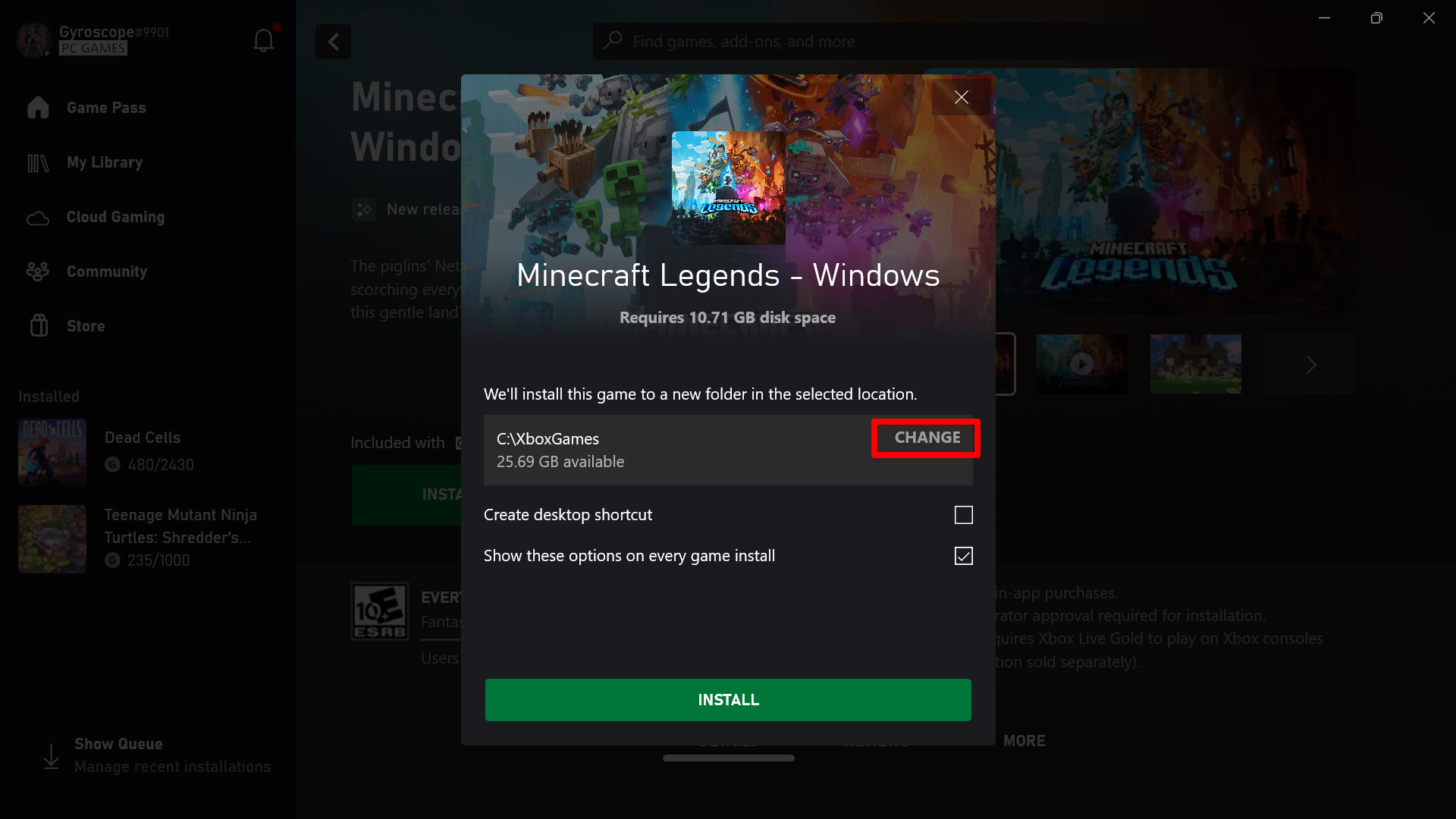
Xbox: When you begin the installation for a new Xbox game, you’ll be presented with a dialog that says “We’ll install this game to a new folder in the selected location.” Click the Change button under that dialog, select a folder on your SD card, and click Install.
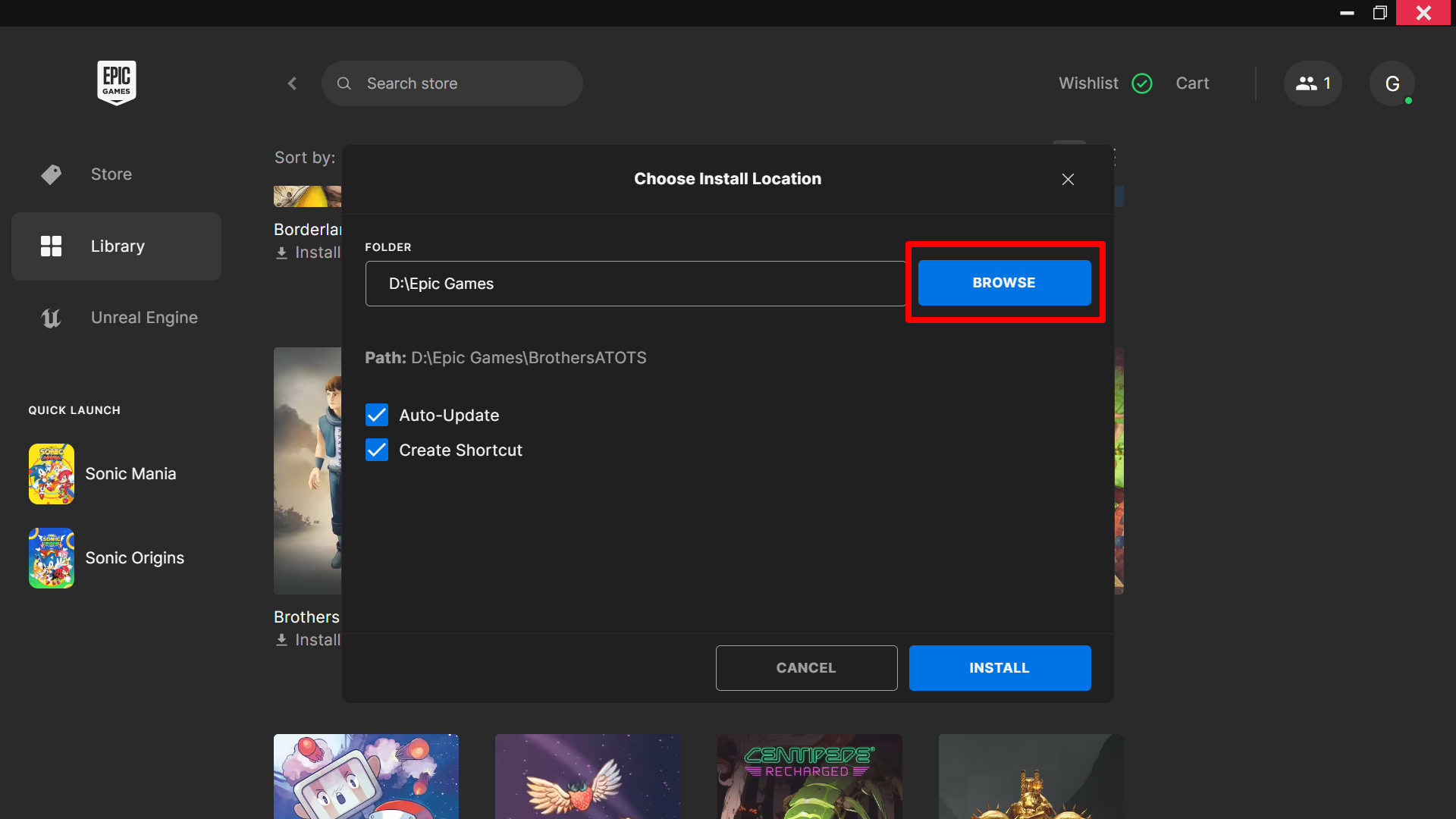
Epic Games: When you begin the installation for a new Epic game, you’ll be presented with an option to Choose an Install Location. Click Browse and navigate to a folder on your microSD card to install the game there instead of your C: drive.
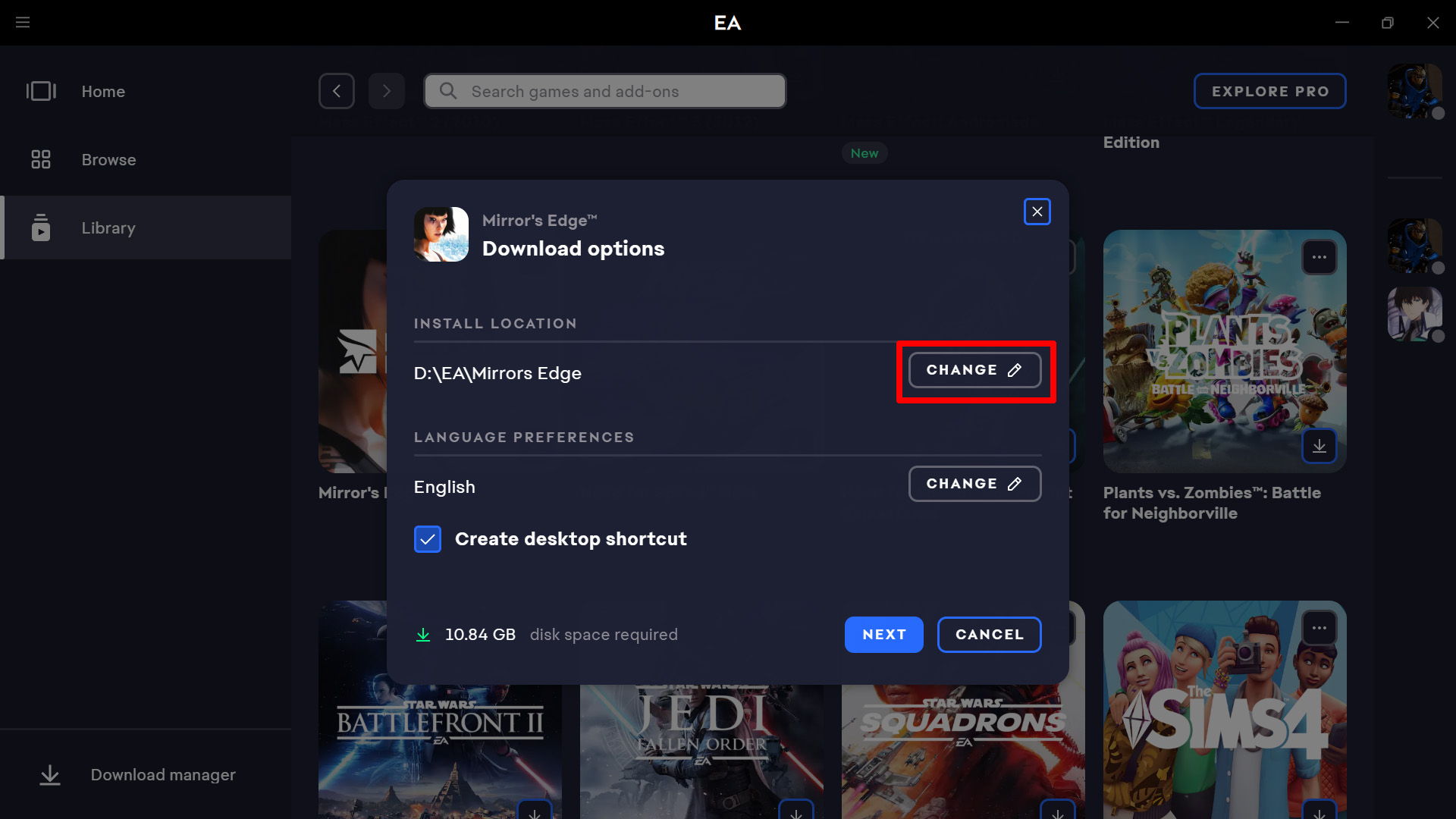
EA App: When you install a new game, you’ll see an option for “Install Location” in the wizard. Click the Change button to choose a folder on your microSD card for installation, then click Next to install.

Ubisoft Connect: Install a new game as normal, and you’ll be asked for a “Folder Location” upon download. Click the Change button to choose a folder on your microSD card instead of your C: drive.

GOG Galaxy: When installing a new game from GOG, you’ll be given an “Install To” dropdown that will let you select a location other than the default. Just click Browse to select a folder on your SD card, then continue installing the game.
If you have a launcher that isn’t listed here, look up instructions on how to install games to a secondary drive, and it should be the same process for your microSD card. Enjoy that ever-expanding library! For more tips and tricks, check out our full guide to the ROG Ally. And if you haven’t picked up your ROG Ally yet, you can grab it from Best Buy at the links below.
| Model | Type | Where to Buy (US) | Where to Buy (CA) |
|---|---|---|---|
| ROG Ally (Ryzen Z1 Extreme) | Handheld | Best Buy | ASUS Best Buy |
| ROG Ally (Ryzen Z1) | Handheld | Best Buy | |
| XG Mobile (Radeon RX 6850M XT) | eGPU | ASUS Best Buy |
|
| XG Mobile (GeForce RTX 4090) | eGPU | ASUS EXcaliberPC |
ASUS Memory Express |
| ROG 65W Gaming Charger Dock | USB Hub | Best Buy | ASUS |
| Official ROG Ally Travel Case | Case | Best Buy | ASUS Best Buy |
Auteur
Popular Post

Innovate. Perform. Dominate: Celebrate 20 years of gaming with the ROG Edition 20 lineup of PC components and gear

Call of Duty Modern Warfare II on the ROG Ally: performance guide & best settings
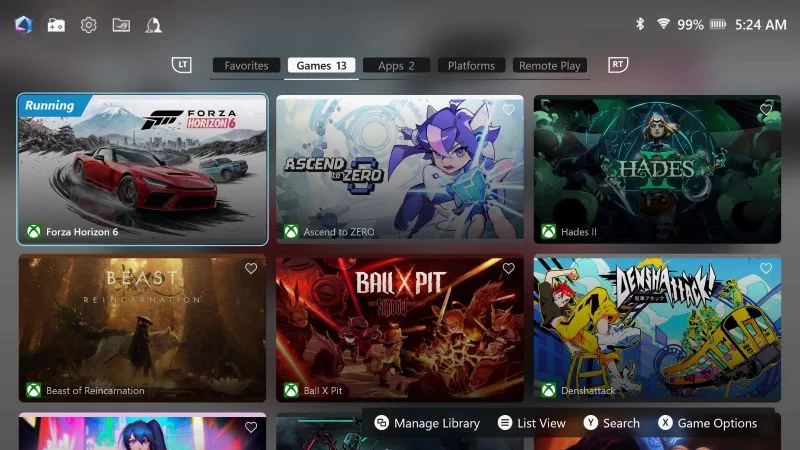
Your ROG Ally just got better: Armoury Crate SE gets more button customization, Travel Mode, and Remote Play

Prepare for ultra-sharp RGB Stripe OLED imagery with these three new ROG monitors
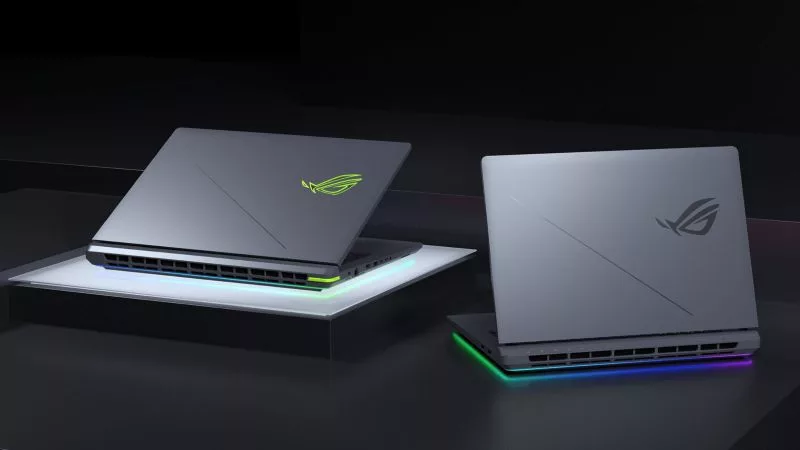
What makes a good gaming laptop? Benchmarks don’t tell the whole story
Derniers Articles
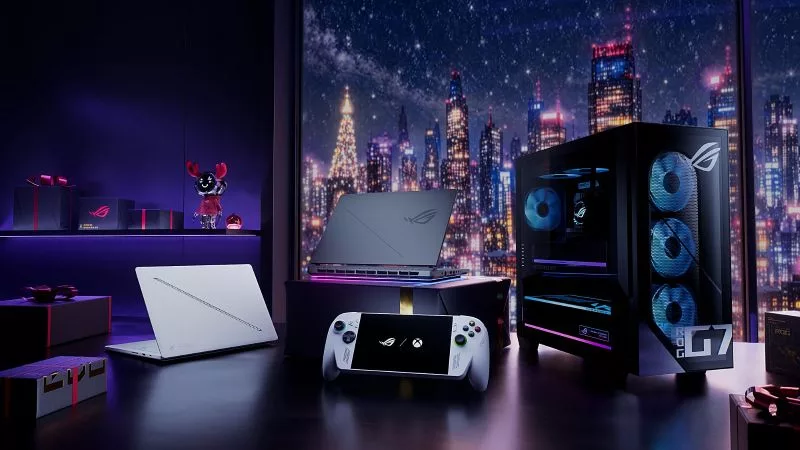
The ROG holiday gift guide: here’s what to get the gamer in your life this holiday season
If the gamer in your life has a wish list is full of hardware terms you've never heard of, don't worry — we’ve got the gear that’ll make them happy.
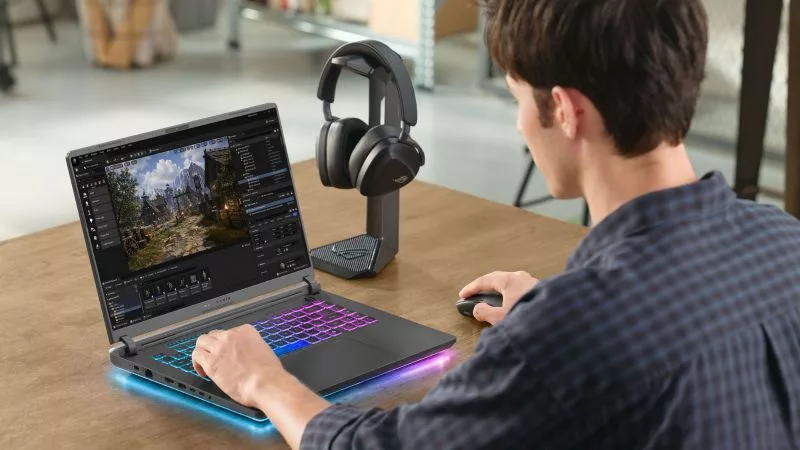
Best ROG gaming laptops by budget: entry, mid-range & flagship picks
With so many ROG gaming laptop choices, it's easy to find a machine that fits your budget and best serves the way you play.
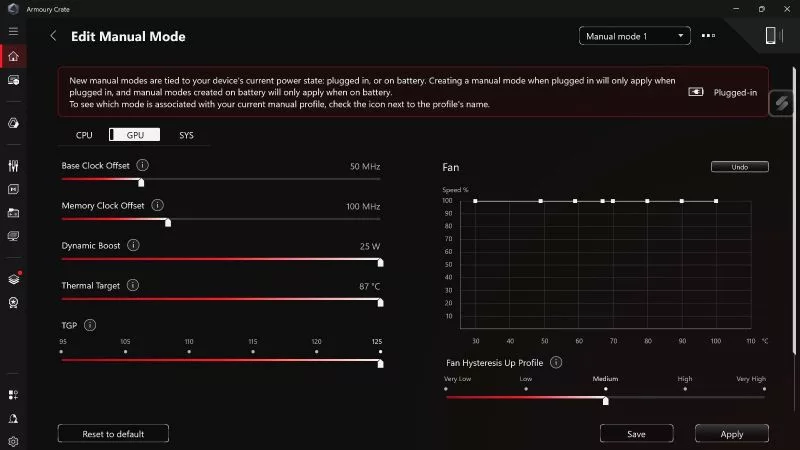
How to unlock the maximum TGP of your ROG gaming laptop in Armoury Crate's Manual Mode
If you want to push your laptop GPU's Total Graphics Power (TGP) and CPU wattage to its maximum, Manual Mode in Armoury Crate will get you there.