How to configure your ROG XBOX Ally X20's OLED display for the best HDR picture quality

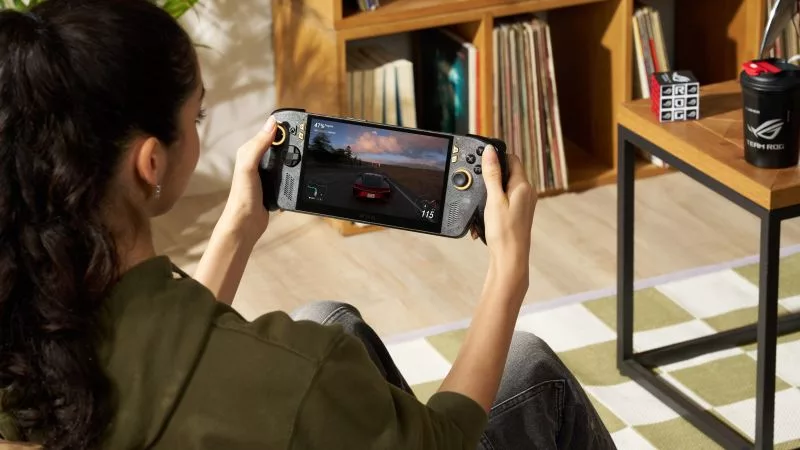
The ROG XBOX Ally X20 has arrived, and the star of the show is that gorgeous, 7.4-inch Nebula HDR Display featuring a brand-new OLED panel. If you're looking to get the absolute best picture quality out of your new handheld and make the most of everything High Dynamic Range (HDR) gaming has to offer, read on.
Spoiler alert: you won't need to do much. We've already put in the work to ensure your display offers excellent HDR performance right out of the box! But there are a few things you can tweak based on your preferences and your environment, so read on to get acquainted with your new display.
Quick answer: The ROG XBOX Ally X20's OLED display is calibrated for HDR right out of the box, but here's what's worth knowing:
- HDR and Auto HDR are both on by default — most players won't need to change anything in Windows.
- ROG offers a choice between HDR Native (accurate, creator-intended colors) and HDR Vivid (boosted, punchier colors) in Armoury Crate’s Settings > Display > GameVisual.
- Built-in OLED Care features include Pixel Refresh, an auto-off timer, and dedicated thermal design to help protect the display from burn-in.
Windows HDR settings: No tuning necessary

If you're familiar with HDR in Windows, you're probably used to enabling HDR in the Settings app, tweaking the SDR Content Brightness, and running the Windows HDR Calibration app to dial in peak brightness for your apps and games. However, none of that is needed on the ROG XBOX Ally X20 — it's already set for you.
Those tweaks are important when you're connecting your PC to an external monitor, since Windows needs to be told the display's full capabilities. But on a handheld with a built-in display, we already know what the display is capable of, and can perform all that calibration at the factory. So no need to open the Windows HDR Calibration app or adjust the HDR Content Brightness slider from its default value of 57 in Windows' Settings app — everything should be perfectly configured the moment you turn it on.
The one thing you might want to change is a setting under System > Display entitled "Change brightness based on content." This dynamically adjusts the brightness and color of your display to improve battery life, but if you want the best HDR experience, you can turn this off at the cost of some battery.
Armoury Crate HDR settings: Tweak your color preferences
Windows' built-in settings ensure the display behaves properly out of the box, but we also understand there's room for personal preference in your display settings. So we built a few extra settings into Armoury Crate to customize your experience.

When you first open Armoury Crate on your ROG XBOX Ally X20, you'll get a prompt asking you to personalize how HDR content looks on your display. You have two options:
- HDR Native faithfully reproduces the creator's original colors, lighting, and shadow details with punchy HDR highlights. If you want to see your HDR games as they were intended by the artists, this is the option you should choose.
- HDR Vivid boosts color intensity and visual impact for an even more brilliant, eye-catching experience. If you care more about visual “wow” factor than color accuracy, you can choose this option for some extra oomph.
To change this setting later, just head to Armoury Crate's Settings > Display > GameVisual and tap the Color Gamut dropdown.

You can set the brightness in Command Center to whatever’s comfortable in your current lighting environment — a level of 75% matches the brightness curve of the HDR spec (the “PQ EOTF” for you display enthusiasts), while higher and lower levels scale the overall brightness of the image to match brighter or dimmer environments.
In-Game HDR settings: Follow the wizard (when applicable)
This is the one area that may require some attention. While many newer games will have HDR enabled automatically and will grab the display's color profile from Windows, some titles may launch with HDR turned off by default, and may require you to manually set the brightness levels for your display.
Head to your game’s Video Settings or Graphics Settings and look for the HDR option. Turn HDR on if it isn’t on already, and if you see an HDR Settings or HDR Brightness option underneath it, open that to calibrate the game for your display.

This calibration screen can vary from game to game, but it'll usually take you through a short wizard that asks you to set the black and white levels based on some boxes on screen. Set the black level to its lowest possible setting, and set the Peak Brightness setting to 1400 nits. If the slider doesn't have a nit value, set the brightness of your Ally to 75% in the Command Center and raise the in-game Peak Brightness slider until the small box turns white. Full-screen white patterns will top out closer to 700 nits.
If you're given a "Reference White," "Paper White," “Midtone,” or general brightness slider in addition to peak brightness, you can leave them at their defaults unless you feel a need to change them. These settings may determine the brightness of UI elements and/or the overall brightness of the image (rather than the peak brightness of highlights). The exact behavior of these extra settings can vary by game, so check the description for each slider if you plan to tweak them. Most people can leave these alone, though if you find HDR is too bright (in a dark room) or too dim (in a bright environment) turning these up or down may help.
If the sliders in your game are more generic (just giving you a slider from 0-100%), you can try leaving them at their default settings to see how it plays. Then, if you feel the image needs tweaking, go back and dial it in to fit your preferences.
Use Auto HDR to enhance non-HDR games

Not every game has HDR capabilities built-in. And thanks to the perfect blacks of OLED displays, SDR games will still look great — but why settle? Thanks to Windows' Auto HDR feature, you can still get stellar HDR imagery in plenty of other titles. Auto HDR supports hundreds of games old and new, giving you even more chances to make the most of your ROG XBOX Ally X20's Nebula HDR Display.
Like the other settings mentioned in this guide, Auto HDR is turned on by default, so you don't have to do anything to get it working — just launch a supported game and you'll see a popup noting that Auto HDR is enabled.

That said, Auto HDR is using an algorithm to convert SDR games to HDR, which means you may want to tweak it slightly to fit your preferences for the game in question. To do so, press the XBOX button on your controller and tab over to Display (the tab with the laptop icon). Scroll down to the HDR section and play with Adjust HDR Intensity slider. This allows you to customize the vibrance of Auto HDR for that game, giving you more control over the final image. If you prefer, you can also turn Auto HDR off from this menu.
Does it ever make sense to turn HDR off?
All of the above recommendations are specific to HDR gaming. And with a bright, colorful OLED display like the one on the ROG XBOX Ally X20, we think you'll want to play in HDR as often as possible. However, there are a few situations in which you may want to turn it off and play in Standard Dynamic Range (SDR) instead.

First, if you’re competitive and like to use GameVisual profiles to boost shadows in FPS games or enhance sharpness and color in RTS games, you’ll need to switch to SDR, as those filters are not compatible with HDR. Once turned off, you can access plenty of color profiles in Armoury Crate's Settings > Display > GameVisual section.
Secondly, if HDR looks too dim because you're playing in a particularly bright environment — like outdoors in direct sunlight — and your game doesn't have a Paper White or General Brightness setting as mentioned above, turning HDR off may give you more room to turn up the overall brightness of the image.
To turn HDR off, press the XBOX button, tab back over to that Display tab (the laptop icon), and scroll down to the HDR section. Toggle the Global switch off. You can turn it back on here when you want to play in HDR.
One note here: If you're comparing HDR on and off for a particular game, make sure you're comparing similar color profiles. The native color space of this Nebula HDR Display (known as DCI-P3) is quite large, providing a wide range of colors meant for HDR content. SDR content, on the other hand, is mastered in a narrower color space (such as sRGB). But by default, putting the display in SDR mode will “expand” the colors to match the native color space of the display, which results in a more saturated look — much like that "HDR Vivid" mode we talked about earlier, but in SDR.

Thankfully, you can adjust this color profile in the same GameVisual tab in Armoury Crate's settings. For a proper comparison, you'll want to set HDR and SDR to the following profiles:
- For accurate colors: set to HDR Native (in HDR mode) and sRGB (in SDR mode), then compare how your game looks in each
- For vivid colors: set to HDR Vivid (in HDR mode) and “Native — default vivid colors” (in SDR mode), then compare how your game looks in each
Then decide whether you prefer HDR to SDR in that game — and whether you want to stick with accurate colors or go for the more vivid mode.
OLED Care protects the longevity of your display
Finally, we often get questions about the longevity of OLED displays on our devices. Modern OLED displays are much more resistant to burn-in than their predecessors, and we've made sure the ROG XBOX Ally X20 is built to protect that longevity. It features improved thermal dissipation under the display to move heat away from the screen, and we've also set the display to turn off automatically after a few minutes to avoid static images staying on-screen for too long. As long as you don’t change that setting and leave the display on a static image for hours at the time, you should be in good shape.
The ROG XBOX Ally X20 also features an automatic Pixel Shift feature, which will occasionally shift the screen by a single pixel to avoid uneven wear. This happens in the background, with no intervention needed on your part.

Finally, if you head to Armoury Crate's Settings > Display > OLED Settings, you'll also find a Pixel Refresh feature under OLED Care that launches a special screensaver designed to even out the wear across your display, further protecting against burn-in. You can configure this to your liking in combination with Windows' own settings that turn the display off after a certain amount of time. (For example, I’ve adjusted Windows’ settings to keep the display on when plugged in — but to have the Pixel Refresh screensaver to turn on after 10 minutes.) Set this to your own tastes, and rest easy knowing your OLED display will hold its own well into the future.
FAQ
Does the ROG XBOX Ally X20 support Dolby Vision?
Yes it does! You’ll get Dolby Vision in supported games, as well as some streaming apps like Netflix or Prime Video.
How should I set the HDR Content Brightness slider on the ROG XBOX Ally X20?
We've already attached a color profile to the ROG XBOX Ally X20 that perfectly matches its built-in Nebula HDR Display. So there's no need for you to tweak settings with the Windows HDR Calibration app or adjust the HDR Content Brightness slider in the Settings. If you accidentally change the HDR Content Slider to something other than its default value, you can click the Reset button in Armoury Crate’s Settings > Display > GameVisual menu to bring everything back to its out of the box calibration. If you’re playing an older game that has its own HDR settings menu, just make sure to enable HDR in its Graphics Settings and run through its calibration wizard once. The standard brightness slider in Command Center can be set to whatever is most comfortable in your current lighting conditions.
Is Auto HDR the same as real HDR?
When launching a supported game, Auto HDR will convert its SDR signal into an HDR one. So you are seeing real HDR that can make use of the extra brightness and color the display is capable of. However, unlike games with built-in HDR, it is tuned by an algorithm rather than the game's developers. If your game offers built-in HDR, it's worth trying that first, and if it doesn't, give Auto HDR a try to make the most of your ROG XBOX Ally X20's display.
Does HDR work differently on the Windows Desktop vs XBOX Mode?
XBOX Mode uses the same GPU and display pipeline as desktop Windows, so HDR will work the same no matter which mode you’re in. No need to make any changes to settings!
Why do some games look worse with HDR turned on?
There are a number of reasons this may happen. Some games may just have sub-par HDR implementations, in which case it may be worth playing them in SDR or seeing if Auto HDR fits your taste better. You may also try adjusting the game's HDR brightness and color settings to fit your tastes better. In addition, make sure you're comparing equivalent color profiles. If you have the Ally's display set to Native mode in HDR but Vivid mode in SDR, you may be seeing HDR content as it was intended but SDR content with boosted colors. To compare apples to apples, check SDR's sRGB mode vs HDR Native mode to see if HDR still looks washed out by comparison. If you prefer the saturated colors, you can put your Ally in HDR Vivid mode for a similarly vibrant effect in HDR.
Will Auto HDR cause input lag?
HDR itself doesn't add any meaningful amount of lag if a device is configured properly. Auto HDR, however, is a real-time tone-mapping shader that does contain a small GPU cost — though it’s so small that you’re unlikely to perceive it. Auto HDR should feel similarly responsive when compared to built-in HDR or SDR.
Can the ROG XBOX Ally X20's OLED screen burn in?
Newer generation OLED displays are much more resistant to burn-in than their predecessors, especially when combined with our OLED Care software features. You can find OLED Care options in Armoury Crate under Settings > Display > OLED Settings.
Why does HDR look dim on my Windows handheld?
SDR uses a gamma system that's designed to adapt to a wide range of brightness levels, often letting you push far past the brightness of the original content. HDR, on the other hand, uses absolute brightness levels in its mastering, allowing for small highlights to be extra bright for punchy, detailed images. In most scenarios, this should look great, but it may look dim in direct sunlight or other overly bright environments. If your game has an "HDR Reference White,” "Paper White," or “Midtone” setting in its HDR calibration, you can turn this up to raise the overall brightness of the image. If not, you can also try turning HDR off in Windows' settings and play your game in SDR, which will allow you to turn up the overall brightness of the image. You can turn HDR back on when you're in a dimmer environment and want that punchy, more detailed image.
Author
Popular Post
How to clean your OLED monitor
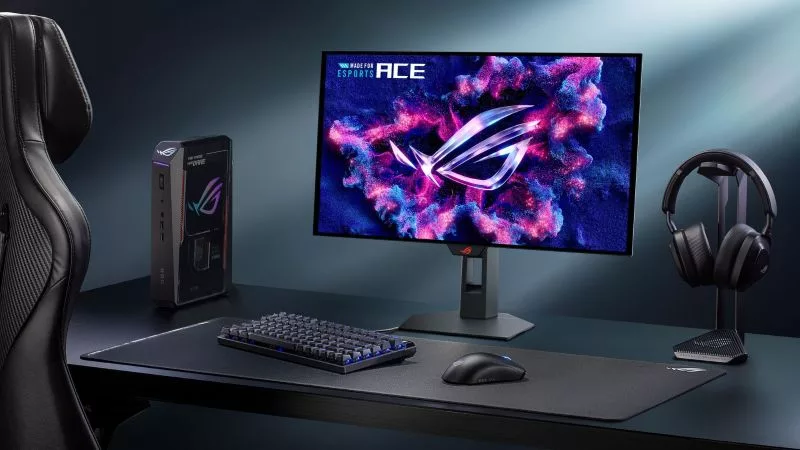
The ROG Strix OLED XG259QWPG Ace is a tournament-ready OLED designed for esports pros
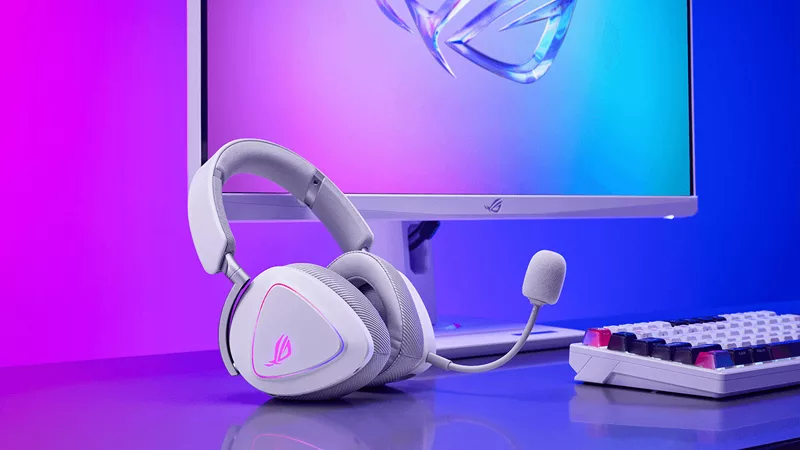
ROG headset settings guide: get the best audio for gaming

The best settings for your ROG laptop: how to get the best PC gaming experience
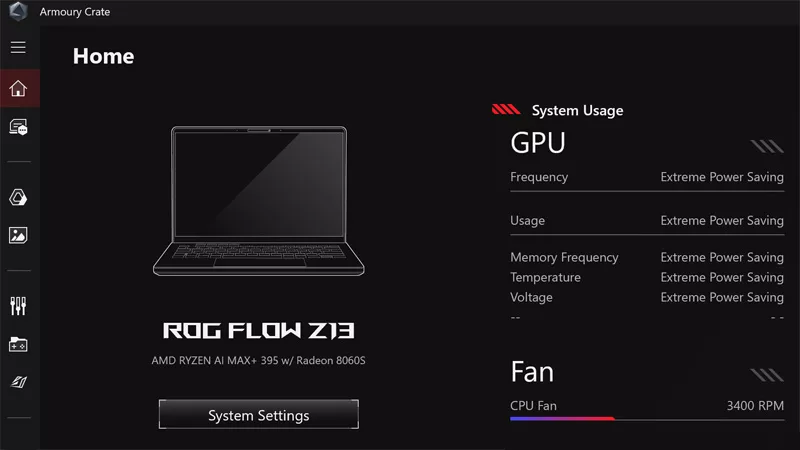
How to Adjust the ROG Flow Z13's VRAM Allocation
LATEST ARTICLES
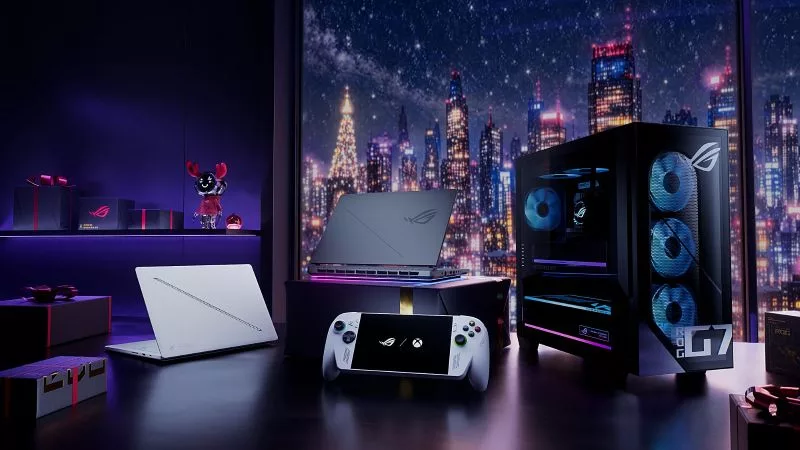
The ROG holiday gift guide: here’s what to get the gamer in your life this holiday season
If the gamer in your life has a wish list is full of hardware terms you've never heard of, don't worry — we’ve got the gear that’ll make them happy.
Best ROG gaming laptops by budget: entry, mid-range & flagship picks
With so many ROG gaming laptop choices, it's easy to find a machine that fits your budget and best serves the way you play.
How to unlock the maximum TGP of your ROG gaming laptop in Armoury Crate's Manual Mode
If you want to push your laptop GPU's Total Graphics Power (TGP) and CPU wattage to its maximum, Manual Mode in Armoury Crate will get you there.