Sleep vs. Hibernate on the ROG XBOX Ally: battery life, game resume, and wake speed

The ROG Ally series of handhelds lets you take your games and play anytime, anywhere — but even the most intrepid mobile gamers have to take breaks sometimes. When you press the power button on your Ally, it goes into a low-power sleep state called Windows Modern Standby that wakes back up quickly, but uses small amounts of battery in the background as a result. Windows also offers Hibernate, which takes a few seconds longer to wake back up, but saves more power. So which should you use?
Key Points:
- Sleep allows your device to wake up almost instantly, while allowing updates and other tasks to run in the background. However, it does use some power, and may drain your battery very slowly over the course of a few days.
- Hibernate saves your system’s current state and goes into shutdown. It takes a bit longer to wake back up, but games will resume right where you left off, will drain almost no battery, and is less likely to accidentally wake up.
The difference between Sleep and Hibernate in Windows
Sleep and Hibernate serve somewhat similar purposes, but work a bit differently. Sleep is designed to offer extra functionality while your device is dozing. It saves your system’s current state to RAM and enters a low-power state that allows instant wake-up, similar to a smartphone — while allowing some background tasks to continue running, like updates and notifications. As a result, it does still use some power — your battery may drain a few percent per hour in this mode, which can add up over the course of a day or two. If you’re just setting your device on a table and coming back to it in a bit, Sleep can be a great option.
For other uses cases, though, you may prefer Hibernate. Hibernate saves your system’s state to your hard drive, then turns off your device completely — as if you’d shut it down. That means it takes a bit longer to start back up, but it won’t use any power while in hibernation. You may also find this works better if you hibernate your device mid-game — in most cases, it’ll start back up right where you left off without a hitch.
| Windows Sleep | Windows Hibernate | |
|---|---|---|
| Wake Speed | Instant (1-3 seconds) | Slower (10-15 seconds) |
| Battery Drain | Low (1-2% per hour) | Virtually Zero (the device is off) |
| Other Benefits | You still get updates, notifications, and other useful background tasks | Some games may resume more cleanly when hibernated mid-game |
You can manually put the device into Sleep or Hibernation at any time by opening the Command Center, pressing the power icon, and choosing Sleep or Hibernate from the menu. However, you can also customize the default behavior as well — read on!
How to make the power button Hibernate instead of Sleep

If you’d like to change the Power button’s behavior to Hibernate instead of Sleep, just follow these steps:
- Press the XBOX button and navigate to the Settings tab of the Game Bar.
- Head to More Settings > Open Windows Settings.
- Tap the Power & Battery option in the System tab of Windows’ Settings.
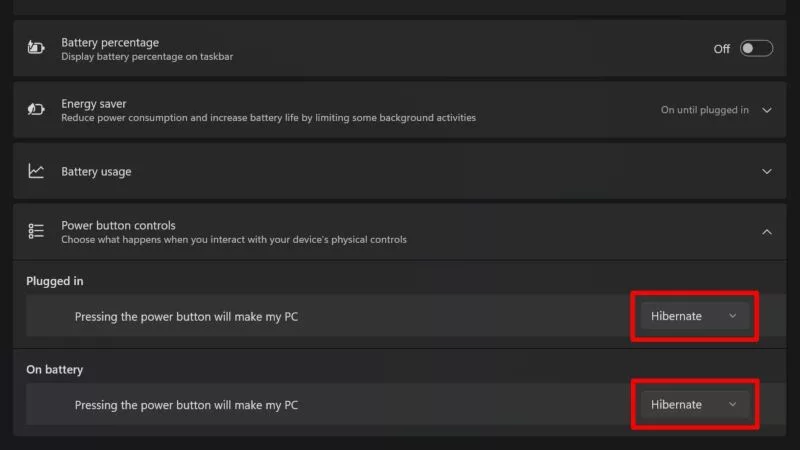
- Expand the Power button controls menu and choose Hibernate from the list instead of Sleep. You can set the power button to Hibernate the machine while on battery, when plugged in, or both.
Once you change this option, your device will Hibernate whenever you press the power button. Again, if at any time you want the device to Sleep instead of Hibernate, you can still do so by opening the Command Center, tapping the power icon, and choosing Sleep from the menu that appears.
FAQ
Why does my ROG Ally lose battery when it's asleep?
Sleep — also known as Windows Modern Standby — uses small amounts of power in the background to send notifications, grab updates, and run other low-power background tasks. As a result, it may drain a small amount of battery even while the screen is off. This allows for instant waking, but if you’d prefer your Ally use zero power (rather than Sleep’s low-power state), you can enter Hibernation instead.
Can I put my ROG Ally to sleep mid-game and resume it later?
It depends on the game. Always-online multiplayer games, for example, won’t allow you to pick up a match after sleeping or hibernating — when you press the power button, you’ll be disconnected from your match (for obvious reasons). Other games may work, though it can vary from game to game. (It’s always a good idea to save your game before turning your device off.) If your game doesn’t resume cleanly from sleep, try Hibernate, which may work better. If you resume from Hibernation and a game has any audio or display glitches, hold the XBOX button to open the Task Switcher to leave the game, then re-enter — that usually fixes any quirks.
Why does hibernate take longer to wake up than sleep?
Sleep enters a low-power state that allows certain background tasks to run, and allows your device to wake up nearly instantly. Hibernate, on the other hand, saves the current state of your system to disk and then shuts down entirely. It’ll still pick up where you left off, but you’re basically rebooting the machine from a shut down state, which means it drains less battery while hibernating — and takes a few seconds longer to start back up.
Should I use Sleep or Hibernate on my ROG Ally?
If you want your device to turn back on instantly, Sleep is the faster option of the two. However, Sleep does use some power, while Hibernate won’t drain any battery at all — and may resume some games more cleanly than Sleep. You can tap the power icon in the Command Center to choose whichever fits your use case in the moment. You can also set the Power Button to Sleep or Hibernate by default based on which you use more often.
Forfatter
Popular Post
The ROG Strix OLED XG259QWPG Ace is a tournament-ready OLED designed for esports pros
What GPU should you choose for your gaming laptop? RTX 5050 vs 5060 vs 5070 vs 5070 Ti vs 5080 vs 5090
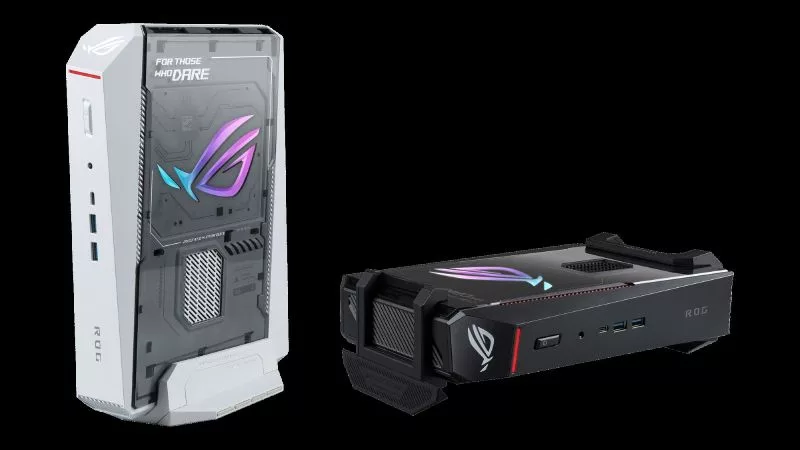
Meet the ROG NUC 16: compact power for gaming, AI workloads, and beyond

How to configure your PC's RGB lighting with Aura Sync
How to clean your OLED monitor
Siste Artikler

The ROG holiday gift guide: here’s what to get the gamer in your life this holiday season
If the gamer in your life has a wish list is full of hardware terms you've never heard of, don't worry — we’ve got the gear that’ll make them happy.
Best ROG gaming laptops by budget: entry, mid-range & flagship picks
With so many ROG gaming laptop choices, it's easy to find a machine that fits your budget and best serves the way you play.
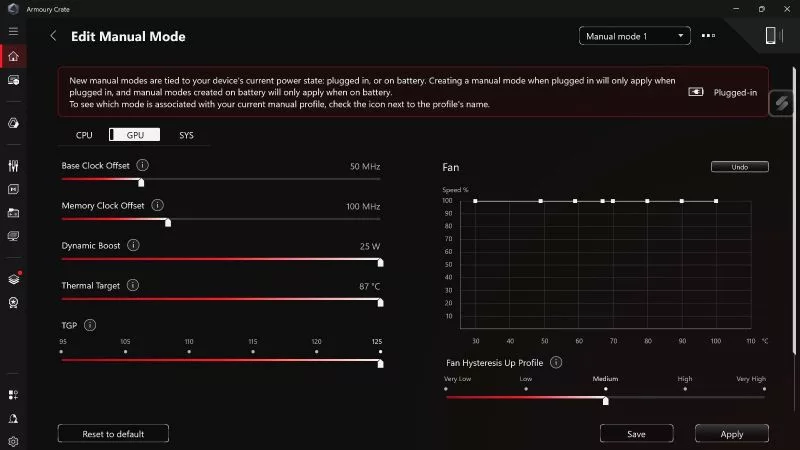
How to unlock the maximum TGP of your ROG gaming laptop in Armoury Crate's Manual Mode
If you want to push your laptop GPU's Total Graphics Power (TGP) and CPU wattage to its maximum, Manual Mode in Armoury Crate will get you there.