How to fix a device that's not showing up in Armoury Crate
If you just bought a new ROG device like the ROG Pelta wireless gaming headset or ROG Azoth X gaming keyboard, you’ll want the Armoury Crate app to finetune your gear’s settings. But if Armoury Crate is installed and isn’t automatically detecting your new device, you’ll need to check under the app’s hood. Here are some basic troubleshooting tips to help make devices appear in Armoury Crate.
Check for updates in Armoury Crate
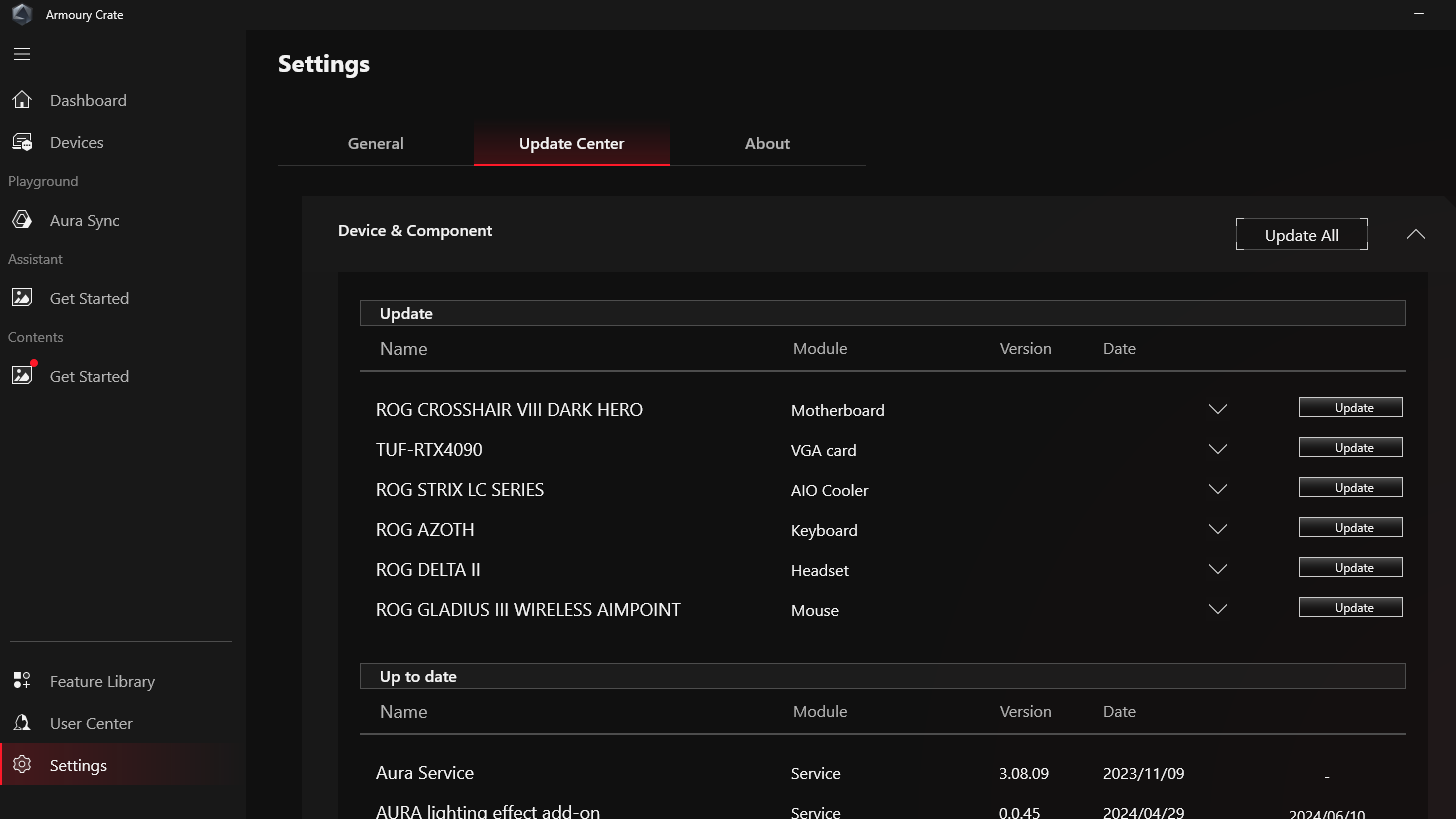
Simple as it may be, an Armoury Crate update is usually all it takes to discover your device. Open Armoury Crate, hit the Settings gear icon on the left sidebar, then click the big Update Center tab in the center of your screen. From there, select the Check for Updates option and update everything you see.
Here’s why that may fix your issue: when you install Armoury Crate, we don't include the code for every single ASUS device out there. That’d take up a lot of unnecessary space on your machine. Instead, when you plug in a new device, Armoury Crate will detect it and hunt down the module for that specific device. Said module will let you tweak hardware settings, adjust RGB, and more. But you have to download that module to Armoury Crate before it’ll present those options to you.
While a simple Armoury Crate update ought to do the trick, there are a few other trees to shake if you’re still not seeing your device. First, make sure Windows is updated; if your operating system is out of date, that can have effects on Armoury Crate. Also, if you have third-party tools controlling hardware devices, try disabling them, as overlap can sometimes cause conflicts.
A complete uninstallation and fresh install can often solve the trickiest issues, such as corrupted files. Check our guide on how to cleanly uninstall and reinstall Armoury Crate for more info — it’s essential that you use our dedicated Armoury Crate Uninstall Tool to ensure a clean, complete uninstall of the software. Alternative solutions may miss various Armoury Crate components that will linger and cause issues during fresh installations of the app.
If all else fails, never hesitate to reach out to our customer support team. Gaming PCs are complex systems; not all solutions may work for your rig's situation. That’s where our support team’s individualized assistance shines brightest.
For additional questions about Armoury Crate or to report any issues, check out our official FAQ and dedicated Armoury Crate forum. And to learn what’s new with Armoury Crate, check out our Armoury Crate 6 primer.
Author
Popular Post

The best AAA games for the ROG Ally and ROG Ally X
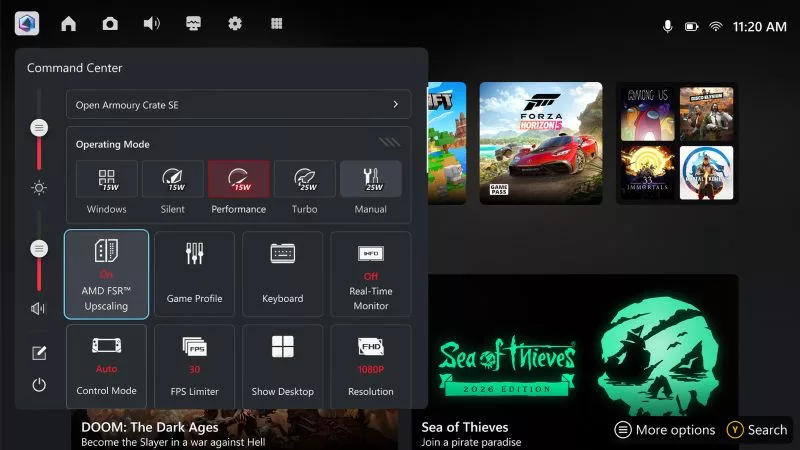
AMD FSR™ Upscaling 4.1 is coming to the ROG XBOX Ally X and X20 in preview
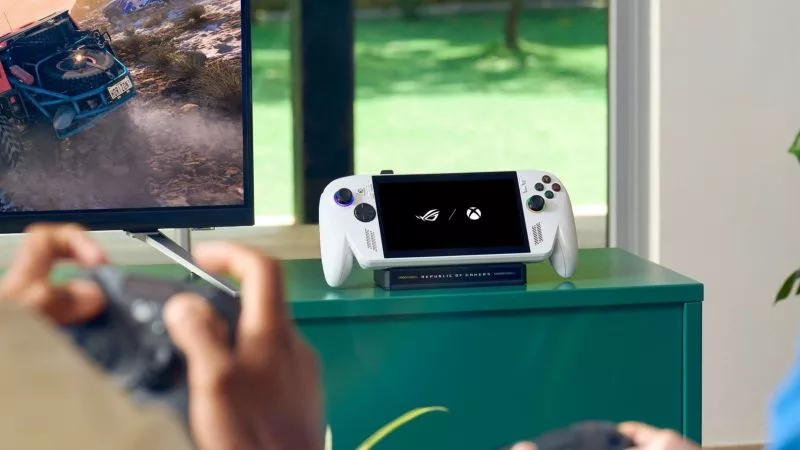
The latest ROG Xbox Ally updates provide a more seamless docking experience for living room play

Innovate. Perform. Dominate: Celebrate 20 years of gaming with the ROG Edition 20 lineup of PC components and gear
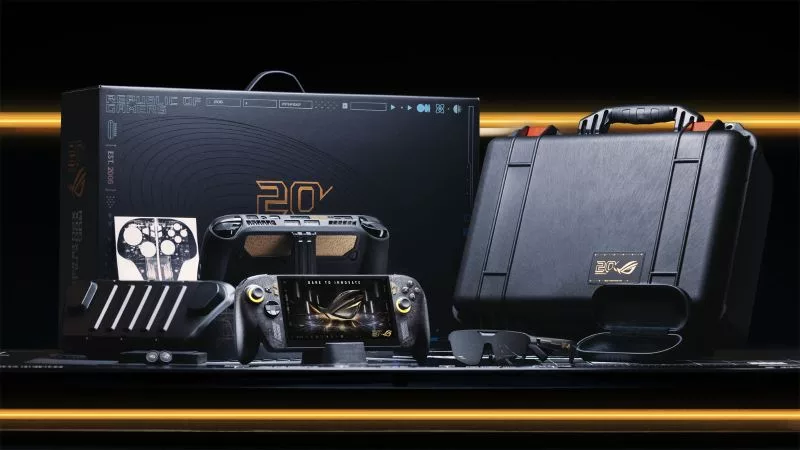
Pre-order your ROG XBOX Ally X20 today, standalone or as part of an incredible ROG 20th anniversary bundle
LATEST ARTICLES
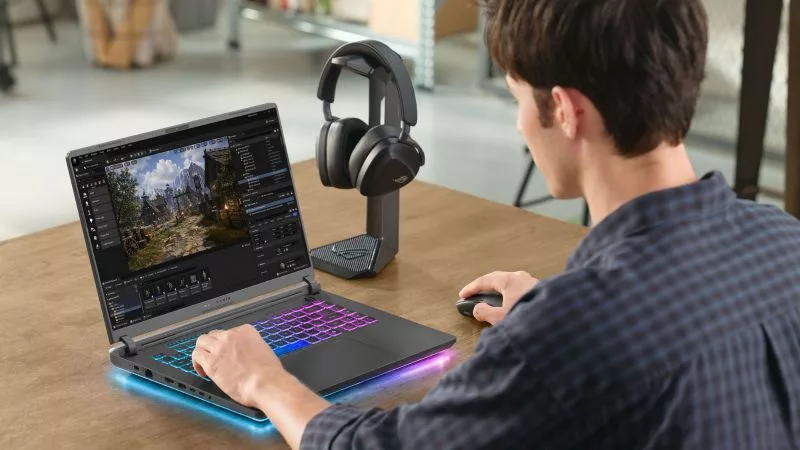
Best ROG gaming laptops by budget: entry, mid-range & flagship picks
With so many ROG gaming laptop choices, it's easy to find a machine that fits your budget and best serves the way you play.
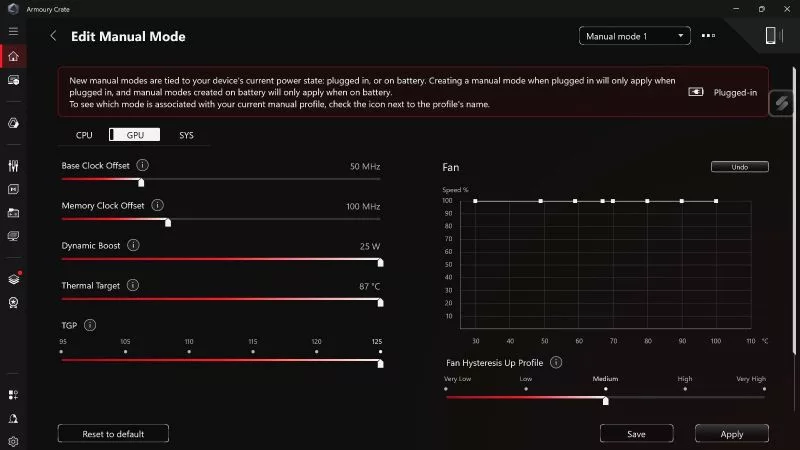
How to unlock the maximum TGP of your ROG gaming laptop in Armoury Crate's Manual Mode
If you want to push your laptop GPU's Total Graphics Power (TGP) and CPU wattage to its maximum, Manual Mode in Armoury Crate will get you there.
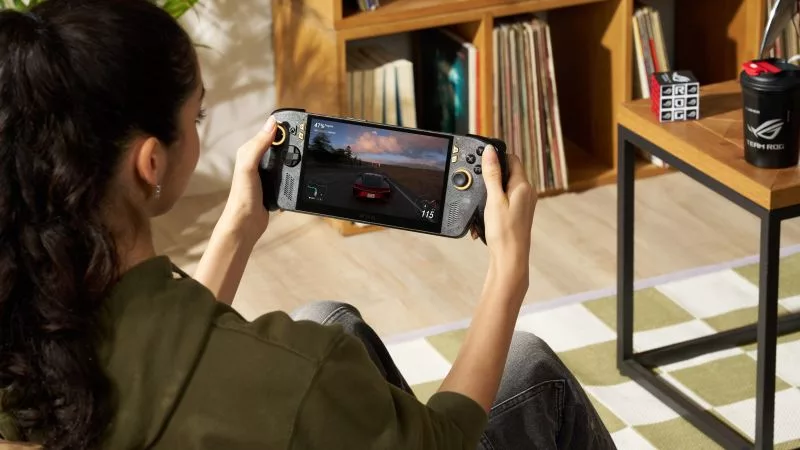
How to configure your ROG XBOX Ally X20's OLED display for the best HDR picture quality
Wondering how to set up HDR on your ROG Xbox Ally X20? Here's how to get the best picture from its OLED display, plus Auto HDR and OLED Care tips.