Related Topics
[Troubleshooting] Cannot install ASUS USB bluetooth adapter successfully
Models Applicable to This Article : USB-BT500 / USB-BT540 / USB-BT600
[Trouble shooting] When you cannot install USB Bluetooth adapter successfully, the [Bluetooth] in device manager will appear the name as following
1. Generic Bluetooth Adapter.
2. Bluetooth device with Exclamation mark.
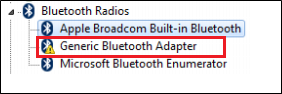
Please follow the instructions as following:
(The following uses USB-BT500 as an example)
1. Insert the USB-BT500 to your device.
2. Open the Windows Device Manager:
Click on search box > Type [Device Manager] > Click on [Device Manager]
3. Disable built-in Bluetooth:
Select your Bluetooth connection > Right-click on [Disable]
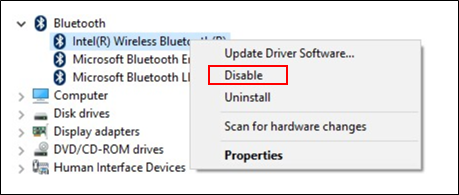
4. Insert USB-BT500 :
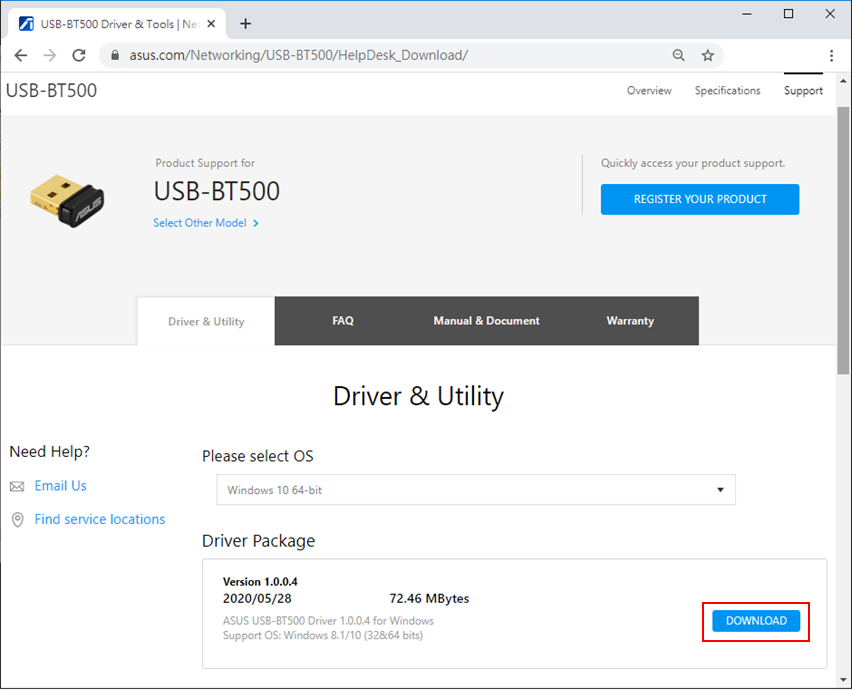
You can find the latest driver file for the USB-BT500 on the Official Support | ASUS Global, and download the latest file to your device.
Please refer to the FAQ below
[Wireless adapter] How to install ASUS Wi-Fi adapter and Bluetooth adapter driver
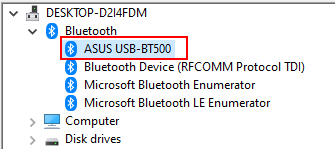
5. Start to use Bluetooth connection
How to get the (Utility / Firmware)?
You can download the latest drivers, software, firmware and user manuals in the ASUS Download Center.
If you need more information about the ASUS Download Center, please refer this link.