Related Topics
[RT-BE58 Go/RT-AX57 Go] How to Set Up a WiFi Router as a WISP Client for Reliable Internet Access?
What is Sign In?
This setup turns a wireless router into a WiFi client that connects to an existing hotspot or upstream network and then redistributes that connection to other devices. In practice, it is a useful way to bring internet access into places where running an Ethernet cable is inconvenient or impossible, such as hotel rooms, temporary workspaces, rental properties, or small offices that rely on shared wireless access. From a reviewer’s perspective, the appeal is straightforward: it gives users a practical bridge between an available WiFi source and the devices that still need a stable local network.
The workflow shown here focuses on WISP mode, which is especially valuable when the router needs to join another wireless network first and then act like a mini gateway for phones, laptops, TVs, or work devices. Instead of treating the router as a simple access point, this mode lets it receive internet over WiFi and manage the local side of the connection on its own. That makes it a flexible option for travelers, remote workers, and anyone who wants a more controlled network experience than connecting every device directly to a public hotspot. The result is a cleaner, more organized setup with fewer manual reconnections and a better chance of keeping multiple devices online through one shared link.
What are the benefits of Sign In?
- No Ethernet cable required: The biggest advantage of WISP-style setup is that it removes the dependency on a wired uplink. When the only available internet source is a wireless network, the router can still join it and extend connectivity to other devices. That makes it especially useful in hotel rooms, temporary offices, or homes where the modem is far away from the room that needs coverage. For users, this means less hassle, fewer hardware constraints, and a faster path to getting a usable network running.
- Creates a more organized local network: Instead of connecting every device separately to the upstream WiFi, the router can centralize the connection and distribute it locally. That gives users a more manageable setup, with one network point handling the traffic for multiple devices. In real use, this can make it easier to keep laptops, phones, and smart devices connected without repeatedly signing into the same public or shared hotspot. It also helps reduce the feeling of being tied directly to a weak or inconvenient source network.
- Better fit for travel and temporary environments: This configuration is particularly appealing for people who move between locations and need internet access that is quick to deploy. A traveler can use it in a hotel, a freelancer can use it in a temporary workspace, and a small team can use it in a pop-up office or meeting room. The value is not just convenience; it is consistency. Once the router is configured, the user can rely on the router’s local network behavior instead of reworking every device each time the upstream WiFi changes.
Setup Guide
Step 1: Open the router sign-in page
Start by logging in to the ASUS router’s admin interface so the configuration options become available. This is the necessary entry point for changing operating behavior, and it ensures the user is working from the correct control panel before making any adjustments.
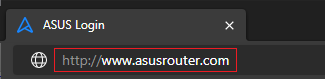
(1) Connect your computer to the router via wired or WiFi connection and enter your router's LAN IP or router URL http://www.asusrouter.com to the WEB GUI.
(2) Key in your router's username and password to log in.

Note: If you forget the user name and/or password, please restore the router to the factory default status and setup.
Please refer to [Wireless Router] How to reset the router to factory default setting? for how to restore the router to default status.
Step 2: Go to the wireless router settings
Click Wireless router to enter the section where the router’s operating mode can be adjusted. This step matters because the device needs to be configured as a wireless client rather than a standard wired router before it can join another WiFi source.

Step 3: Select WISP connection mode
Choose Connect via WiFi (WISP) so the router knows it should receive internet from a wireless network. This is the key mode change that enables the router to act as a bridge between the upstream WiFi and the local devices that will connect through it.

Step 4: Save the mode change
Click Save to confirm the new operating mode. Saving here locks in the WISP selection and moves the setup forward, so the router can begin using the wireless uplink configuration instead of the previous default behavior.

Step 5: Pick the available WiFi network
Click Hotel_WiFi to select the upstream network the router should join. In a real-world scenario, this is the point where the user chooses the source connection, and the router prepares to authenticate and link to that network.

Step 6: Apply the network selection
Click Apply to submit the chosen WiFi network. This step tells the router to attempt the connection, which is necessary before it can relay internet access to the local side of the setup.

Step 7: Dismiss the follow-up prompt
Click Maybe Later when the interface asks for an optional next action. This keeps the setup moving without forcing extra configuration at this moment, which is useful when the main goal is simply to get the wireless bridge online first.

Step 8: Finalize the configuration
Click Apply again to complete the process and commit the final settings. Once this is done, the router should finish applying the WISP configuration, giving the user a more practical shared network setup for connected devices.

Conclusion
As a setup method, WISP mode is a smart choice for anyone who needs internet access from a wireless source without relying on Ethernet. The process shown here is direct, and the interface steps make it clear that the router is being repurposed into a wireless bridge with local distribution capability. That makes it especially attractive for travelers, remote workers, and users in temporary or cable-free environments. From a reviewer’s standpoint, the real strength is flexibility: it turns an ordinary router into a practical connectivity tool that can simplify access, reduce friction, and keep multiple devices online through one upstream Wi‑Fi connection.
How to get the (Utility / Firmware)?
You can download the latest drivers, software, firmware and user manuals in the ASUS Download Center.
If you need more information about the ASUS Download Center, please refer this link.