[Gaming NB] GameFirst VI - Introduction
1. GameFirst VI - Introduction
3. GameFirst VI Install& Uninstall
5. GameFirst VI Network Monitor
6. GameFirst VI Network Analyzer
9. Q&A
1. GameFirst VI - Introduction
GameFirst VI, an integration network tool, designed for ASUS ROG products for network optimization. It can effectively reduce network delay, minimize in-game lag, and also create the best network environment for players.
Support Windows 10 OS and model GA401 series
* For more models supported, please refer to the ASUS Official website
3. GameFirst VI Install& Uninstall
How to get and install GameFirst VI, please refer to ASUS Official website Link
How to uninstall GameFirst VI, please refer to ASUS Official website Link
4-1 How to start GameFirst VI
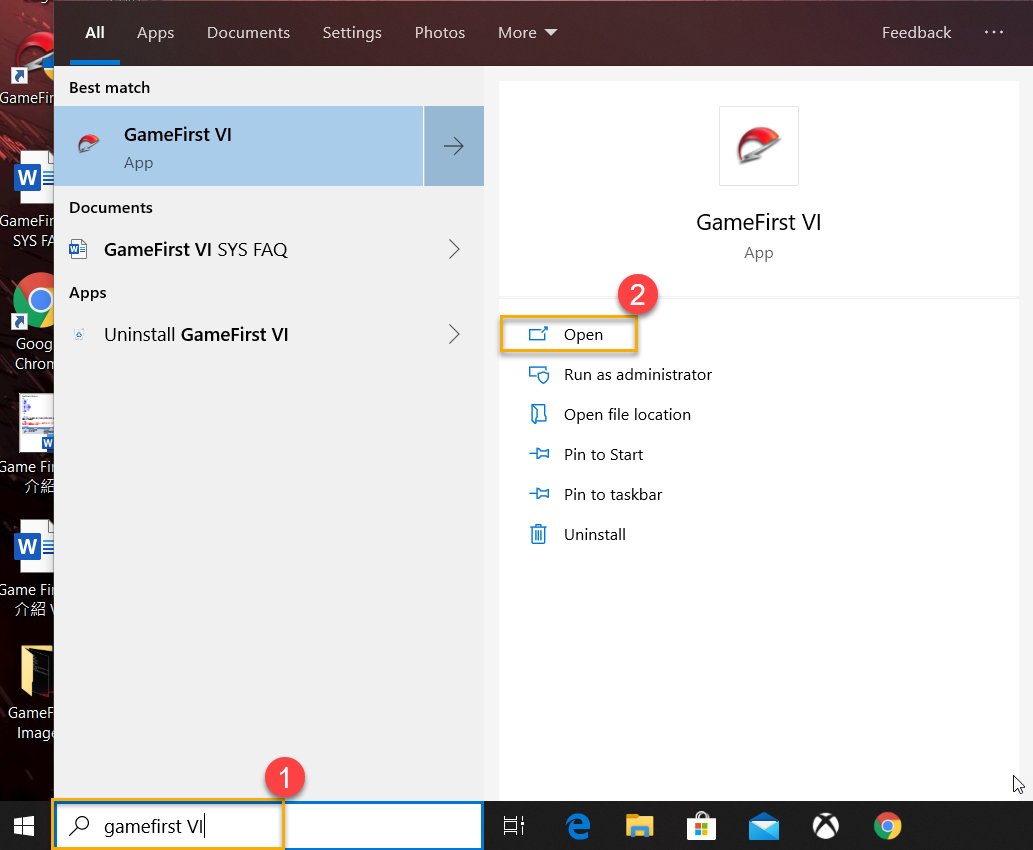
Please type and search [GameFirst VI]① in the Windows Search Box, and then click on [Open]②
4-2 Dashboard
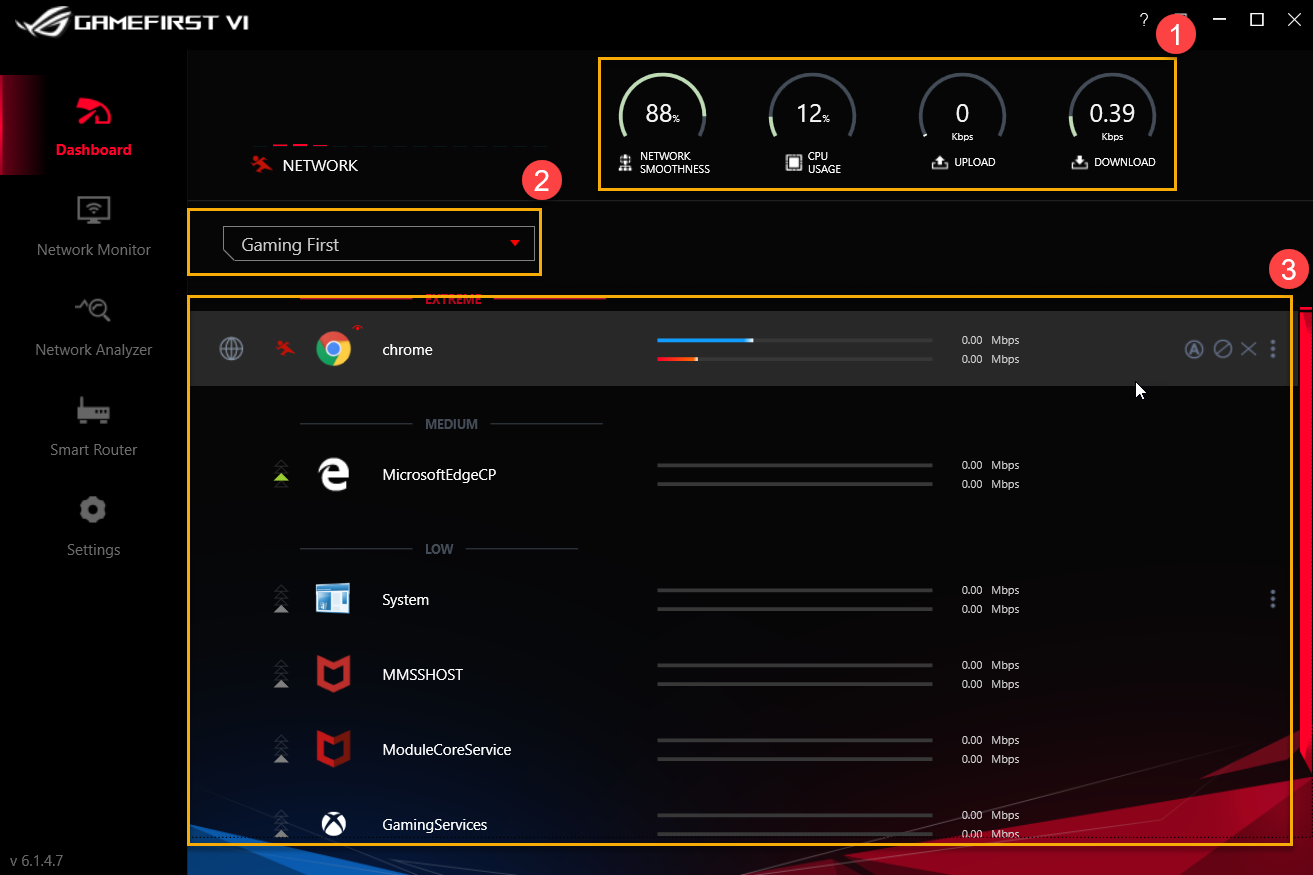
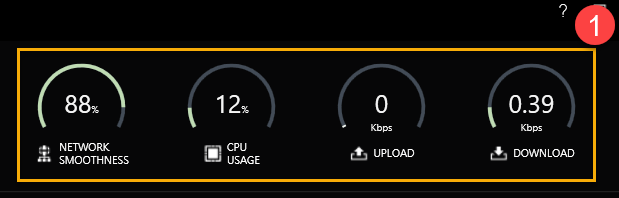
System resources①: Includes Network Smoothness, CPU Usage, Upload and Download display
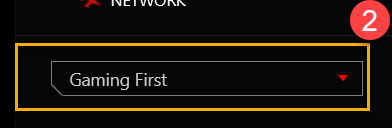
Profile Option②: Select a profile you would like to apply - Gaming First, Live Streaming First, Multimedia First or Adaptive Intelligence
* For Profiles setting, please refer to(8-3 Profiles)
Application categories and status③: You can check application categories and network status in the page. Please see the list below for more details.
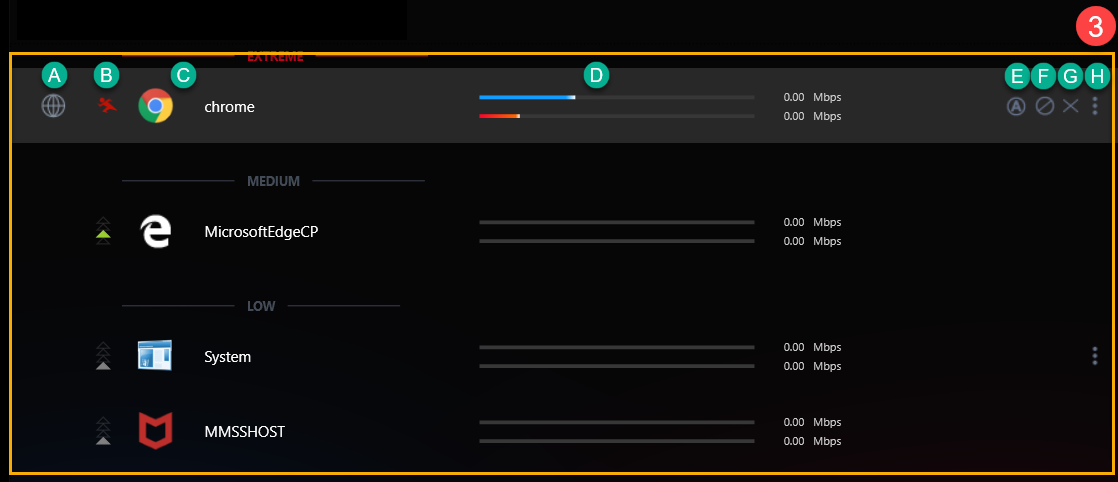
| Item | Name | Image | Description |
| A | Application group |  | To define application categories,for example Game、Live stream、Multimedia、Web、File transfer and Others |
| B | Speed Speed |  | To switch the network traffic priority for application (For example Extreme/ High/ Medium/ Low) |
| C | Application |  | Application’s name |
| D | Download/Upload speed |  | To display Download/Upload speed |
| E | Default network |  | To assign network connection for each application,for example WiFi or Ethernet connection |
| F | Block traffic |  | To disable application network connection |
| G | Close application |  | To close application |
| H | Options |  | To select application group,speed priority、bandwidth control and block traffic,as shown below |
For icons ① to ③, please refer to the descriptions from sections H-1 to H-3
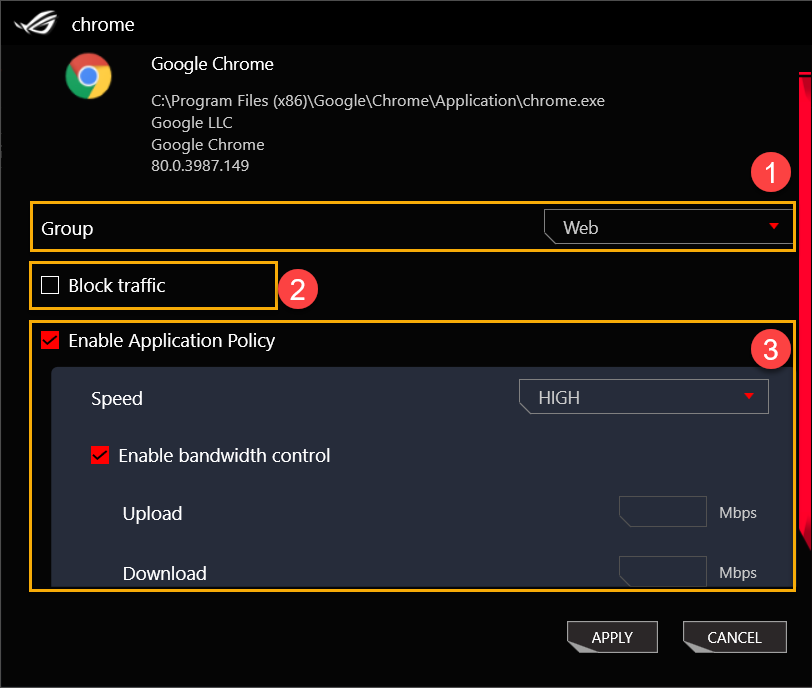
H-1 Group①: Defines the application categories: Game, Live stream, Multimedia, Web, File transfer and Others
H-2 Block traffic②: Disables application network connection
H-3 Enable Application policy③
Speed: Switches the network traffic priority for application: Extreme/ High/ Medium/ Low
Enable bandwidth control: Controls application bandwidth rate-limiting
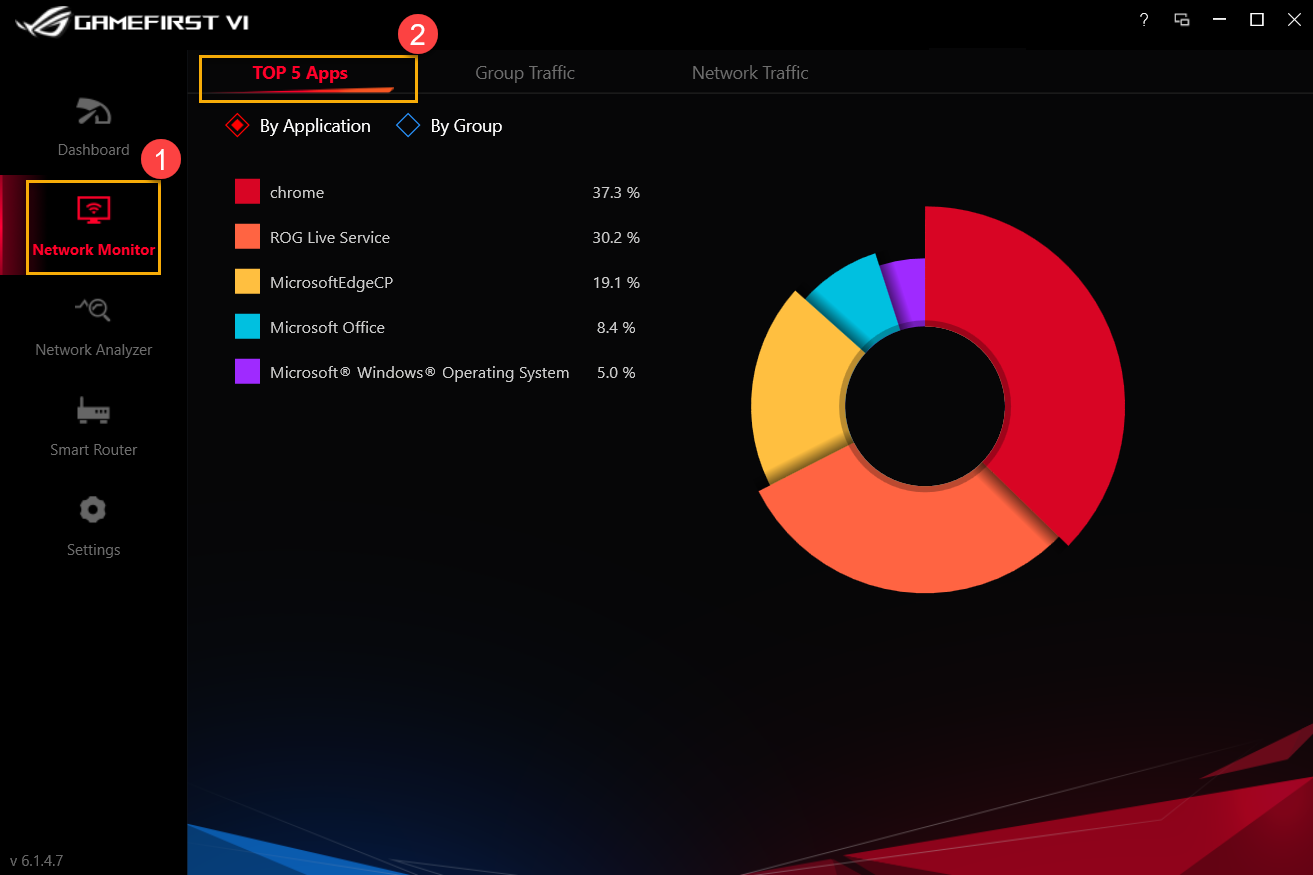
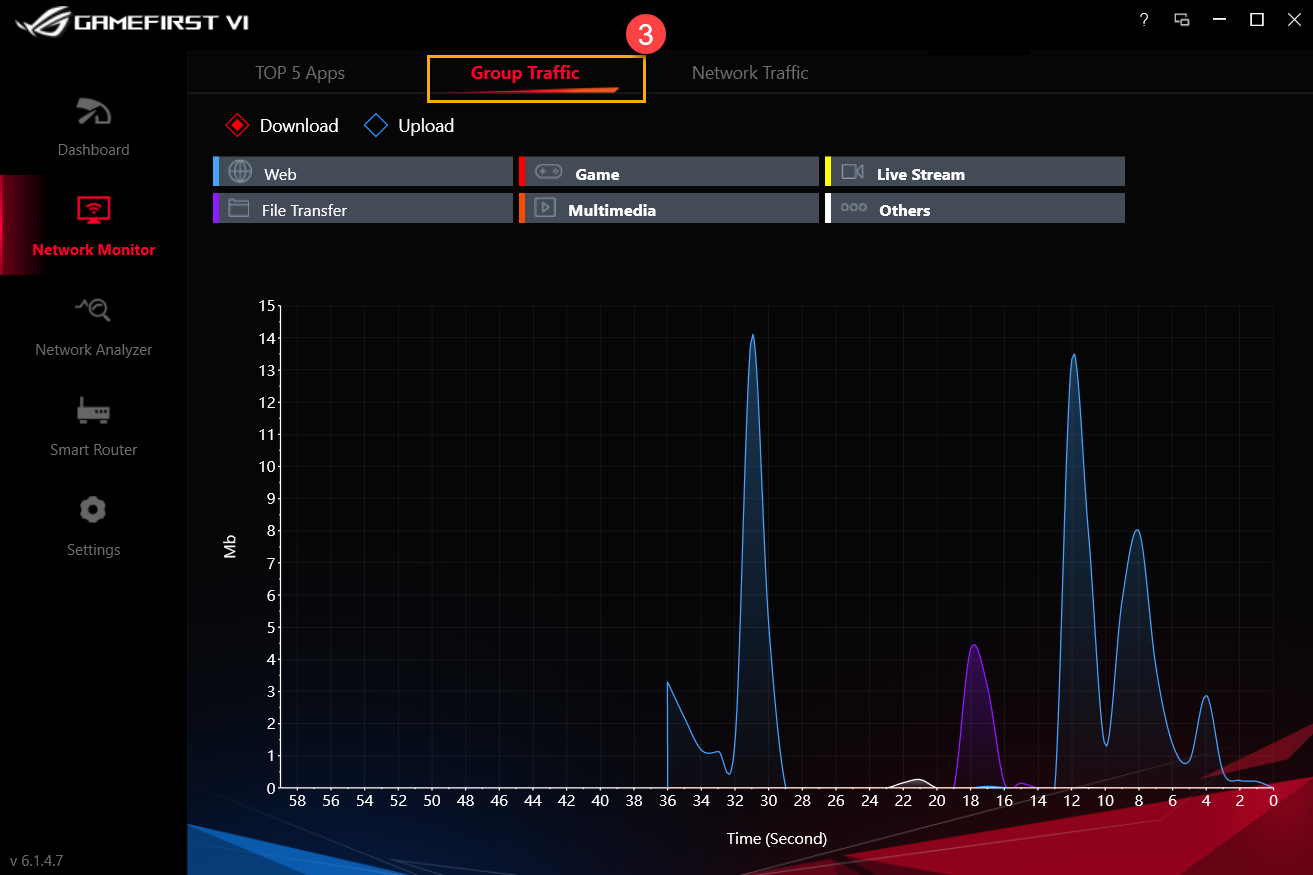
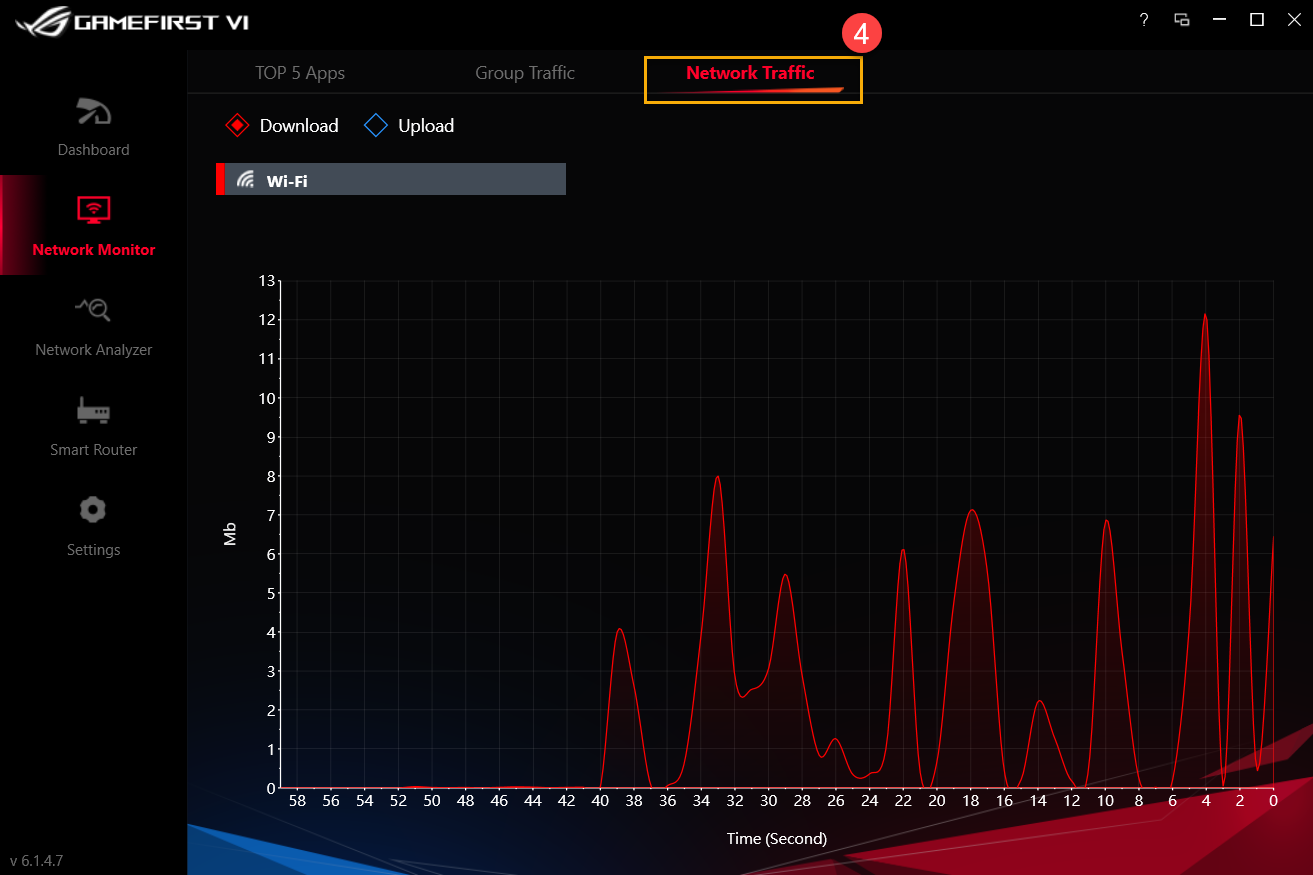
5. GameFirst VI Network Monitor①
5-1 Top 5 Apps②: Monitors network usage for the Top 5 apps or group
5-2 Group traffic③: Monitors network upload/download speed in real time by group
5-3 Network traffic④: Monitors the real time data for upload or download rate
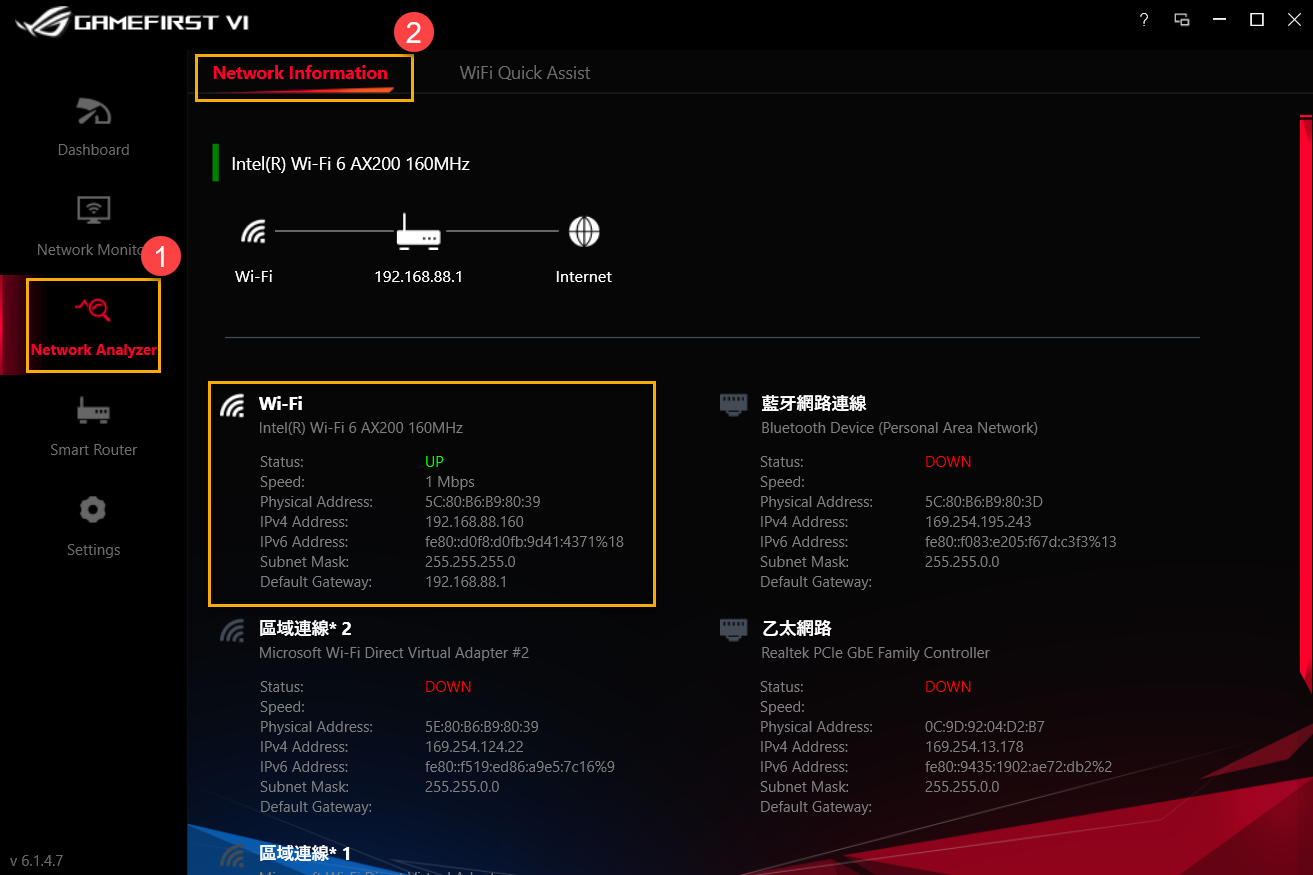
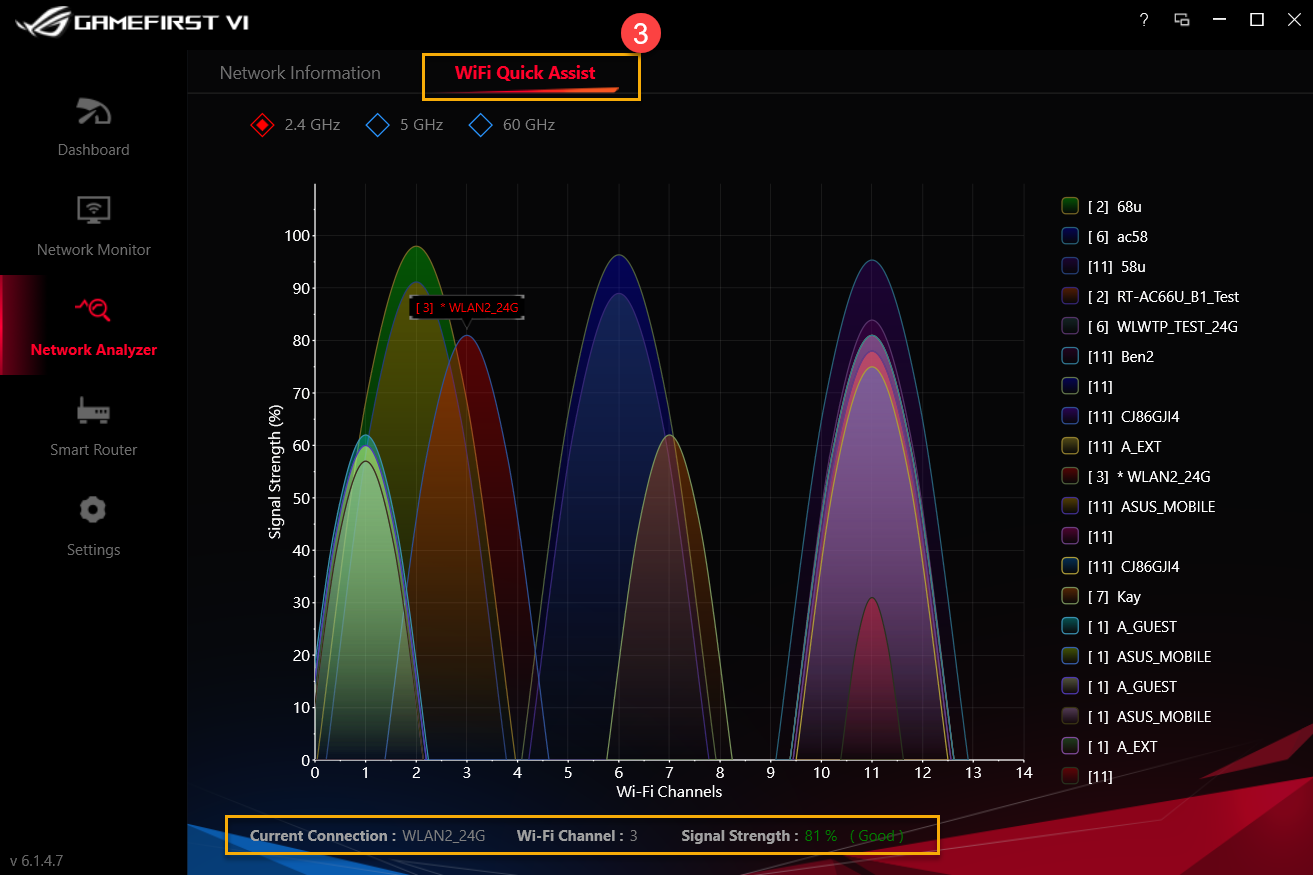
6. GameFirst VI Network Analyzer①
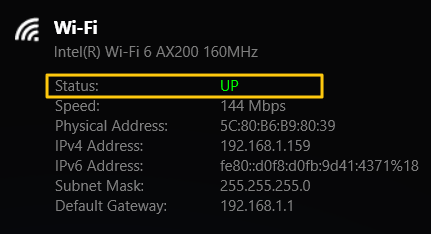
6-1 Network Information②: Review gateway information and status (Status, Speed, Physical address, IPv4 Address, IPv6 Address, Subnet Mask and Default Gateway)
6-2 Wi-Fi Quick Assist③: Analyzes the available wireless signals and signal strength. Also, shows the current WiFi connection, channel and the number of shared connections.
Discover ASUS ROG router with ASUS ROG First which accelerates the networking packets of your system so that you can enjoy faster and smoother networking experience.
For icon ② to ⑤ icons, please refer to the list below for more details
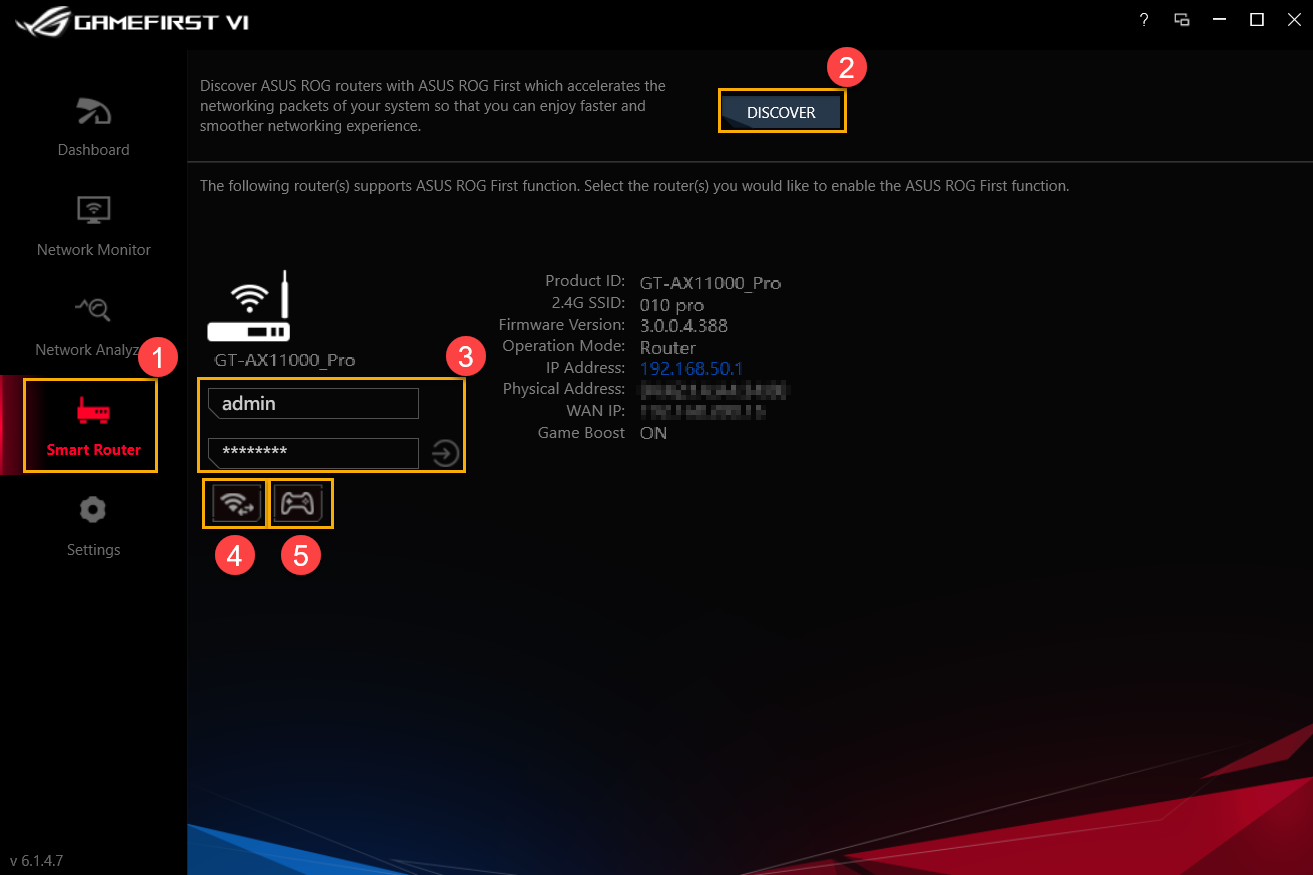
| Item | Name | Image | Description |
| ② | Discover |  | Discover ASUS ROG router whether is with ASUS ROG First function |
| ③ | Router Log-In |  | Log-in the router you connected |
| ④ | Wi-Wi Channel |  | Viewing the current WiFi connection, the channel and the number of shared connections available wireless signals and the signal strength |
| ⑤ | Game Boost |  | Turn on Game Boost |
8-1 Game Turbo②
For icon ③ to ⑦ icons, please refer to the list below for more details.
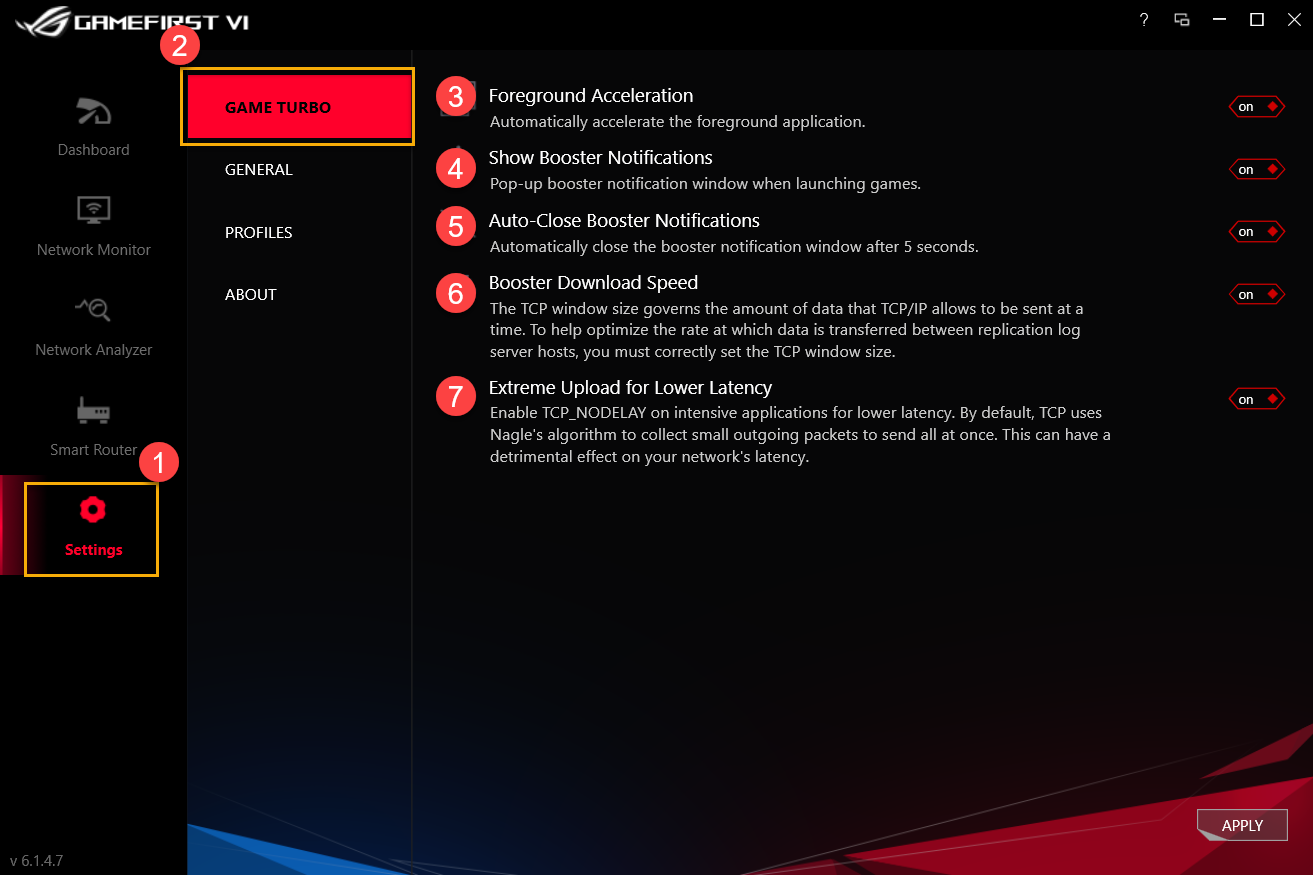
| Item | Name | Image | Description |
| ③ | Foreground Acceleration |  | Automatically accelerate the foreground application |
| ④ | Show Booster Notifications |  | Pop-up boater notification window when launching games |
| ⑤ | Auto-Close Booster Notifications |  | Automatically close the booster notification window after 5 seconds |
| ⑥ | Booster Download Speed |  | Adjusting TCP/IP window flow size to help optimize the rate which data is transferred between replication log server hosts |
| ⑦ | Extreme Upload for Lower Latency |  | Enable TCP_Nodelay on intensive applications for lower latency |
8-2 General①
For icon ② to ⑥ icons, please refer to the list below for more details.
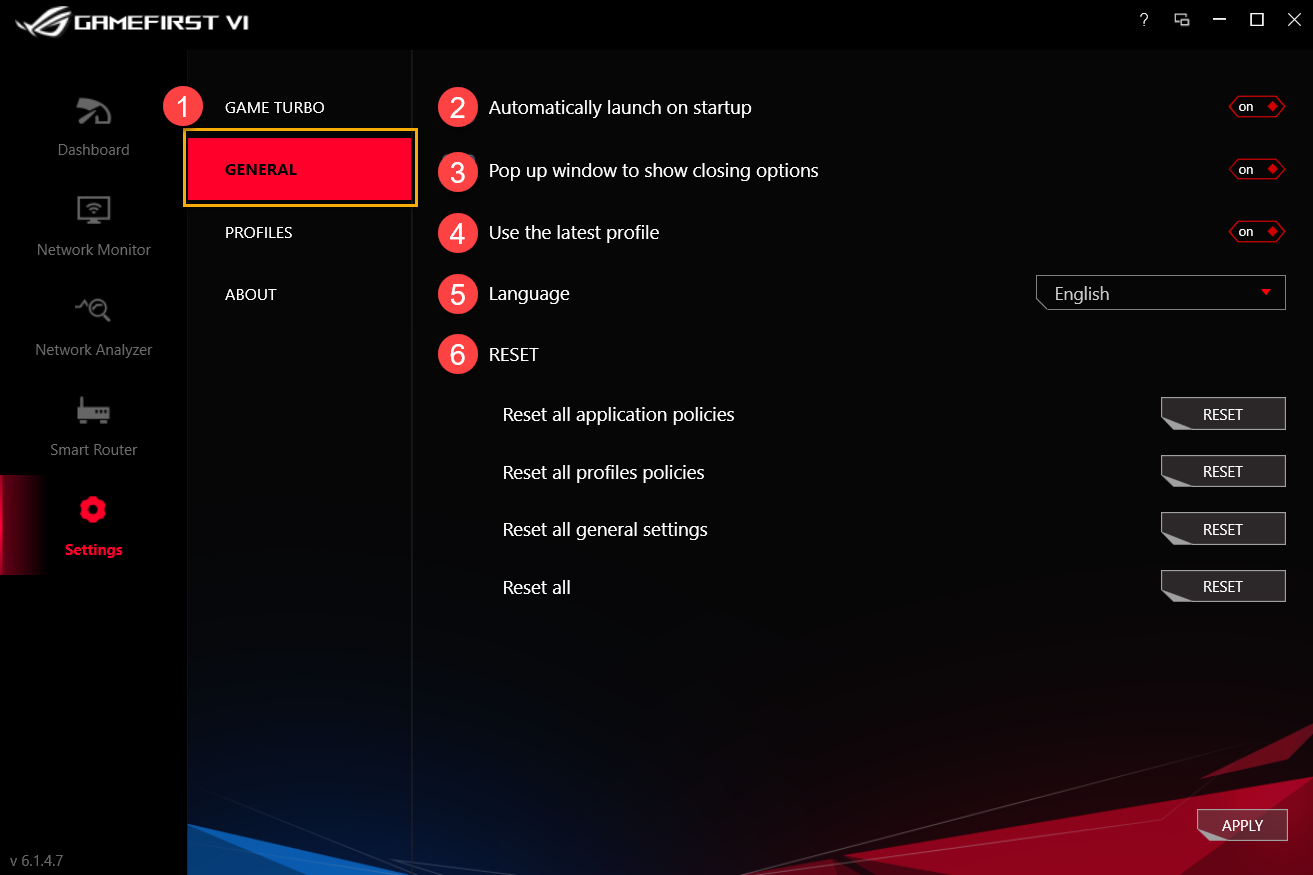
| Item | Name | Image | Description |
| ② | Automatically launch on startup |  | Automatically launch GameFirst VI while startup |
| ③ | Pop up window to show closing option |  | While closing GameFirst VI, a notification window will pop up for choosing to close or minimize program |
| ④ | Use the latest profile |  | Using the last profile after restart GameFirst VI |
| ⑤ | Language |  | Language selection (GameFirst VI will restart after apply new language) |
| ⑥ | Reset |  | Reset all applications policies/ profiles policies/ general settings |
8-3 Profiles①
Allows you to define each application (Game, Live stream, Multimedia, Web, File transfer and Others) speed priority and enable bandwidth control.
For ② to ④ icons, please refer to the list below for more details.
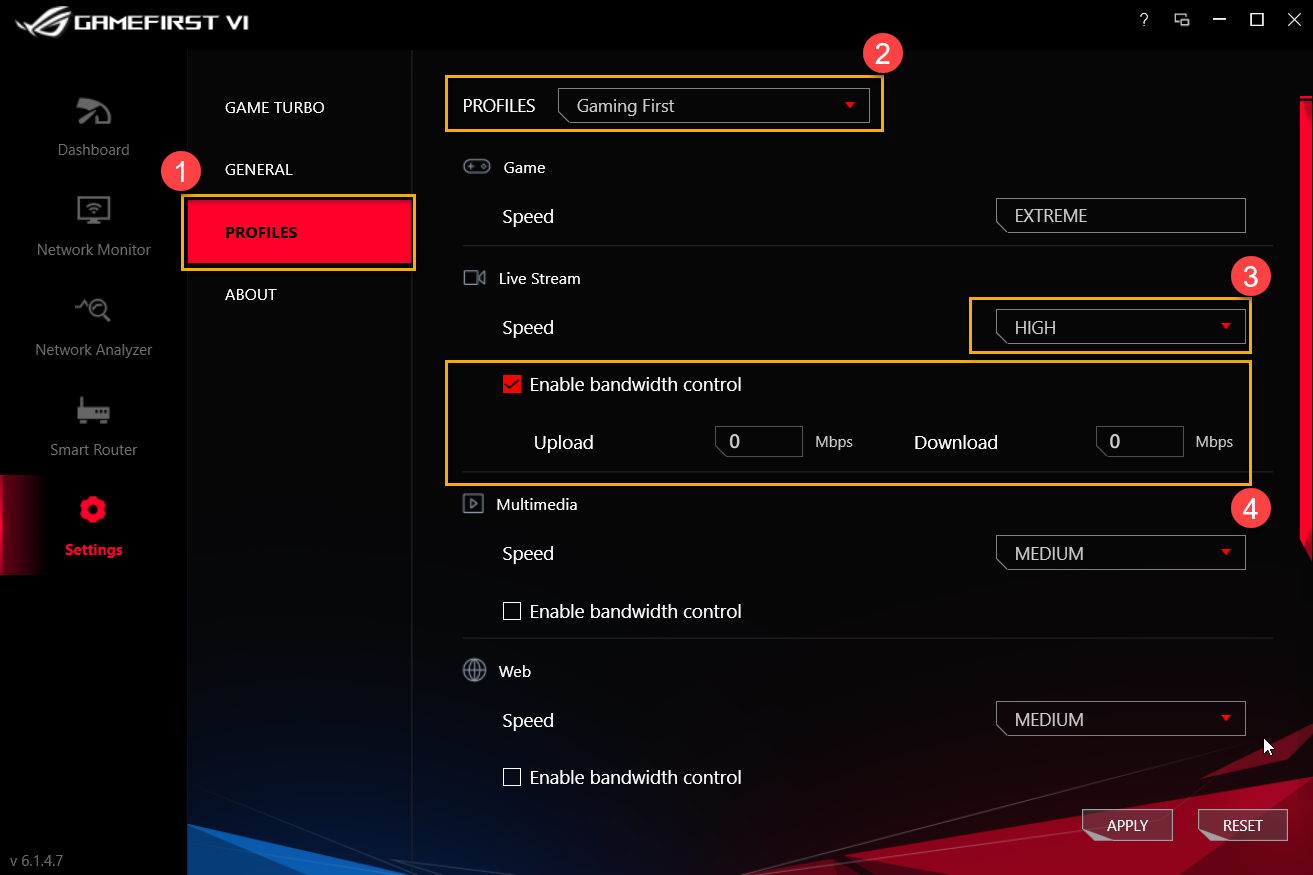
Profiles②: Select Profiles you would like to modify (Gaming First, Live Streaming First, Multimedia First or Adaptive Intelligence)
Speed③: Switch the network traffic priority for the application (Extreme/ High/ Medium/ Low)
Enable Application policy④: Controls application bandwidth rate-limiting
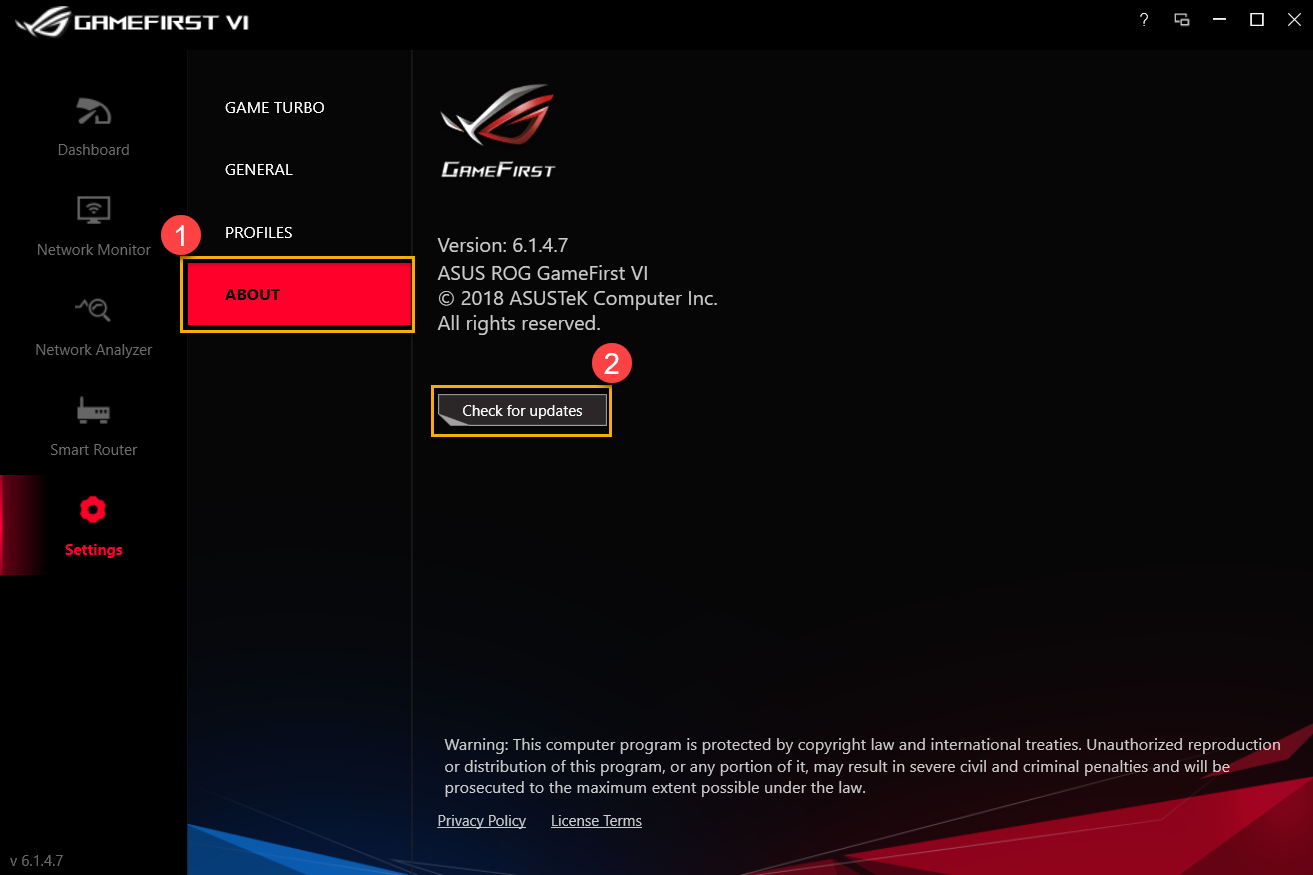
8-4 About①: Confirm the current version of Gaming First VI and [Check for updates] ② for new updates
9. Q&A
Q1: What are the new features for GameFirst VI?
A1: *UI optimization
*Adding AI Adaptive Intelligence Profile
*Adding rule setting by each application
*Adding TCP packet acceleration related application
*Provide IP geolocation、server locations and ping value for each application
*Auto-Switch to High Performance during games
*Able to close an application in GameFirst VI
Q2: How do I check my network connection status?
A2: The connection status will be shown as indicated below
 No connected
 Connected,only Intranet
 Connected with Internet
Q3: Does my router support ROG First function?
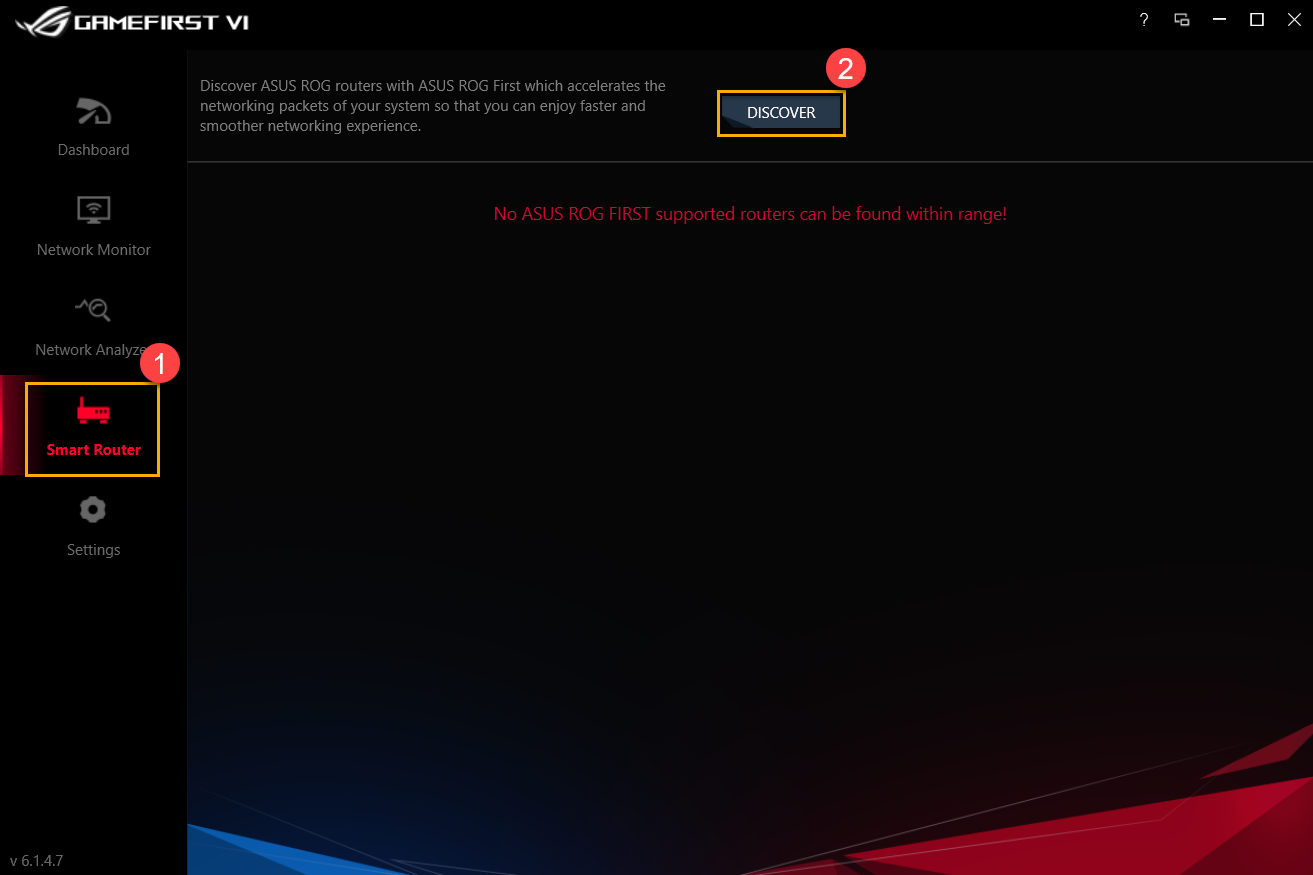
A3: If your router doesn’t support ROG First function, you will see the page below when you click [Smart Router] ① and [Discover]②
* For router models with ROG First supported, please refer to ASUS official website