How to Adjust the ROG Flow Z13's VRAM Allocation
The 2025 ROG Flow Z13 features a unified memory design, allowing a single pool of system memory (RAM) to be shared between the CPU and GPU. Unlike laptops with dedicated graphics cards, which have their own video memory (VRAM) that cannot be changed, this gives you much more control over your system, allowing you to customize the amount of VRAM available for the task at hand.
This is useful in a few different scenarios:
- You want to increase VRAM to use higher-resolution textures in modern games
- You want to increase VRAM to reduce stuttering in certain VRAM-heavy games
- You’re getting an error on launch stating that a game won’t start due to insufficient VRAM
- You want to lower the VRAM allocation to free up more system memory for other programs running in the background
To change the amount of VRAM on your system, open Armoury Crate and go to System Settings > Free up memory.
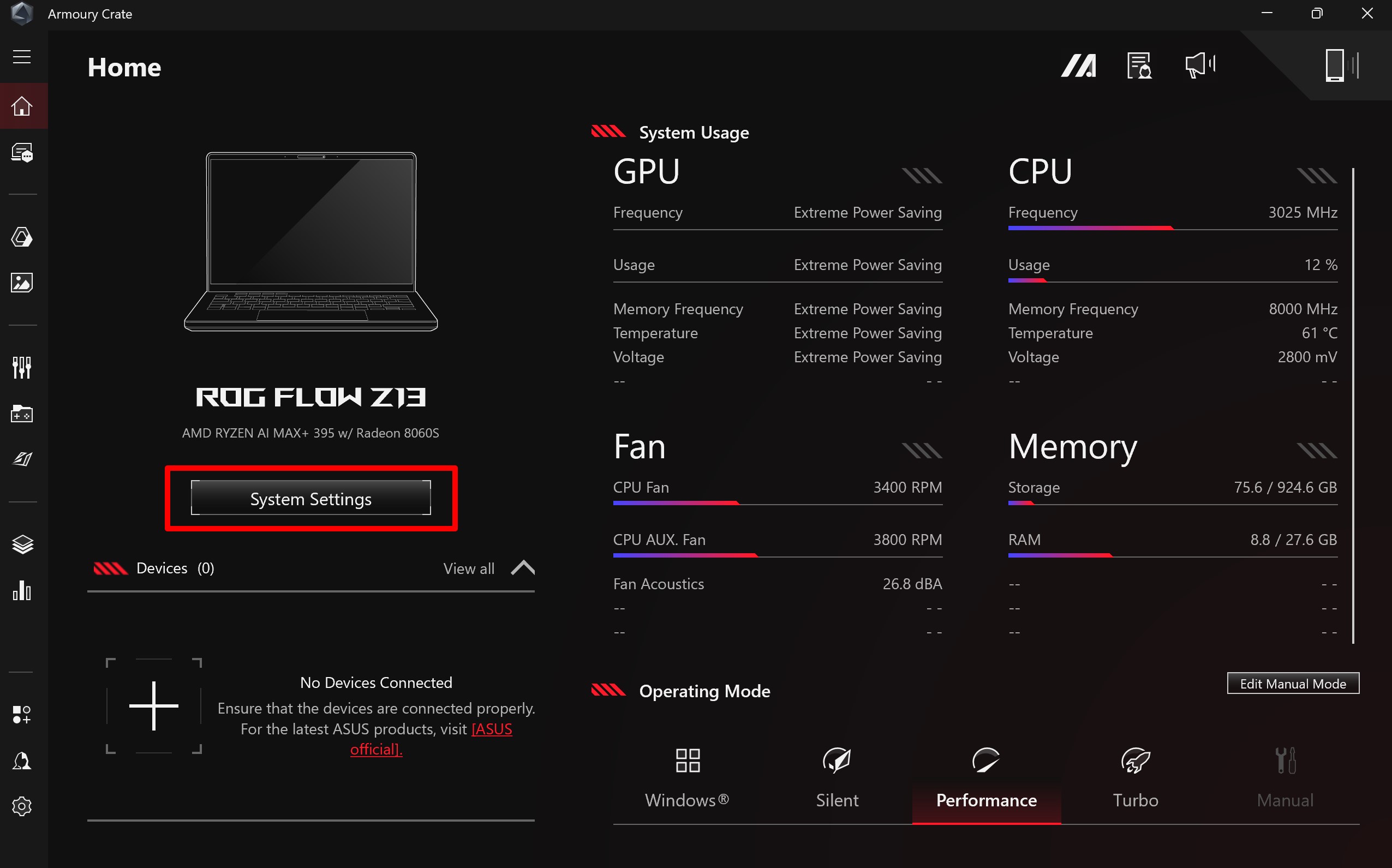
In the Free Up Memory tab, you will find a dropdown menu where you can adjust integrated GPU's memory allocation to your desired value.
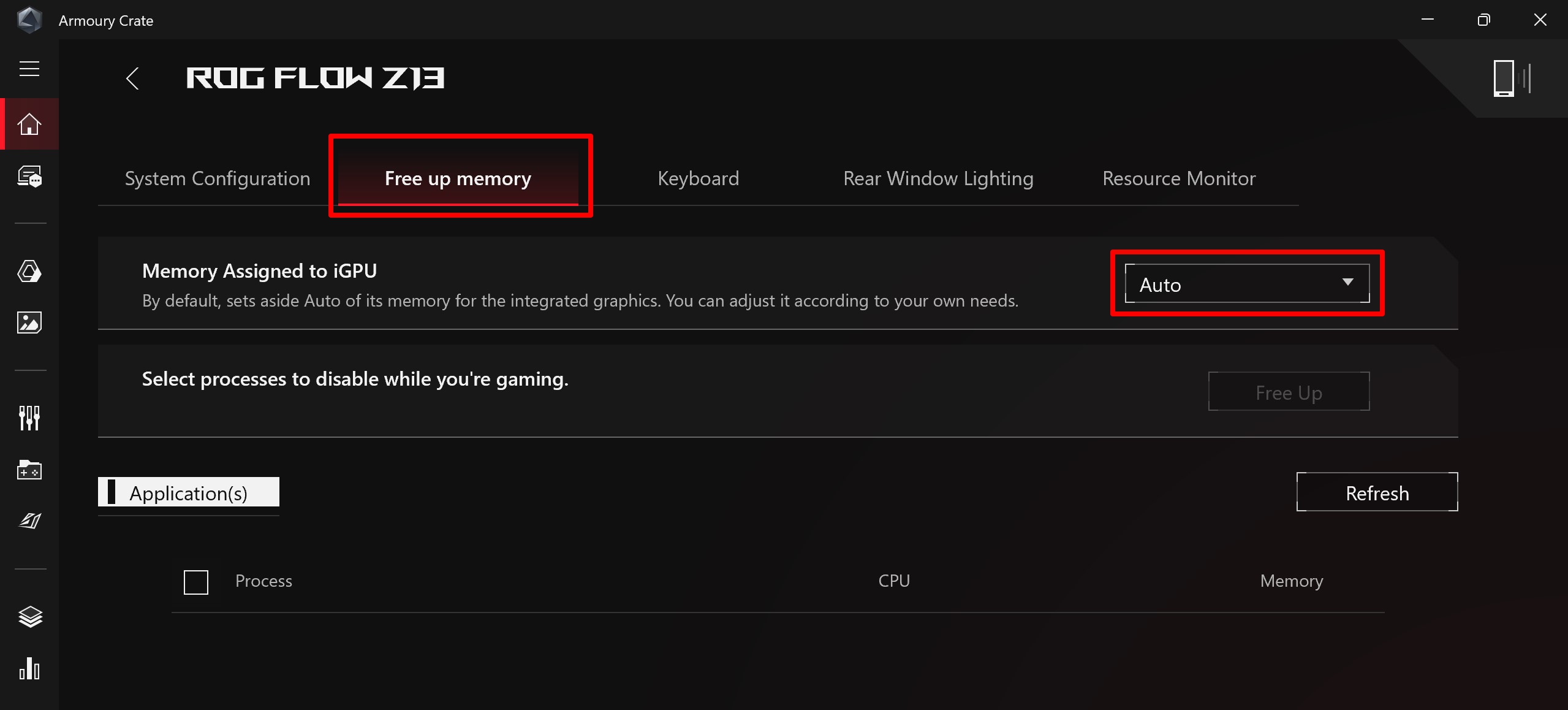
The default is 4GB, but you can decrease it to a minimum of 0.5GB and increase it to a maximum of 96GB (on the 128GB Flow Z13). Please refer to the table below for the values you can assign. You will need to reboot the system for the change to take effect, after which you can launch and play your games as expected.
| Total Memory Capacity (GB) | Default Value (GB) | Customizable Value (GB) |
|---|---|---|
| 32 | 4 | 0.5, 1, 2, 4, 8, 16, 24 |
| 64 | 4 | 0.5, 1, 2, 4, 8, 16, 32, 48 |
| 128 | 4 | 0.5, 1, 2, 4, 8, 16, 32, 64, 96 |
There is also an Auto setting if you would like the system to automatically assign VRAM capacity as needed. However, note that certain apps may not recognize this feature properly, and may display an error that says “Your system specs do not seem to match the minimum requirements for the game. Please check your hardware and GPU settings” or “Available graphic memory detected is below the required amount.” In this case, turning off Auto mode and allocating the desired amount of VRAM will allow the game to launch as normal.
Author
Popular Post
Introducing the ROG Astral GeForce RTX 5090 and 5080: a new frontier of gaming graphics
The ROG Strix OLED XG27AQDPG kicks the refresh rate up to 500Hz
The complete list of GeForce GPU power specifications for 2024 ROG and TUF Gaming laptops
How to choose a gaming laptop: The ultimate 2025 buying guide
32-inch glossy WOLED panels debut in the ROG Strix OLED XG32UCWMG and XG32UCWG gaming monitors
LATEST ARTICLES
How to choose a gaming laptop: The ultimate 2025 buying guide
Learn how to choose a gaming laptop with our complete guide, ensuring you find the perfect match for your gaming needs and preferences.
Can I overclock my GPU with Armoury Crate?
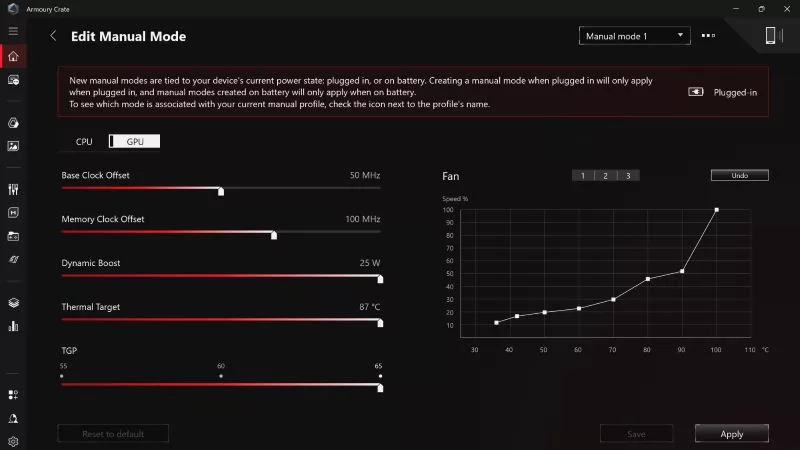
If you have an ROG machine — whether it’s a gaming desktop or a gaming laptop — you can control most of its functions from the bundled Armoury Crate software. On laptops, this includes tuning your GPU performance and overclocking your graphics chip. On desktops, you'll need GPU Tweak III as well.
Do I need Armoury Crate on my PC?
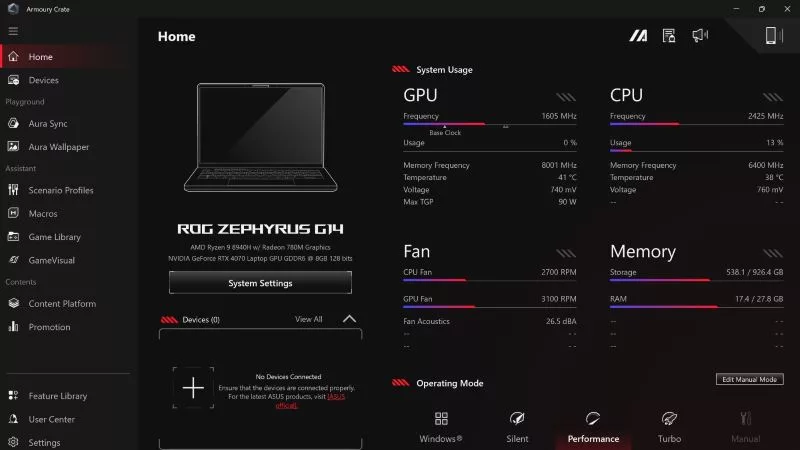
If you just bought an ROG desktop PC or gaming laptop, you may be wondering what the preinstalled Armoury Crate software does. Here are its banner features.
How to fix a device that's not showing up in Armoury Crate
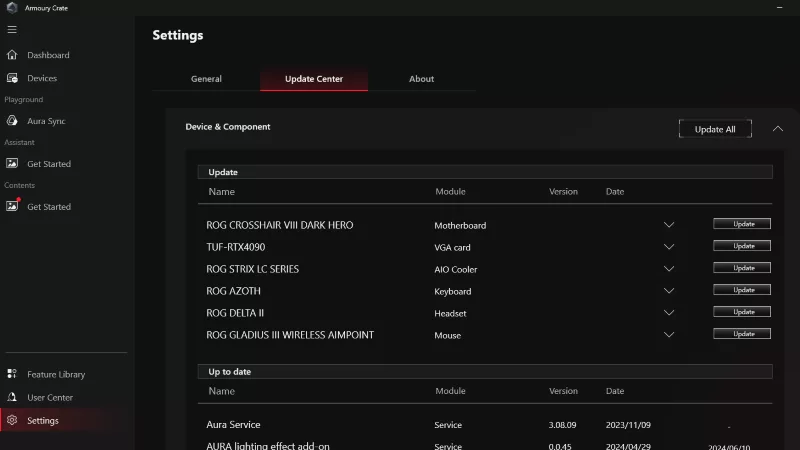
If Armoury Crate isn’t automatically detecting your new device, don't worry — you probably just need to download a quick update.
Reintegrated: An ROG stylebook for today's competitive corporate world
Working in a corporate office doesn't necessarily mean that you have to settle for bland, underwhelming PC hardware.
How GPU Tweak's Power Detector+ alerts you to abnormal current on your ROG Astral graphics card
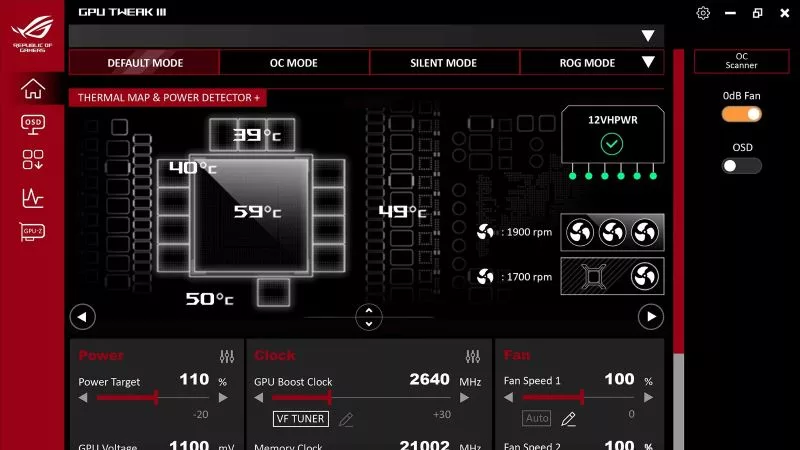
Our new Power Detector+ feature on our ROG Astral graphics cards lets you know exactly what’s going on with your card at all times.