How to adjust your laptop's P-Cores and E-Cores for better performance and battery life
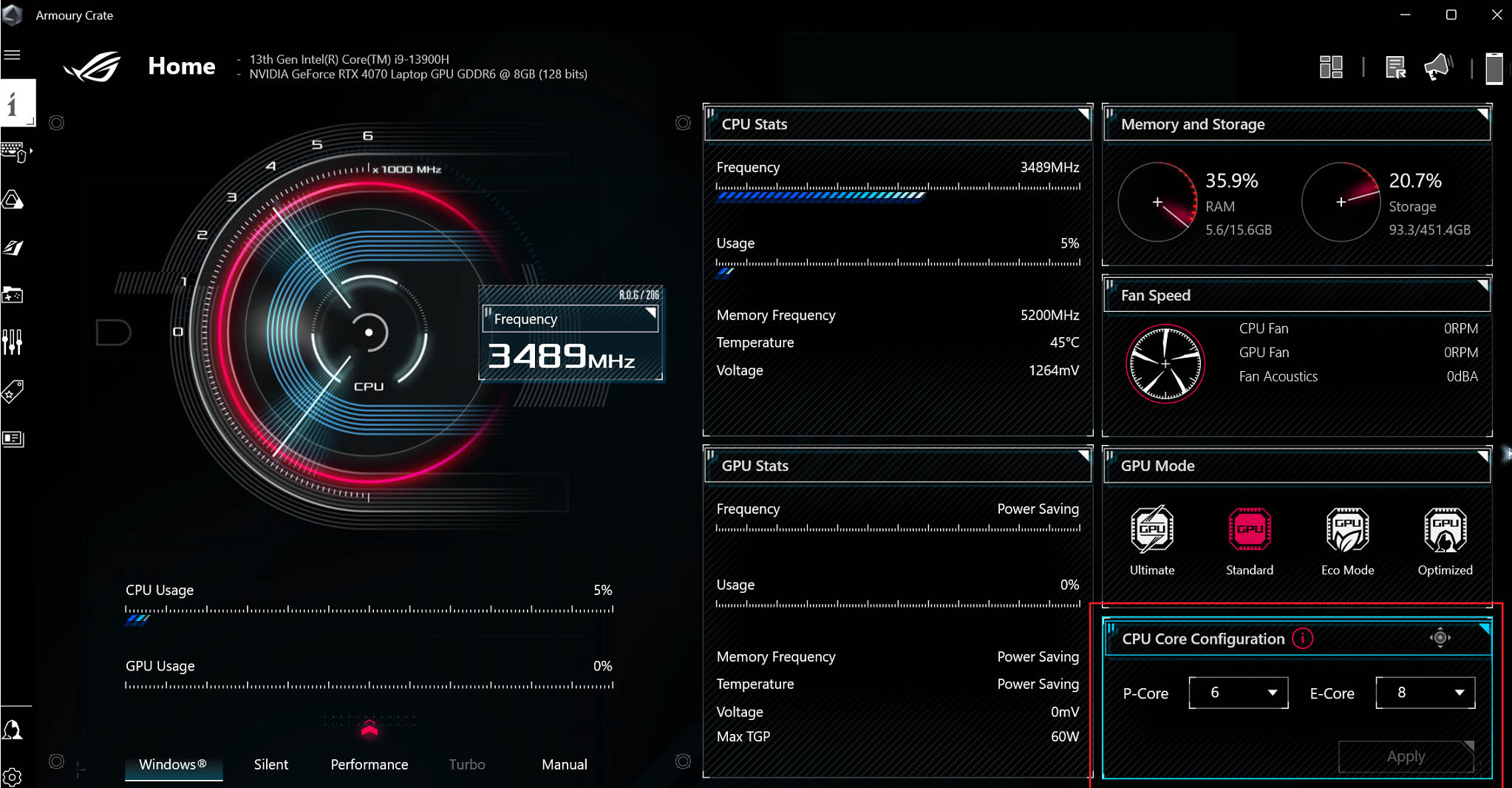
Intel’s 12th and 13th generation processors have revolutionized the modern CPU landscape. These new processors utilize an innovative architecture that mixes CPU cores of different sizes — larger, more powerful “Performance-cores” handle heavy tasks with ease, while smaller “Efficient-cores” take on lighter tasks while consuming less energy. Your system will dynamically allocate tasks to these cores as it sees fit, offering excellent performance and power consumption along the way. But you might want to roll up your sleeves and try tweaking the core layout yourself by disabling specific cores. Now, you can use the Armoury Crate app to do just that.
On ROG laptops with 13th gen Intel processors, we allow you to disable some of your CPU’s cores, which will affect how the CPU behaves under certain workloads. For example, the ROG Flow Z13 houses an Intel® Core™ i9-13900H with 6 Performance-cores and 8 Efficient-cores. These 14 combined cores will handle multi-threaded workloads and heavy multitasking like a champ. But certain tasks may be better served with a different core layout.
In our testing, for example, we found that disabling some of the Z13’s cores leads to longer battery life. Our best results were with 4 Performance-cores enabled and no Efficient-cores. With fewer cores enabled, the system doesn’t have to use as much power, so the battery was able to last longer in both the Modern Office and Gaming benchmarks of PCMark 10.
Disabling cores obviously comes at the cost of overall CPU performance, and it’s rare that you’ll want to go all the way down to only two Performance-cores. But disabling some cores can also improve performance in certain scenarios.
We tested a number of different configurations and found that with two Performance Cores and all Efficient-cores disabled, the remaining four Performance-cores were able to boost to higher clock speeds, leading to higher performance in certain situations. Again, if we look at PCMark 10’s Modern Office test, we found four Performance cores were faster in the App Start-Up, Web Browsing, Spreadsheet, and Writing tests. That said, other tests — like Video Conferencing, Photo Editing, Rendering and Visualization, and Video Editing — performed better with the full might of the CPU, so the configuration you choose may depend on the task at hand.
This setting can also improve performance in some games. In our testing we found the Final Fantasy XV benchmark performed about 3% better with only four Performance-cores enabled, while Shadow of the Tomb Raider achieved 3.5% higher framerates with this configuration in CPU-bound scenarios. Counter-Strike: Global Offensive, on the other hand, saw minimal performance changes between our different configurations, so your mileage may vary from game to game — though remember, these configurations also improved efficiency, so even if the performance jump is small, you may be able to game longer on battery too, which is a win-win.
On ROG laptops with newer Intel 14th Gen processors, however, users should find that four P-Cores and four E-Cores provides the best performance advantage.
We highly recommend experimenting with this setting yourself, using your favorite game titles. First, make sure your system’s BIOS and Armoury Crate are both up to date. Then, open Armoury Crate and find the CPU Core Configuration option on the home page (as shown in the image above). Select the number of P-Cores and E-Cores you’d like to use, reboot your PC, and run the game or task in question. You may find that better performance and battery life is only a few clicks away.
Author
Popular Post

The ROG Kithara just benched every other gaming headset I own

What GPU should you choose for your gaming laptop? RTX 5050 vs 5060 vs 5070 vs 5070 Ti vs 5080 vs 5090

The ROG Strix OLED XG32UQWMS unites a 32-inch Tandem WOLED panel with great value

The ROG Strix Morph 96 Wireless an excellent base for your custom gaming keyboard

The ROG Cetra Open Wireless Gaming Earbuds combine low latency with open-air freedom
LATEST ARTICLES
How to clean your OLED monitor
Keeping your OLED monitor looking pristine is surprisingly simple. You just need a microfiber cloth and the right technique.

How to enable Xbox mode to reduce RAM usage when gaming on Windows
Here’s how you can enable Xbox mode for Windows 11 PCs to score a more streamlined, controller-friendly experience.

How to customize your ROG peripherals with Gear Link — no downloads required
Adjust RGB lighting, tweak sensitivity, remap buttons, and more — all without ever installing a single piece of software.