How to increase the ROG Ally's VRAM allocation
The ROG Ally uses a cutting-edge AMD APU at its heart, which combines a CPU and GPU for efficient gaming performance. Unlike dedicated graphics cards, which have their own video memory (or VRAM), the Ally shares some of its system memory (or RAM) with the integrated GPU. To give you more control over your system, we allow you to customize how much of this memory is reserved as VRAM.
This is part of our ultimate guide to the ROG Ally series of articles.
This can be helpful in a few scenarios:
- You want to increase VRAM to use higher-resolution textures in modern games like The Last of Us.
- You want to increase VRAM to reduce stuttering in certain VRAM-heavy games like Call of Duty: Modern Warfare II.
- You’re getting an error on launch that a game will not start because not enough VRAM is present, like in Assassin’s Creed Valhalla or Rainbow Six: Extraction.
- You want to lower the VRAM allocation so you have more system memory for other programs running in the background.
For example, when trying to launch some games you may receive an error that says “Your system specs do not seem to match the minimum requirements for the game. Please check your hardware and GPU settings” and "Available graphic memory detected is below" the required amount. Raising the Ally’s VRAM reserve will allow the game to launch as normal.
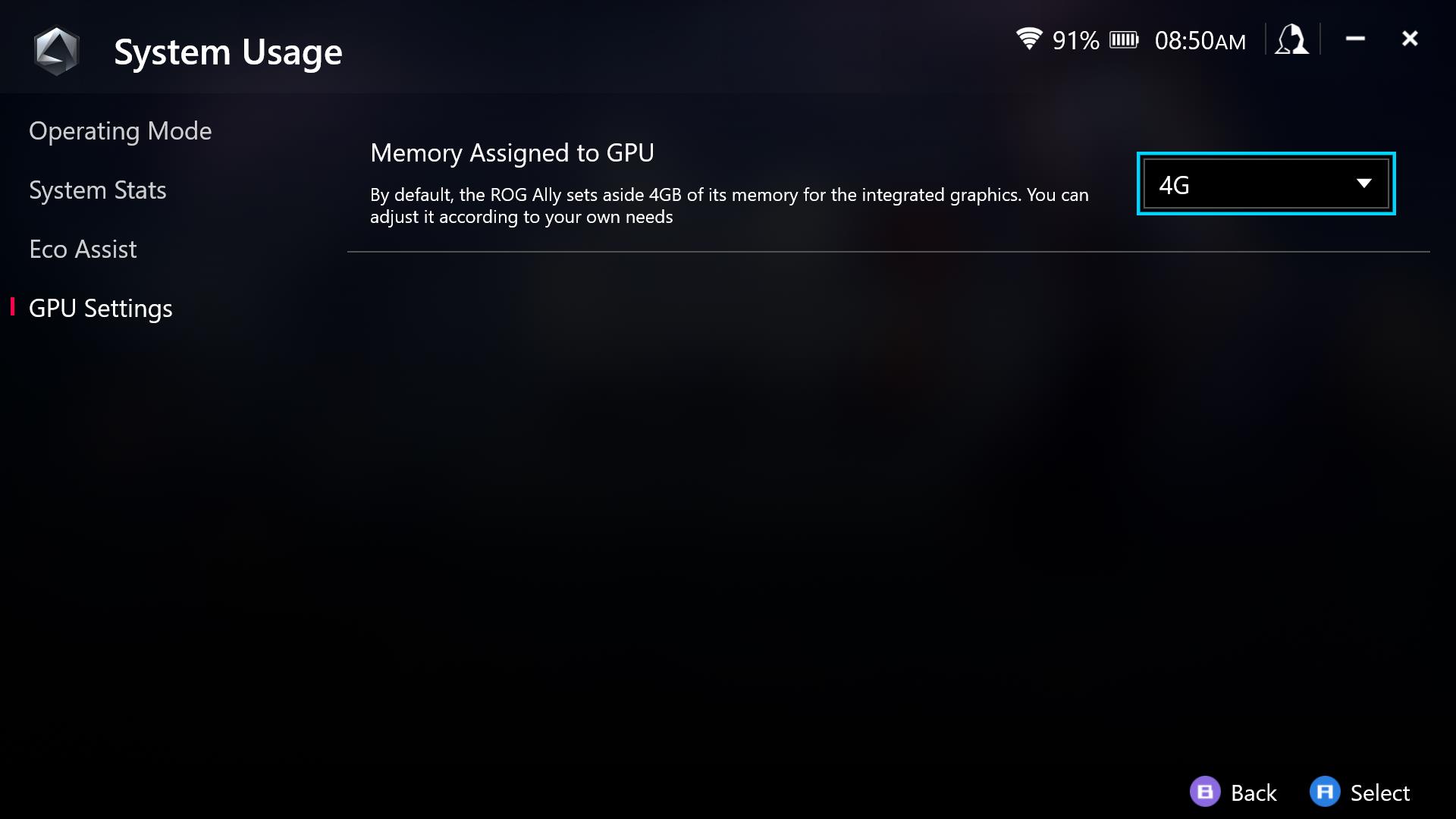
To change the UMA buffer size, open Armoury Crate and head to Settings > Operating Mode > GPU Settings. Change the Memory Assigned to GPU to your desired value. The default is 4GB, but you can raise it to 8GB at the maximum. You will have to reboot the Ally for the change to take effect, after which you can play your games as usual.
Author
Popular Post
How to clean your OLED monitor

The ROG Strix OLED XG259QWPG Ace is a tournament-ready OLED designed for esports pros

ROG headset settings guide: get the best audio for gaming
How to Adjust the ROG Flow Z13's VRAM Allocation

The best settings for your ROG laptop: how to get the best PC gaming experience
LATEST ARTICLES
How to unlock the maximum TGP of your ROG gaming laptop in Armoury Crate's Manual Mode
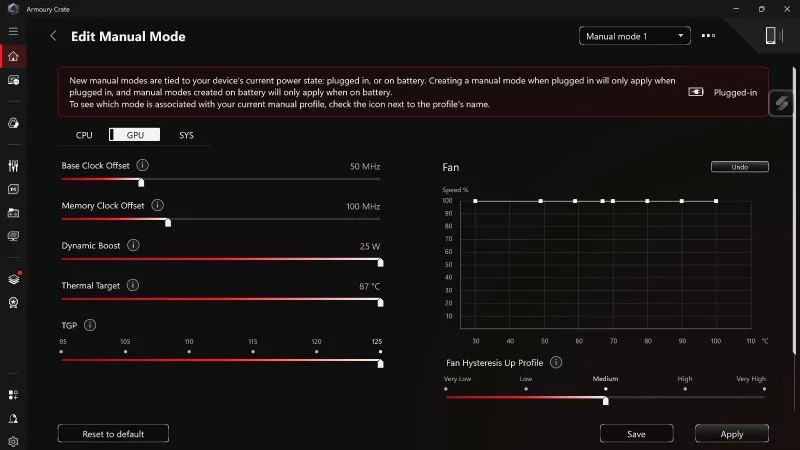
If you want to push your laptop GPU's Total Graphics Power (TGP) and CPU wattage to its maximum, Manual Mode in Armoury Crate will get you there.
How to Choose the Right Gaming Laptop in Kenya for Your Budget and Play Style
How to configure your ROG XBOX Ally X20's OLED display for the best HDR picture quality
Wondering how to set up HDR on your ROG Xbox Ally X20? Here's how to get the best picture from its OLED display, plus Auto HDR and OLED Care tips.