How to take screenshots and record game footage on the ROG Ally
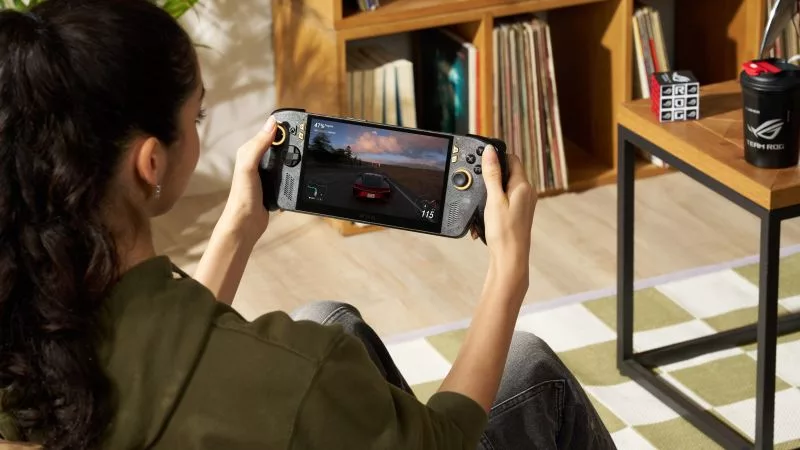
Sharing unbelievable moments is one of the most fun parts of playing games, whether you finally got your first Victory Royale in Fortnite or found a way to land a motorcycle on the top of a flying plane in Grand Theft Auto V. Thankfully, we made it super easy to take screenshots and video recordings on the ROG Ally.
This is part of our ultimate guide to the ROG Ally series of articles.
How to take a screenshot on the ROG Ally
There are two easy ways to take a screenshot on the ROG Ally:
- Hold down the M1 or M2 buttons on the back of the device and press A.
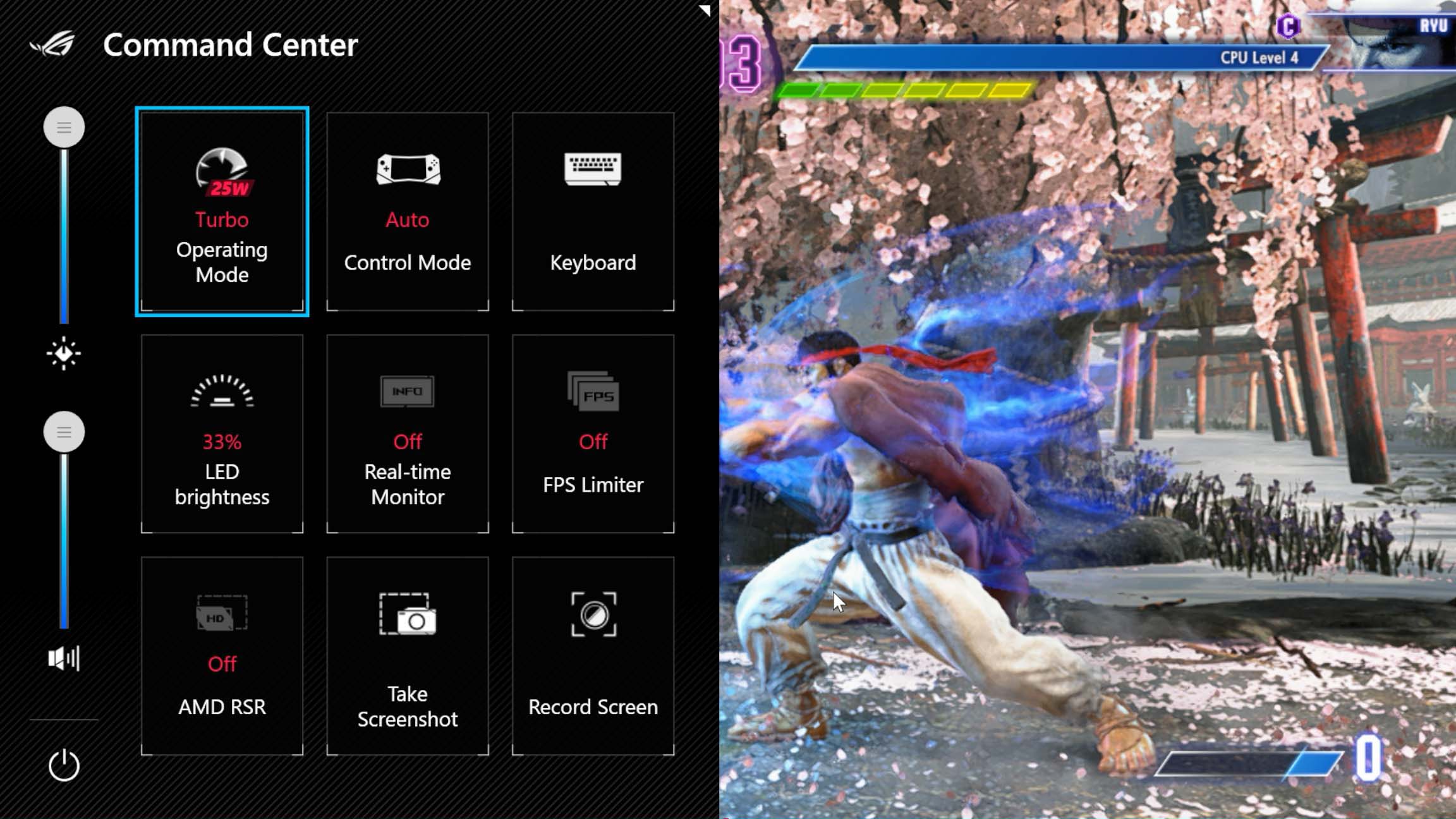
- Press the Command Center button to open the Command Center, and tap the “Take Screenshot” button.
Obviously, if you’ve remapped any buttons or disabled the macro functionality, refer to your own button mapping for the Take Screenshot shortcut. You can see all the current button mappings by pressing and holding down the Armoury Crate button.
The same goes for the Command Center. If the Take Screenshot button does not appear in Command Center, you can add it in Armoury Crate by going to Settings > Edit Command Center.
This uses the built-in screenshot capabilities of Xbox Game Bar, so make sure Xbox Game Bar is installed and enabled to make use of this functionality.
How to record a gameplay video on the ROG Ally
Taking a screen recording is easy on the Ally, and you can do it in one of two ways:
- Hold down the M1 or M2 buttons on the back of the device and press Y.
- Press the Command Center button to open the Command Center, and tap the “Record Screen” button.
If you’ve changed your button mappings or disabled the secondary functions of the M1 and M2 buttons, refer to your custom mapping for the Record Screen shortcut. You can see all the current button mappings by pressing and holding down the Armoury Crate button.
As for the Command Center, if the Record Screen button does not appear, you can add it in Armoury Crate by going to Settings > Edit Command Center.
This uses the built-in video recording capabilities of Xbox Game Bar, so make sure Xbox Game Bar is installed and enabled to make use of this functionality.
How to share your screenshots and recordings
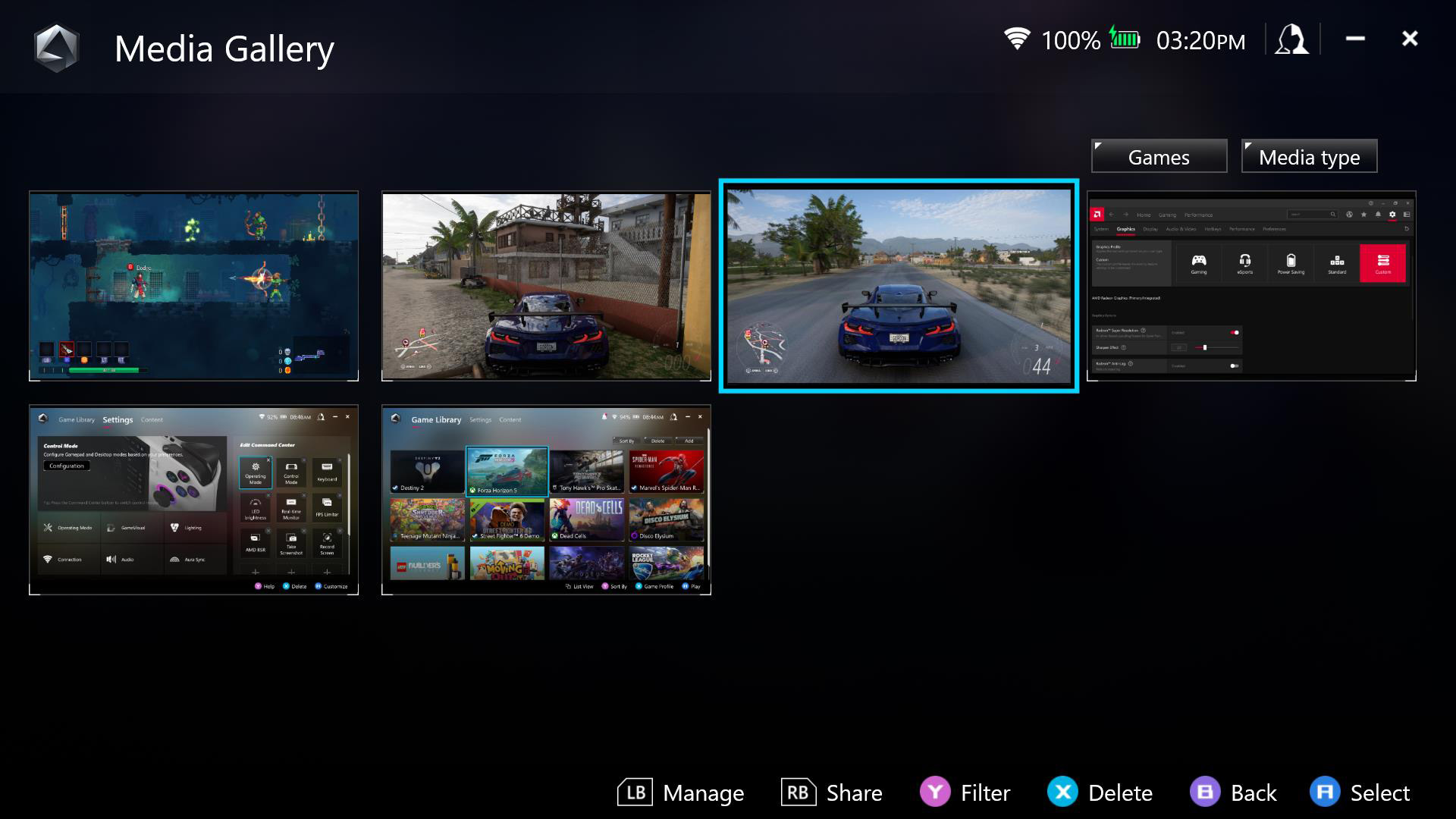
Once you’ve nabbed that awesome shot, you can share it with your friends by opening Armoury Crate and heading to Content > Media Gallery, highlighting the screenshot or video clip, and pressing the right button (RB) to share it on Twitter, Instagram, or YouTube.
Alternatively, you can seek out the image and video files in Windows’ File Explorer. The screenshots and videos are stored in C:\[yourusername]\Videos\Capture, where [yourusername] is the name of your user folder in Windows. From here you can copy, edit, or share the files however you choose.
For more tips and tricks, check out our full guide to the ROG Ally. And if you haven’t picked up your ROG Ally yet, you can grab it from Best Buy at the links below.
| Model | Type | Where to Buy (US) | Where to Buy (CA) |
|---|---|---|---|
| ROG Ally (Ryzen Z1 Extreme) | Handheld | Best Buy | ASUS Best Buy |
| ROG Ally (Ryzen Z1) | Handheld | Best Buy | |
| XG Mobile (Radeon RX 6850M XT) | eGPU | ASUS Best Buy |
|
| XG Mobile (GeForce RTX 4090) | eGPU | ASUS EXcaliberPC |
ASUS Memory Express |
| ROG 65W Gaming Charger Dock | USB Hub | Best Buy | ASUS |
| Official ROG Ally Travel Case | Case | Best Buy | ASUS Best Buy |
Author
Popular Post
AMD FSR™ Upscaling 4.1 is coming to the ROG XBOX Ally X and X20 in preview

Innovate. Perform. Dominate: Celebrate 20 years of gaming with the ROG Edition 20 lineup of PC components and gear
How to boost gaming performance on the ROG Ally or ROG Xbox Ally
What is the ROG logo? The design behind the Fearless Eye
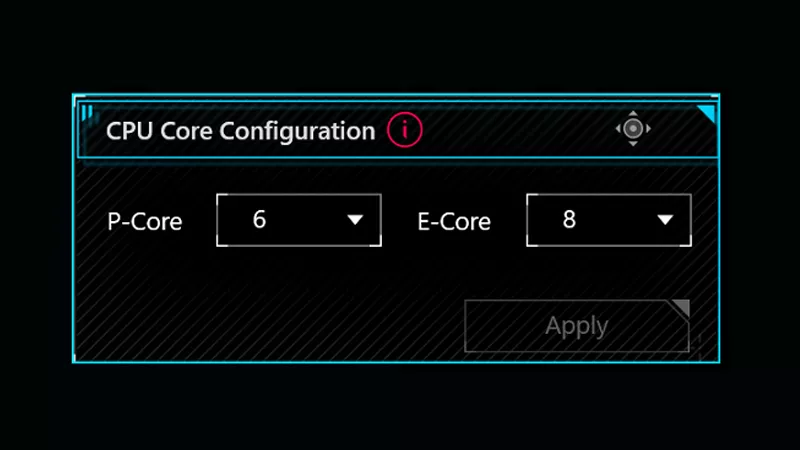
How to adjust your laptop's P-Cores and E-Cores for better performance and battery life
LATEST ARTICLES
The ROG holiday gift guide: here’s what to get the gamer in your life this holiday season
If the gamer in your life has a wish list is full of hardware terms you've never heard of, don't worry — we’ve got the gear that’ll make them happy.
Best ROG gaming laptops by budget: entry, mid-range & flagship picks
With so many ROG gaming laptop choices, it's easy to find a machine that fits your budget and best serves the way you play.
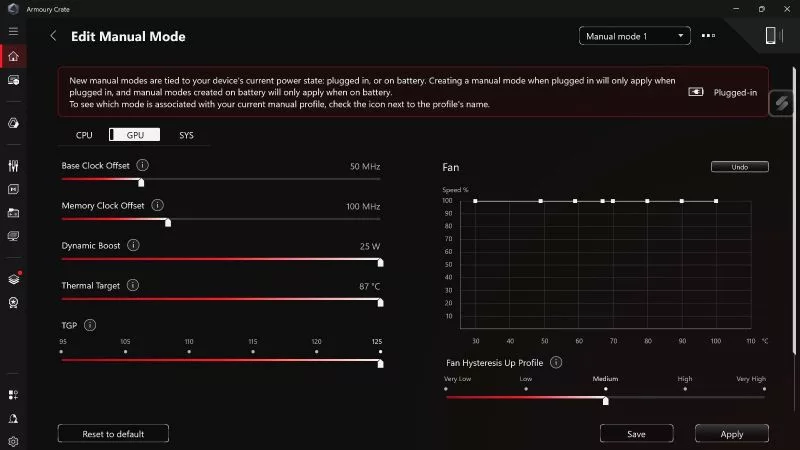
How to unlock the maximum TGP of your ROG gaming laptop in Armoury Crate's Manual Mode
If you want to push your laptop GPU's Total Graphics Power (TGP) and CPU wattage to its maximum, Manual Mode in Armoury Crate will get you there.