How to clean your mouse pad
Your gaming mouse pad is one of the hardest-working pieces of gear on your desk. Every flick, swipe, and clutch play depends on its surface staying consistent, yet it's also one of the easiest peripherals to overlook when it's time to clean your setup. Dust, skin oils, sweat, and everyday debris gradually build up over time, affecting both the look and feel of your mouse pad. Fortunately, keeping that desk mat in top condition doesn't require special equipment or an elaborate routine. With a few simple steps, you can help preserve its performance and keep your desk looking as sharp as the rest of your setup.
Why a clean mouse pad matters

Modern gaming mice are designed to track with incredible precision, but they can only perform their best on a clean, consistent surface. Dirt and grime can introduce uneven friction that changes the way your mouse glides, making movements feel less predictable during fast-paced games.
A clean mouse pad also helps reduce unnecessary wear on your mouse feet, allowing them to glide smoothly instead of dragging across accumulated debris. Even if you don't notice a dramatic difference from one day to the next, regular cleaning helps maintain the consistent feel you've grown accustomed to.
And of course, there's an aesthetic benefit as well. Your gaming keyboard, gaming monitor, and PC all deserve a clean workspace, and large mouse pads and desk mats can occupy more desk space than any other accessory. Keeping it looking fresh helps your entire setup make a better impression.
The safest way to clean your desk mat
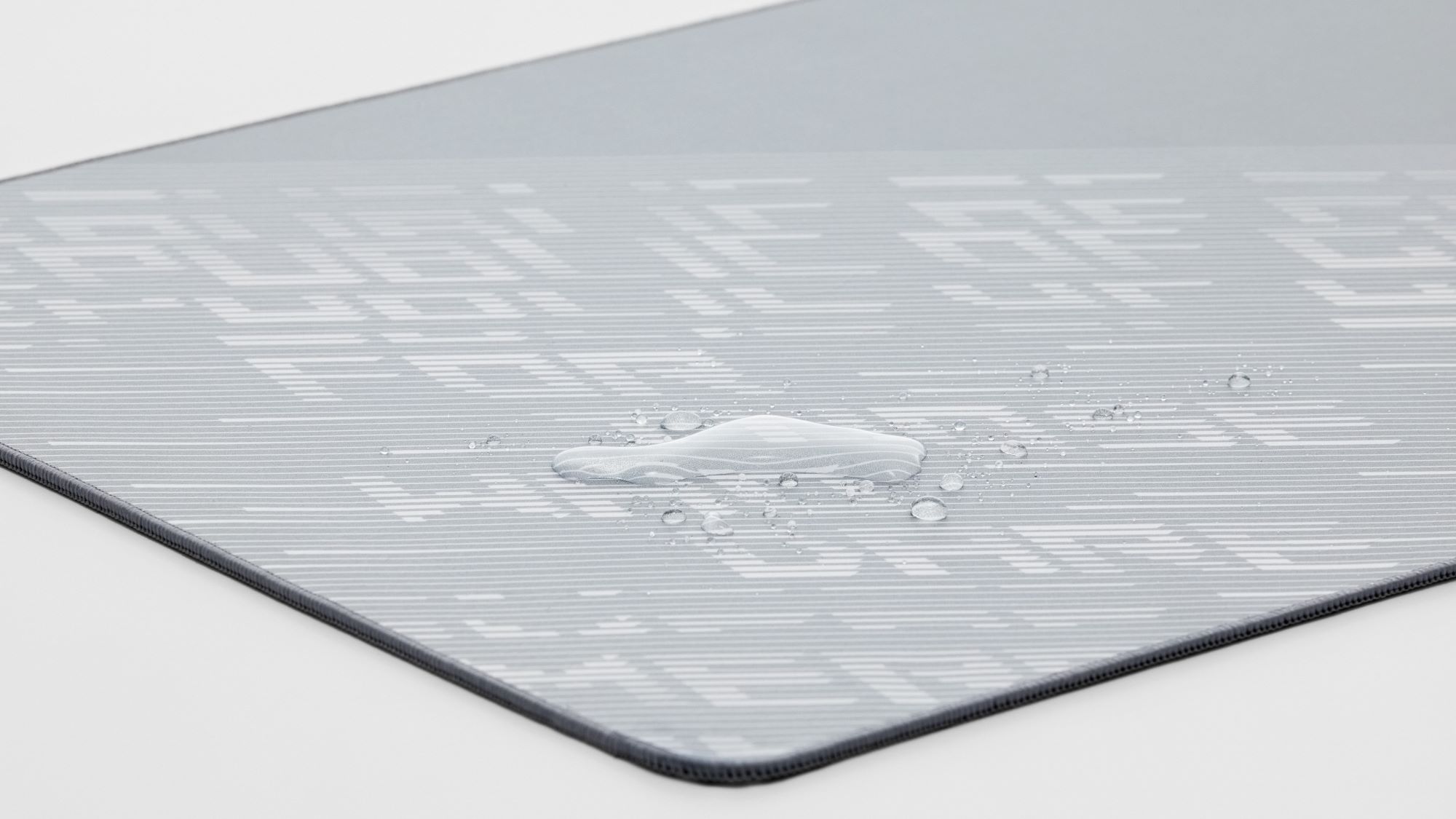
When it's time for a quick refresh, gentle cleaning is usually all that's needed for a fabric mouse pad.
We recommend cleaning your mouse pad by wiping it gently with a damp cloth or a small amount of mild detergent. This is enough to remove everyday dust, fingerprints, and surface grime. Avoid using alcohol or harsh cleaning agents, as they can affect the finish and long-term durability of the mouse pad’s materials.
After wiping the surface, allow the mouse pad to air dry completely before placing your mouse back on it. This helps ensure the surface retains its intended texture and performance.
Good habits for clean gaming
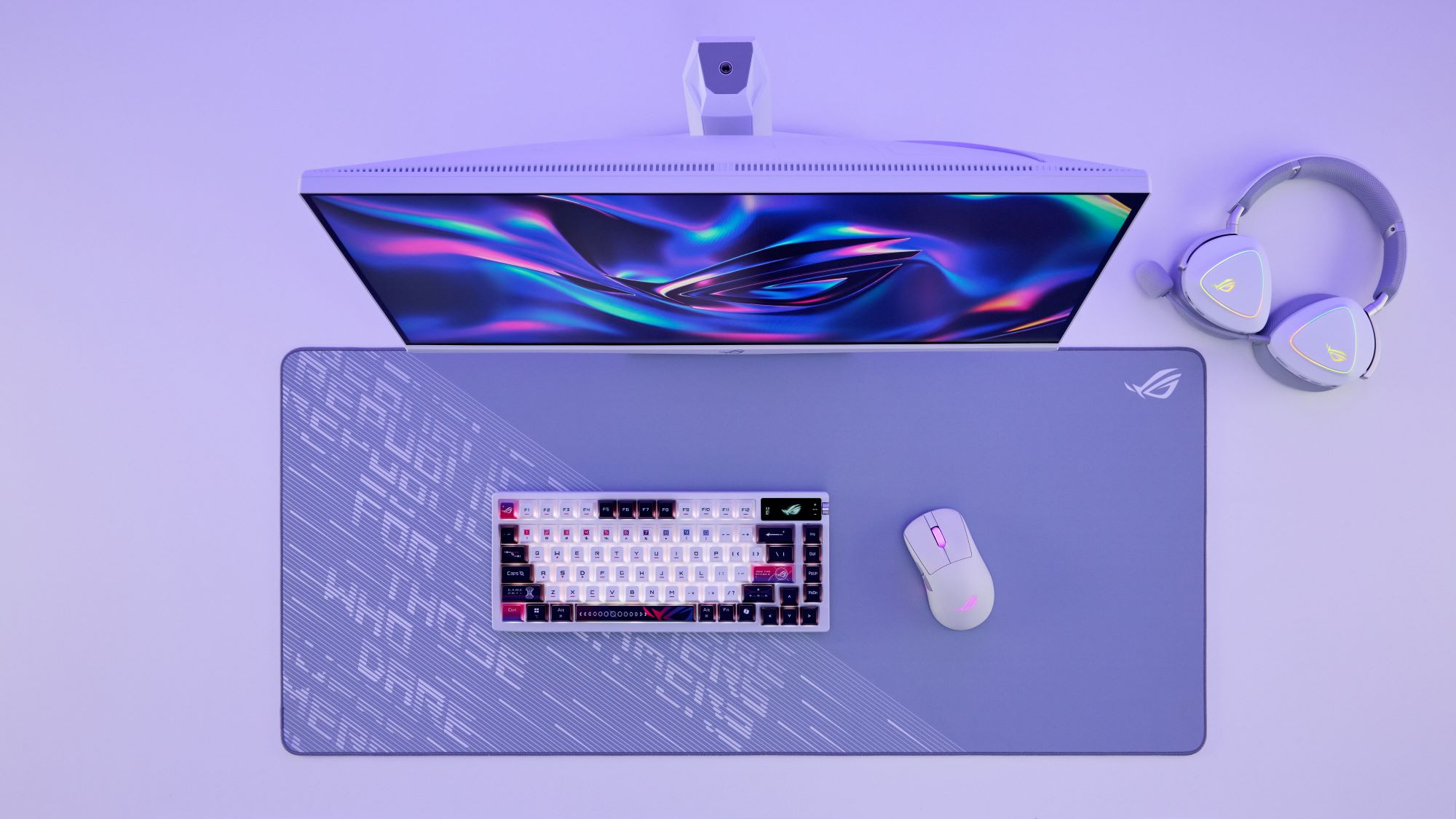
While regular cleaning helps restore your mouse pad, a few simple habits can slow down the buildup of dirt in the first place.
Keeping food and drinks away from your gaming area minimizes the risk of stains and sticky residue. Washing your hands before long gaming sessions also reduces the transfer of skin oils onto the surface. And if you regularly dust your desk while cleaning your keyboard and monitor, giving your mouse pad a quick wipe at the same time only takes a few extra seconds.
You can also make your life easier by leveling up to an ROG mouse pad. For example, the ROG Hone Ace Aim Lab Edition's cloth surface has a protective coating that's repellent against water, oil, and dust, minimizing cleaning needs. And if you prefer a glass mouse pad, the ROG Moonstone Ace L's scratch-resistant tempered glass is a breeze to clean. Thanks to its incredibly smooth surface, you'll have an easy time wiping it down when needed.
A little maintenance goes a long way
Your gaming mouse pad is the foundation of every movement you make in-game. Taking a few moments to clean it regularly helps preserve the smooth glide, consistent tracking, and premium finish that make every session more enjoyable. So go grab a damp cloth and keep your desk mat fresh. Then, read up on how to clean your OLED monitor to ensure the rest of your setup looks just as sharp.
Author
Popular Posts
How to adjust your laptop's P-Cores and E-Cores for better performance and battery life

The ROG Strix OLED XG259QWPG Ace is a tournament-ready OLED designed for esports pros

The ROG XREAL R1 gaming glasses let you game anywhere on a 171-inch 240Hz virtual screen

How to Cleanly Uninstall and Reinstall Armoury Crate
New 24.5-inch ROG monitors bring OLED panel tech to the esports arena
LATEST ARTICLES
How to unlock the maximum TGP of your ROG gaming laptop in Armoury Crate's Manual Mode
If you want to push your laptop GPU's Total Graphics Power (TGP) and CPU wattage to its maximum, Manual Mode in Armoury Crate will get you there.
How to configure your ROG XBOX Ally X20's OLED display for the best HDR picture quality
Wondering how to set up HDR on your ROG Xbox Ally X20? Here's how to get the best picture from its OLED display, plus Auto HDR and OLED Care tips.
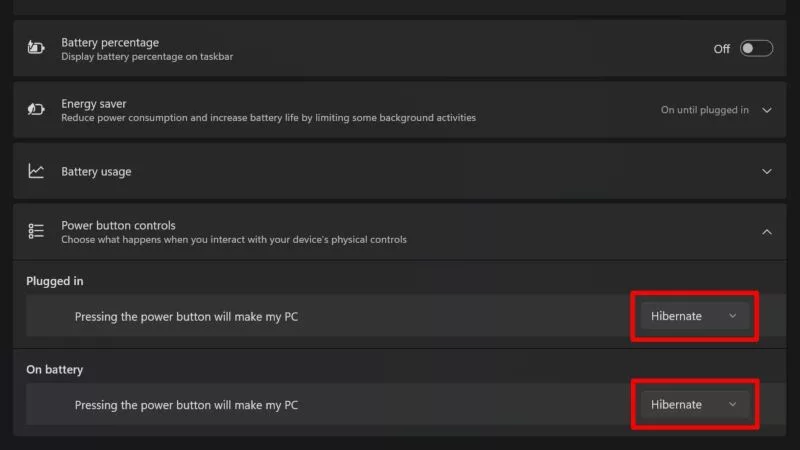
Sleep vs. Hibernate on the ROG XBOX Ally: battery life, game resume, and wake speed
By default, your ROG XBOX Ally will go to sleep when you press the power button. But you can also put it into full hibernation — here's how.